

Send meeting invitations
After creating a meeting and finalizing the agenda, the next step is to send invitations to all co-owners of the building. You can send invitations via email, letter, or let the system respect each recipient's preferred delivery method.
Meeting timeline
On the Overview tab of the meeting, the timeline shows the key milestones:
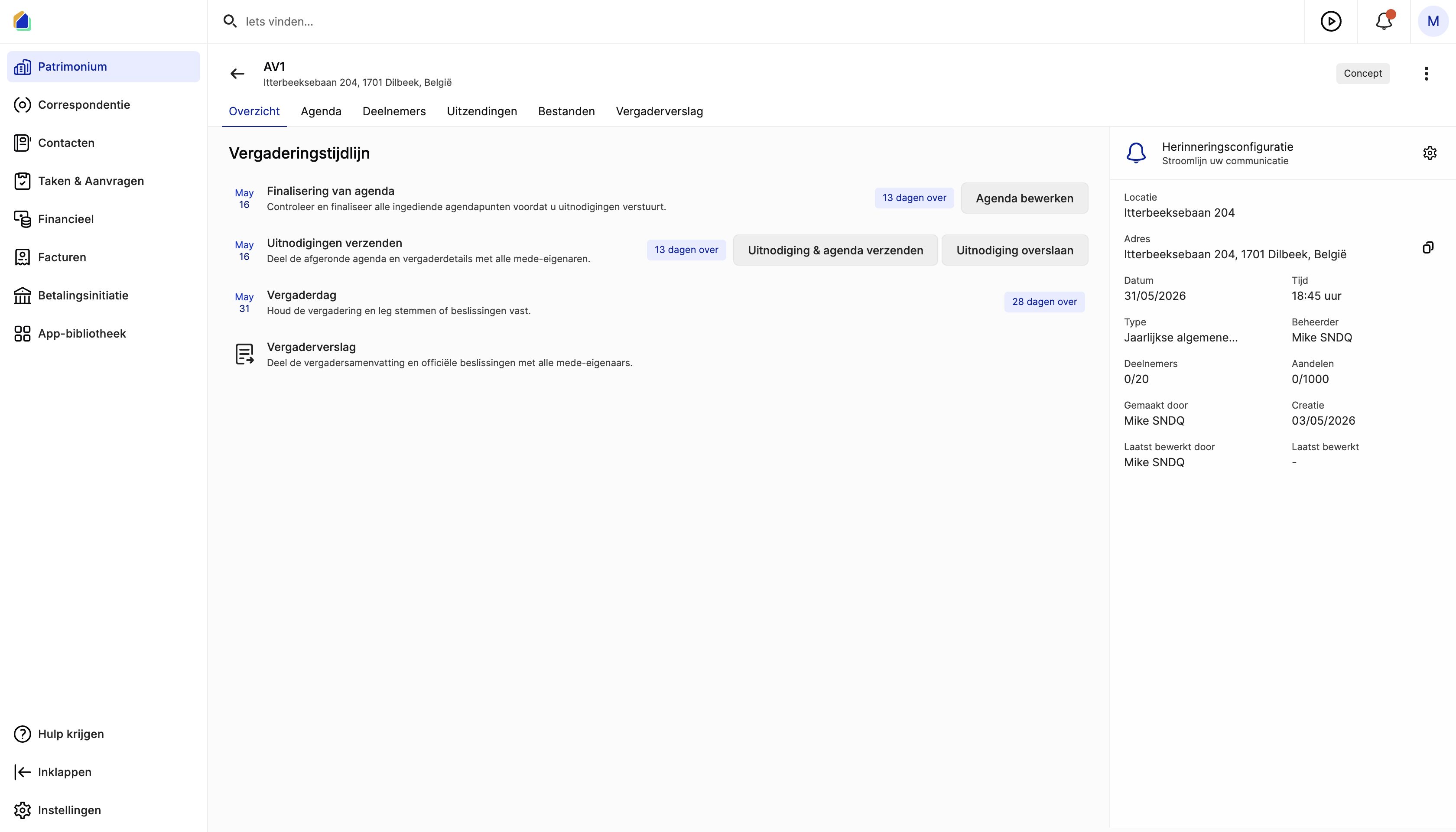
| Step | Description |
|---|---|
| Finalize agenda | Review and finalize all agenda items before sending invitations |
| Send invitations | Share the finalized agenda and meeting details with all co-owners |
| Meeting day | Hold the meeting and record votes and decisions |
| Meeting report | Share the meeting summary and official decisions with all co-owners |
Each step shows how many days remain (e.g. "13 days left").
Send or skip invitations
You have two options:
- Send invitation & agenda — opens the correspondence editor to compose and send invitations
- Skip invitation — if you already sent invitations outside the platform. The meeting moves directly to Scheduled status.
Set up the correspondence
The correspondence editor has two tabs:
| Tab | Description |
|---|---|
| Email message | The accompanying email that recipients see |
| PDF attachment | The official invitation and agenda as a PDF attachment |
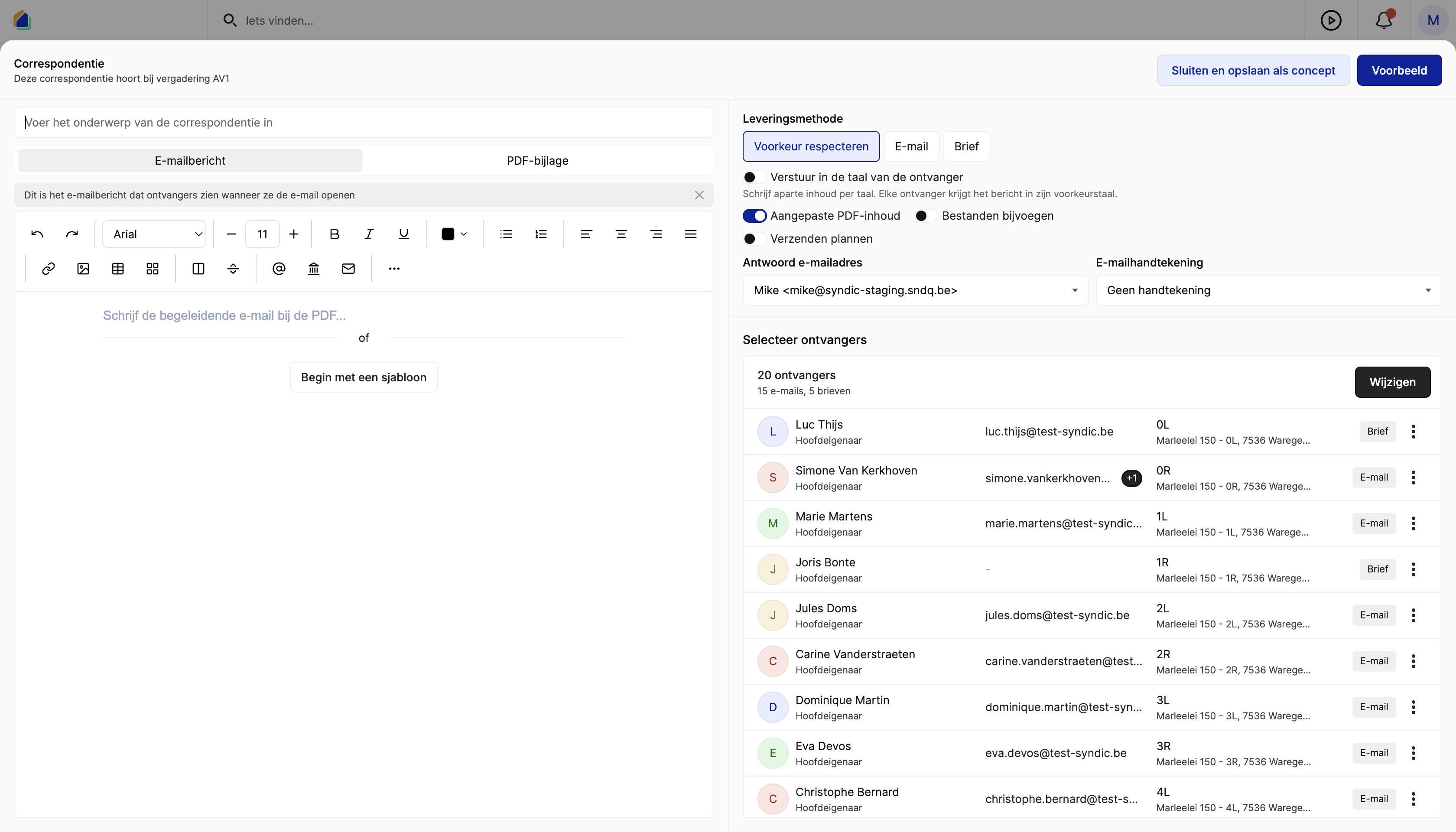
Write the email message
You can compose the email in two ways:
- Write manually — use the text editor with formatting options (bold, italic, underline, lists, tables, images, links)
- Insert a template — click Start with a template to load a pre-made template
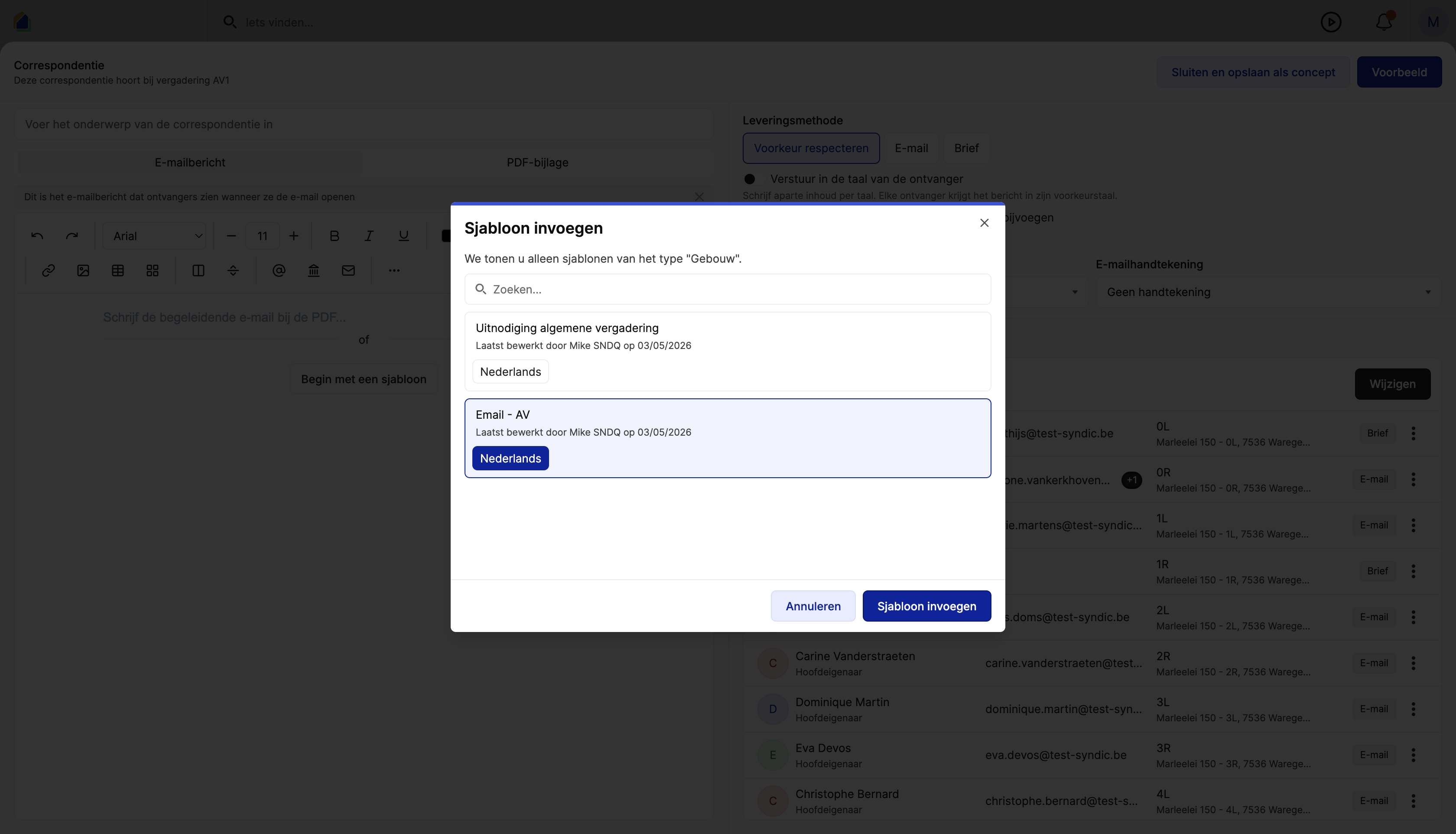
TIP
You can create and manage templates via Settings > Templates so you don't have to rewrite invitations each time.
Choose the delivery method
On the right side, choose how recipients receive the invitation:
| Method | Description |
|---|---|
| Respect preference | Each recipient gets the message according to their preferred setting (email or letter) |
| All recipients receive an email | |
| Letter | All recipients receive a physical letter by post |
Additional options:
| Option | Description |
|---|---|
| Send in recipient's language | Write separate content per language. Each recipient gets the message in their preferred language. |
| Custom PDF content | Customize the PDF attachment per recipient |
| Attach files | Add extra files to the correspondence |
| Schedule sending | Schedule the sending for a later time |
Select recipients
The recipient list is automatically compiled from the building's co-owners. Each row shows the name, role, email, unit, and delivery method. Click Edit to adjust the list.
Reply email and signature
| Field | Description |
|---|---|
| Reply email address | The email address where replies are received |
| Email signature | Select a signature or choose no signature |
Preview and send
Preview
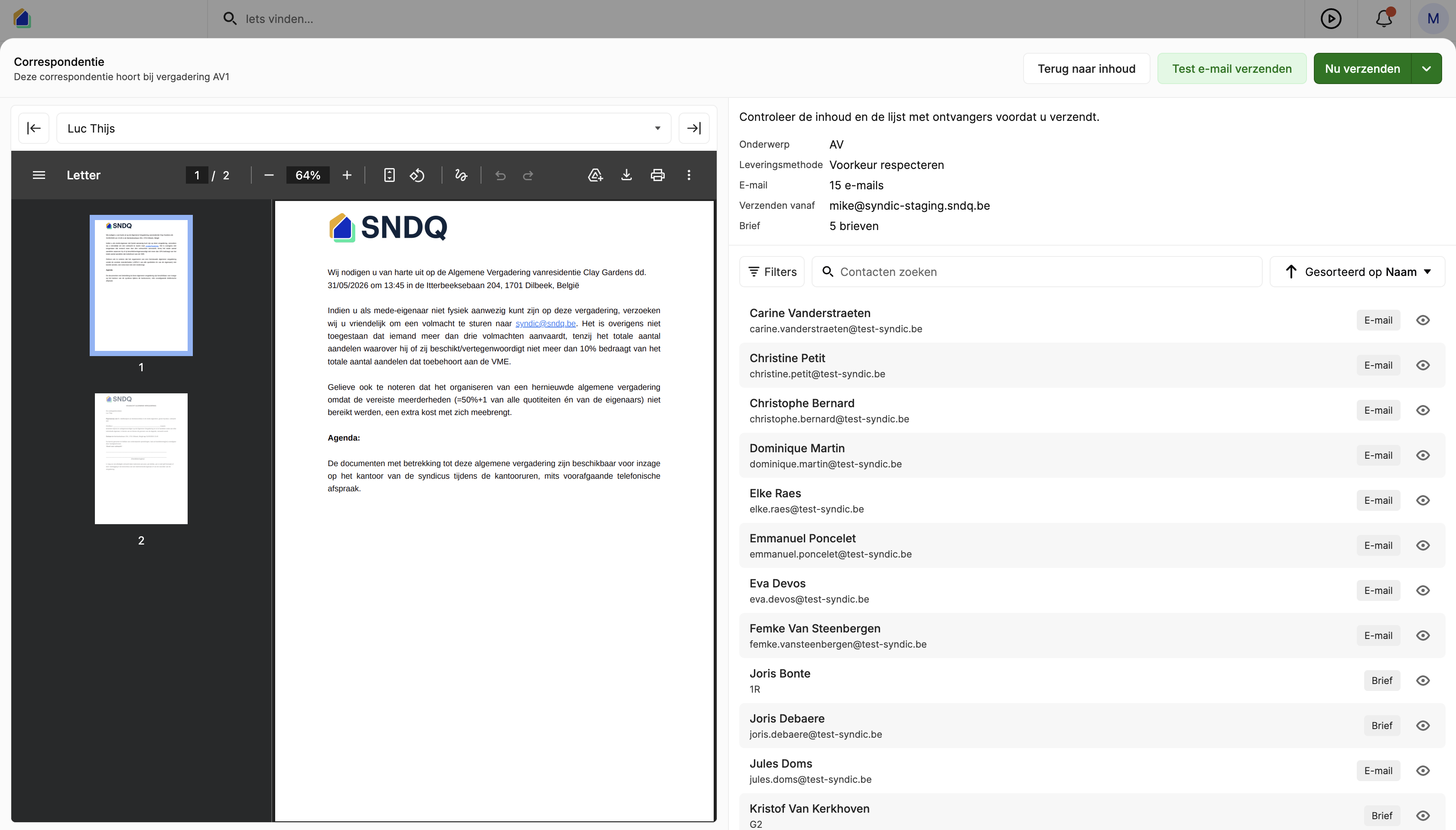
Click Preview in the top right to see how the message looks per recipient. The preview shows the letter/PDF on the left and the overview (subject, delivery method, recipient count) on the right. Navigate between recipients using the arrows at the top.
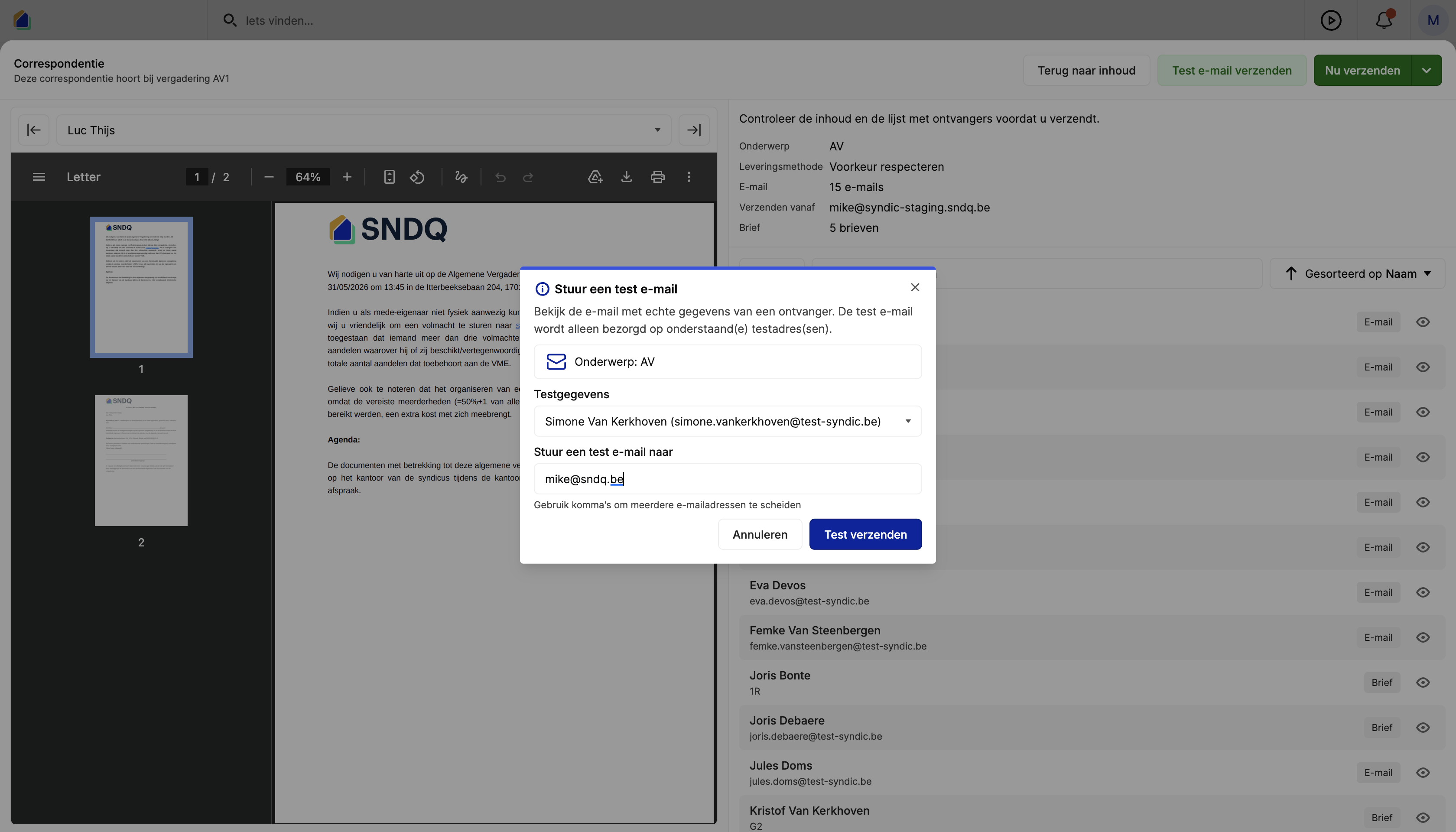
Test
Click Send test email to send a test email to yourself and verify the result before sending to all recipients.
Send
Click Send now to send the invitations. After sending:
- Emails are sent immediately
- Letters are prepared for print and delivery
- The meeting status updates to Scheduled
- Participants are created in the system
Video — Full flow: send meeting invitations
Good to know
- Legal deadline — for an Annual General Meeting, invitations must be sent at least 15 days before the meeting. The system shows the remaining days in the timeline.
- Language support — you can write the invitation in multiple languages. Each recipient receives the message in their preferred language.
- Save as draft — click Close and save as draft to continue working on the correspondence later.
- Letters — recipients without an email address automatically receive a physical letter.
Related articles
Need help?
Contact our team at info@sndq.be or use the Get Help option in the SNDQ application.