

Duplicate a meeting
Duplicating a meeting lets you quickly create a new meeting based on an existing one. This is especially useful for recurring meetings like the Annual General Meeting, where the agenda structure, voting configuration, and content remain largely the same each year.
Navigate to the meeting
Go to Patrimony → select a building → Meetings tab → open the meeting you want to duplicate.
Duplicate
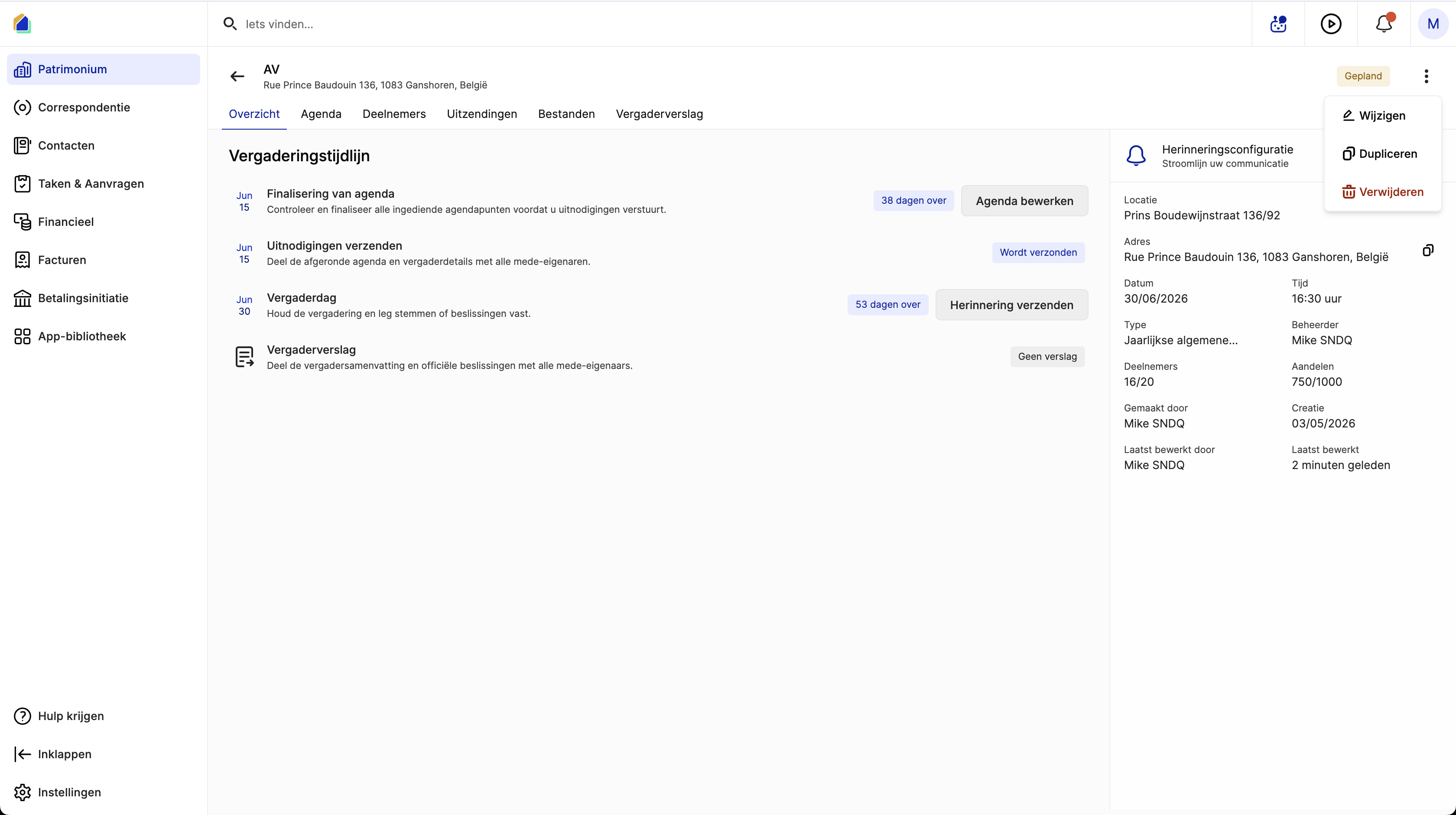
On the Overview tab, click the three-dot menu (⋮) in the top right corner and select Duplicate.
Configure the duplicate
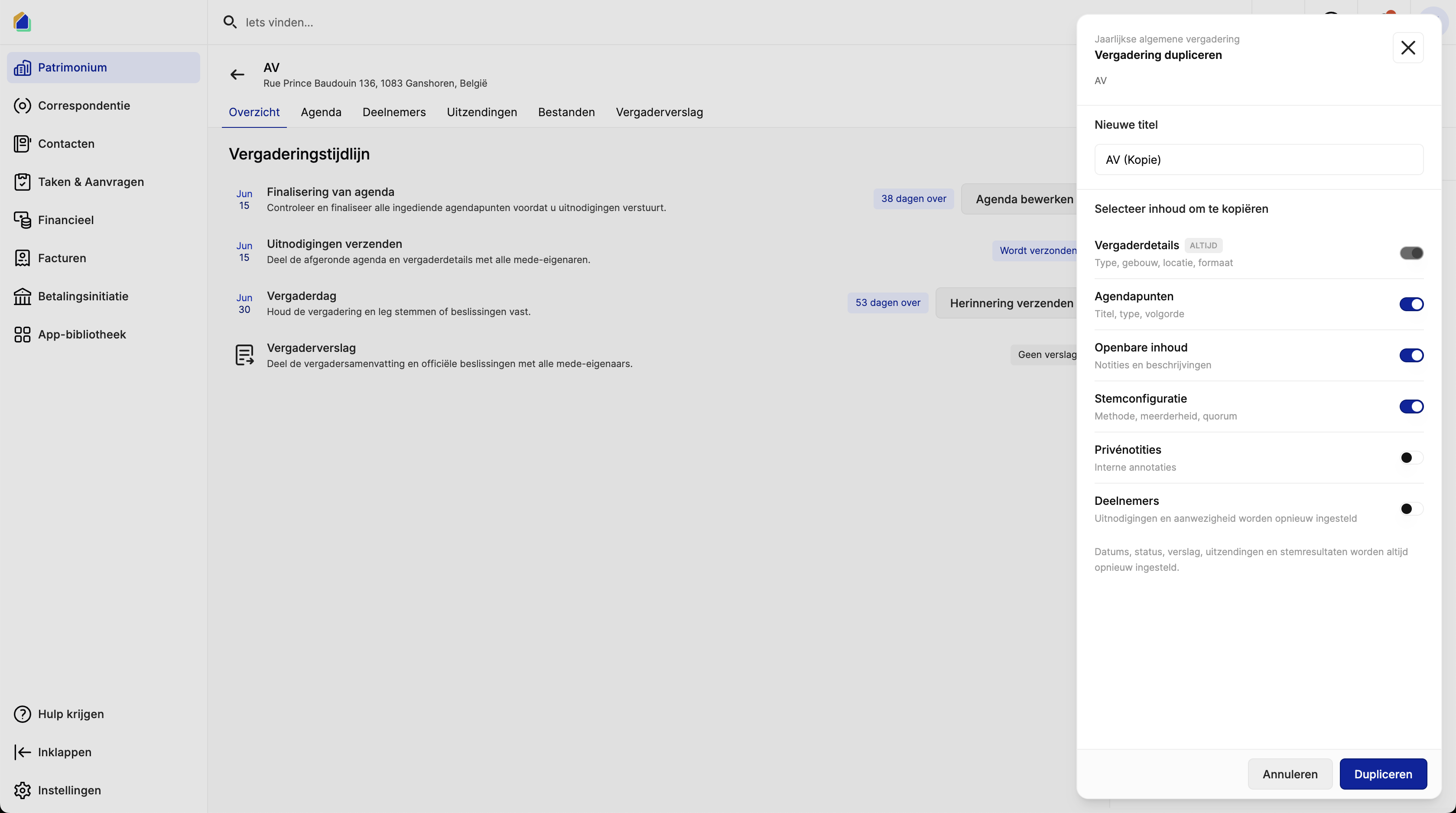
A duplication panel opens where you choose what to copy.
New title
Enter a name for the new meeting. By default it uses the original title with "(Copy)" appended.
Select content to copy
| Option | Description | Default |
|---|---|---|
| Meeting details | Type, building, location, format | Always copied |
| Agenda items | Agenda item titles, types, and order | On |
| Public content | Public notes and descriptions (minutes text) | On |
| Voting configuration | Voting method, majority rule, quorum settings | On |
| Private notes | Internal annotations (only visible to the organizer) | Off |
| Participants | Participant list — invitations and attendance are reset | Off |
Click Duplicate to create the copy.
What gets reset
Regardless of what you choose to copy, the following are always reset in the new meeting:
| Item | Description |
|---|---|
| Dates | Start/end date and time must be set again |
| Status | Reset to Draft |
| Vote results | All votes are cleared — must be re-registered |
| Meeting report | No report carried over — must be created fresh |
| Broadcasts | Invitations and reminders are not carried over |
When to use duplicate
| Scenario | Why duplicate |
|---|---|
| Annual General Meeting | Same agenda structure every year — appointment of chairperson, approval of accounts, budget, provisions |
| Quarterly meeting | Recurring meetings with similar agenda items |
| Template meeting | Create a base meeting once, then duplicate for each building |
Good to know
- Even if you copy Participants, their invitation status and attendance are reset. You will need to send new invitations.
- Copying Voting configuration carries over the majority rules and distribution key settings per agenda item, saving time on reconfiguration.
- If you copy Public content, the notes and minutes text from agenda items is included. Make sure to update the content for the new meeting period.
- After duplicating, open the new meeting to update the date, time, and any agenda items that need changes.
Related articles
Need help?
Contact our team at info@sndq.be or use the Get Help option in the SNDQ application.