

Manually assign a payment
After running Batch reconcile, some payments may remain unmatched — for example when the owner's IBAN or remittance info doesn't match. You can manually assign these remaining payments with Assign cost, to link a payment to a specific advance request (provision).
Select the payment
- Go to Financial > Accounts and open the bank account of the building
- Find the unassigned payment in the To process tab
- Click the payment to open its details panel on the right
Link to an advance request
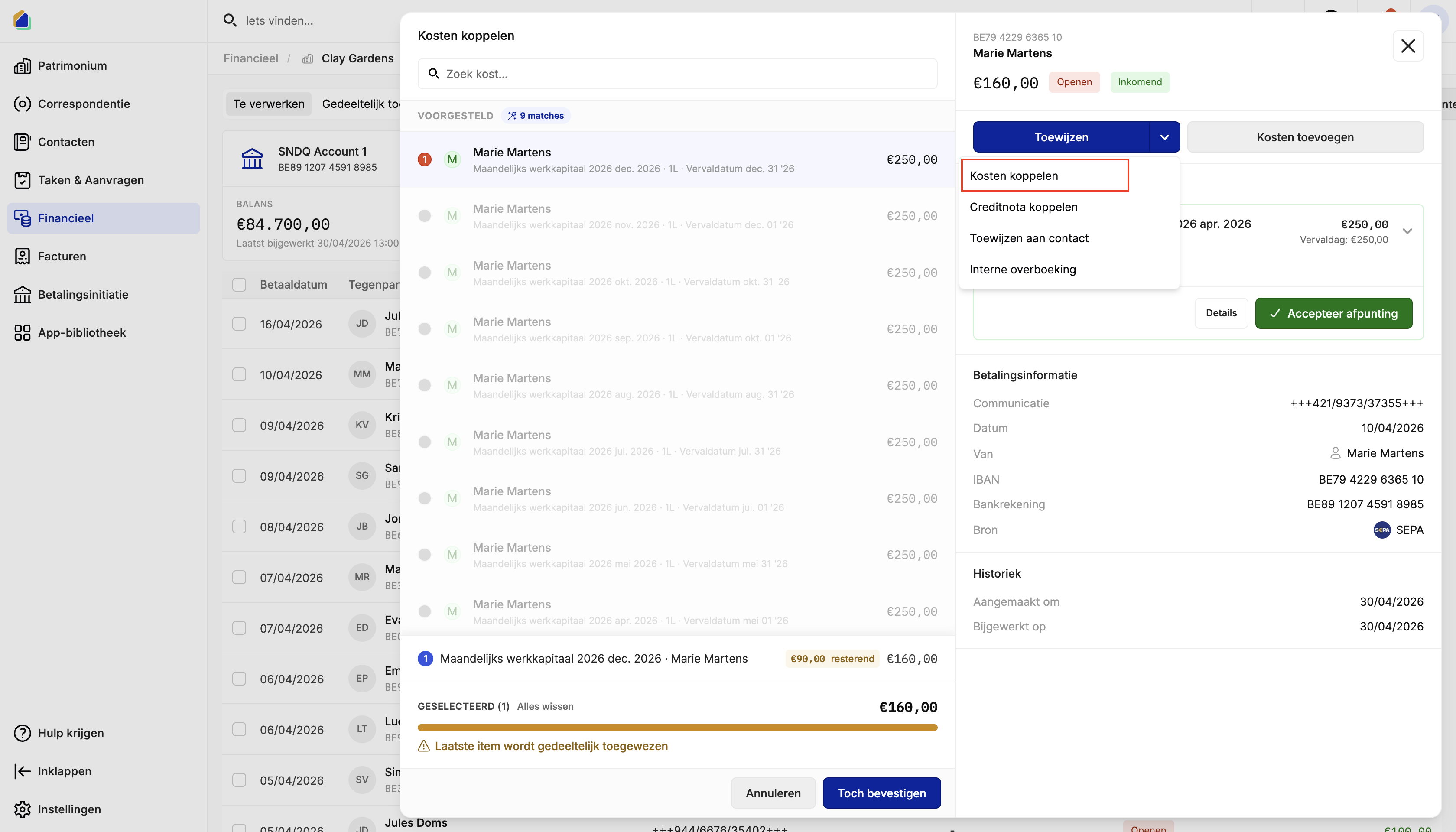
- Click the Assign dropdown button and select Assign cost
- A dialog opens showing a list of advance requests. The system automatically suggests matches based on the account holder name and remittance info
- Select the correct advance request for the right month or quarter
- Use the search bar to search by owner name if needed
- Click Confirm
Partial assignment
If the payment amount is less than the advance request amount, the system will partially assign it. You will see a note at the bottom of the dialog indicating that the last item will be partially assigned.
Related articles
Need help?
Contact our team at info@sndq.be or use the Get Help option in the SNDQ application.