

Manage meeting participants
Before a meeting can proceed with voting, you need to register which owners are present or absent. RSVP lets you manage responses before the meeting, and attendance registration records actual presence on the day.
Participants overview
Go to your meeting and click the Participants tab. You see a table with all co-owners:
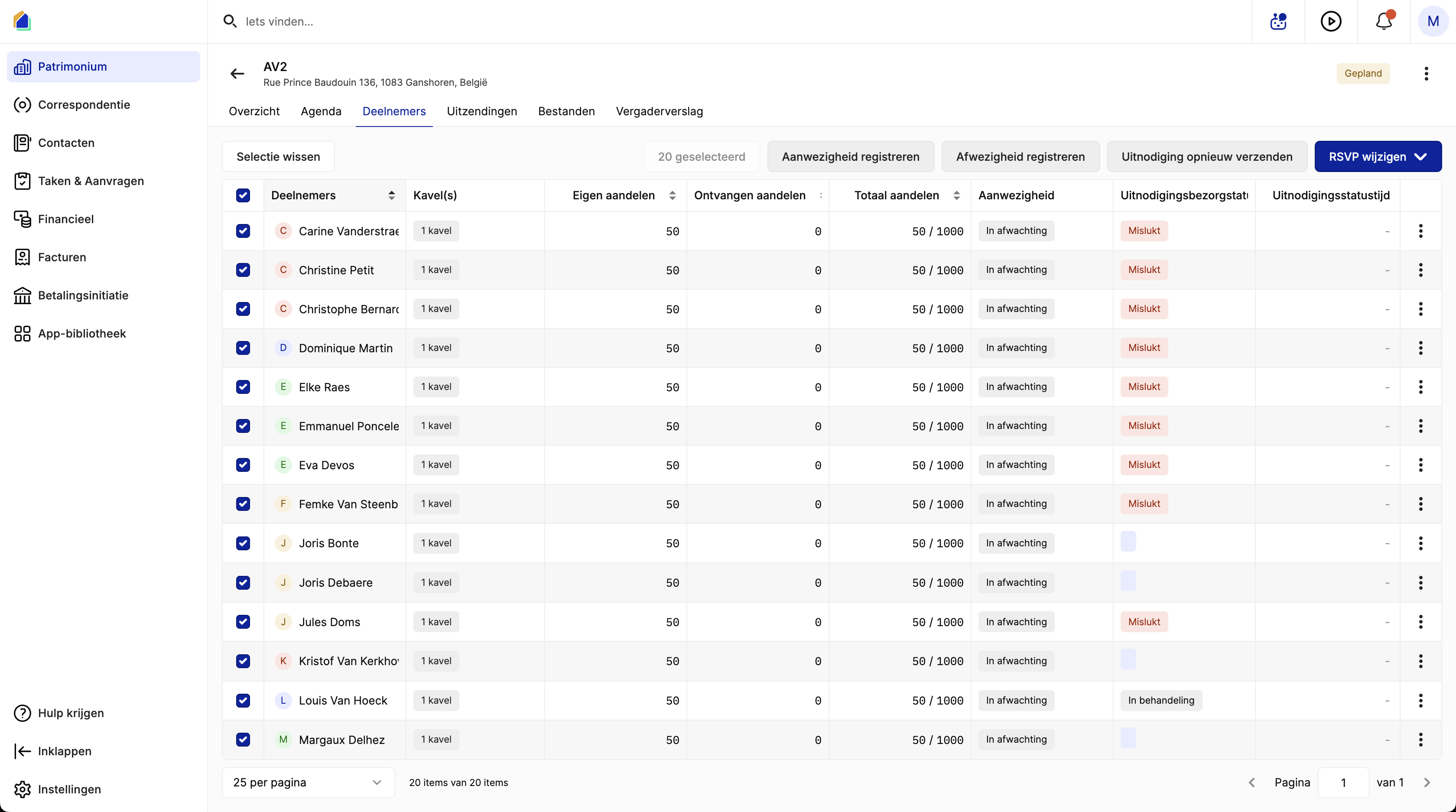
| Column | Description |
|---|---|
| Participant | Name of the co-owner |
| Units | Number of units owned |
| Own shares | Shares held by the co-owner |
| Received shares | Shares received via proxy |
| Total shares | Own shares + received shares out of total |
| Attendance | Current attendance status |
| Invitation delivery status | Whether the invitation was delivered successfully |
| Invitation status time | Timestamp of the invitation status |
RSVP — manage responses
Bulk RSVP update
Select participants using the checkboxes (or select all), then click Change RSVP in the top right. A dropdown appears with these options:
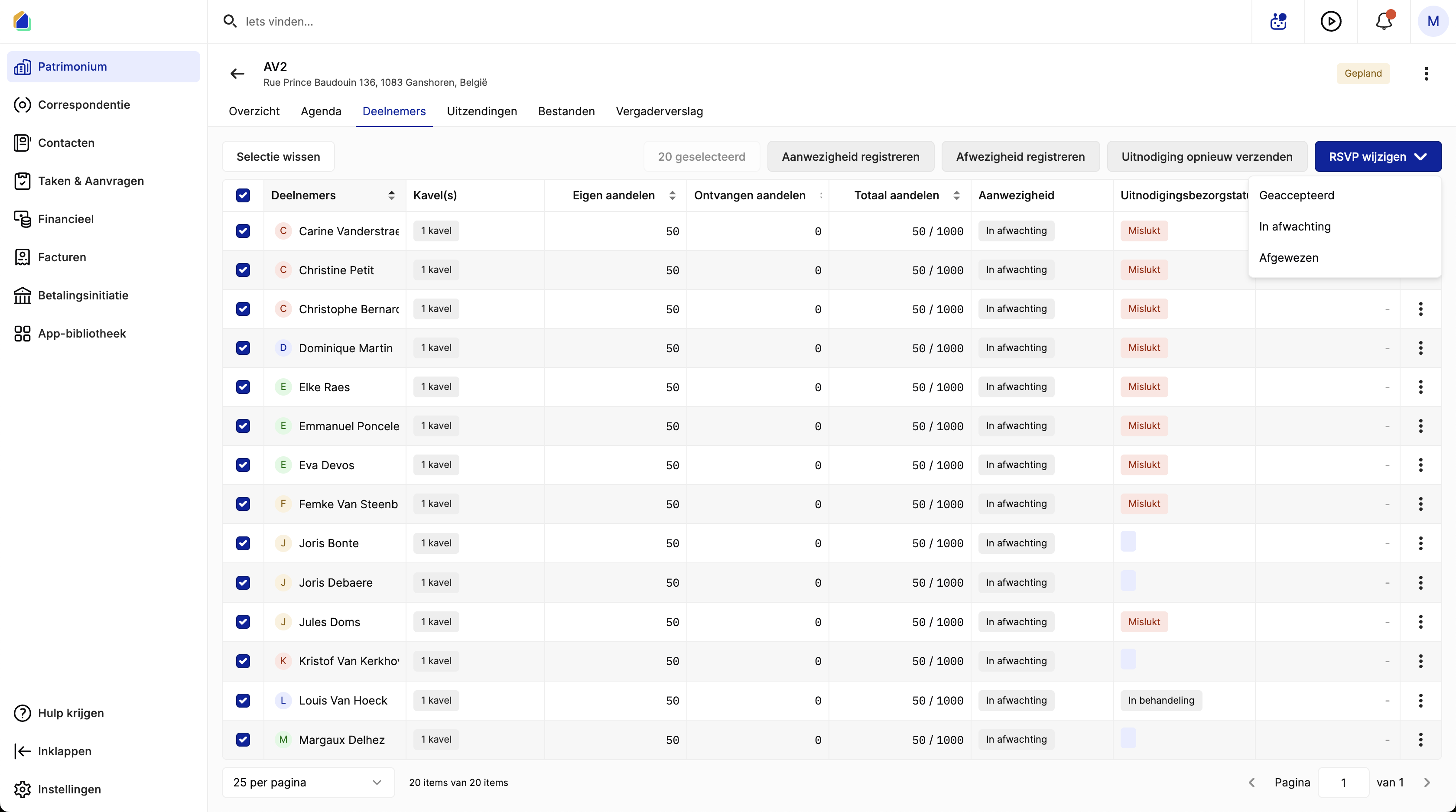
| Status | Description |
|---|---|
| Accepted | The co-owner confirmed attendance |
| Pending | No response yet (default) |
| Rejected | The co-owner declined the invitation |
| Transferred | The co-owner transferred their voting shares to another participant |
Individual RSVP
Select a single participant and click Change RSVP. A side panel opens where you can set the status.
| Field | Description |
|---|---|
| Status | Choose: Present, Rejected, or Pending |
| Transfer their shares | When Rejected — assign voting shares to another present owner. See Register proxies. |
| Receive shares from another owner | When Present — receive shares from an absent owner. See Register proxies. |
Click Save RSVP to confirm.
Register attendance
On the day of the meeting, register actual attendance. Select participants using the checkboxes, then use the bulk action buttons in the toolbar:
| Button | Description |
|---|---|
| Register attendance | Mark selected participants as Present |
| Register absence | Mark selected participants as Absent |
| Resend invitation | Resend the invitation to selected participants |
After registering attendance, the list updates with colored status labels:
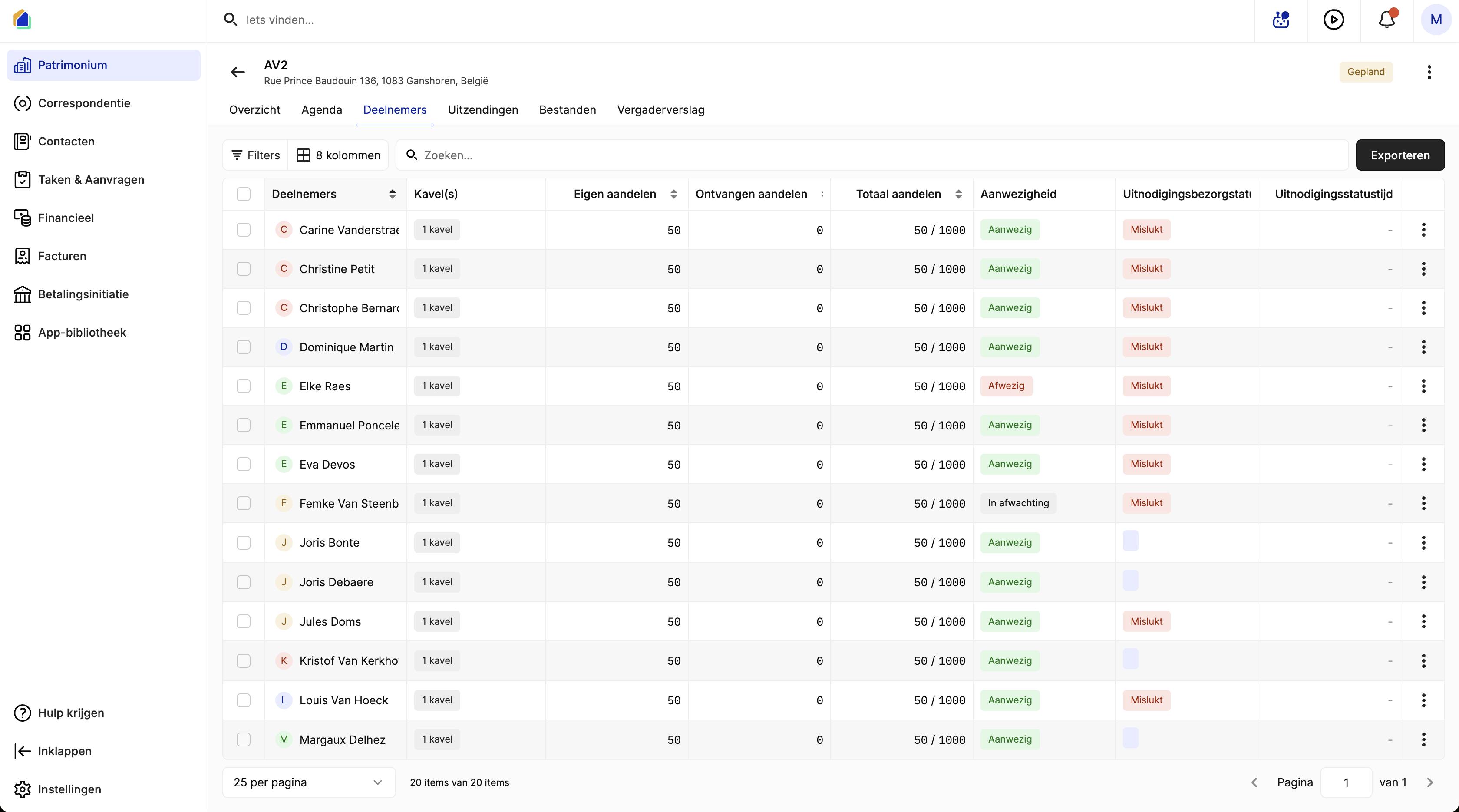
| Status | Color | Description |
|---|---|---|
| Present | Green | Owner is present at the meeting |
| Absent | Red | Owner is absent |
| Pending | Grey | Attendance not yet registered |
Resend invitation
If invitation delivery failed, check the Invitation delivery status column. Select the affected participants and click Resend invitation to retry delivery.
| Status | Description |
|---|---|
| Failed | Invitation could not be delivered (e.g. no email address, invalid email) |
| Processing | Invitation is being processed or sent |
| (empty) | No invitation sent yet |
Workflow summary
| Step | Action | When |
|---|---|---|
| 1 | Send invitations | before the meeting (via Broadcasts tab) |
| 2 | Manage RSVP | as owners respond |
| 3 | Register proxies | for absent owners |
| 4 | Register attendance | on the day of the meeting |
| 5 | Export attendance list | before or during the meeting |
| 6 | Proceed to voting | after attendance is registered |
Video — Manage meeting participants
Good to know
- Attendance must be registered before voting — the system uses the attendance list to determine who can vote and their effective voting weight.
- RSVP vs. Attendance — RSVP is the owner's pre-meeting response. Attendance is the actual registration on the day. Both can differ.
- Failed invitations — if an invitation shows Failed, check if the owner has a valid email address in their contact record.
- Bulk actions — select multiple participants to update RSVP, register attendance, or resend invitations in bulk.
Related articles
Need help?
Contact our team at info@sndq.be or use the Get Help option in the SNDQ application.