

Settle an invoice via reserve capital
Use this workflow when a supplier invoice should be paid from the building’s reserve capital instead of being charged to owners on their cost settlements. You create a reserve capital withdrawal, then link it to the invoice in Cost distribution. Costs settled this way are deducted from the reserve capital balance and do not appear on owners’ cost settlements.
Prerequisites
| Requirement | Where to configure |
|---|---|
| Enough available reserve capital for the building | Financial → building → Requests / reserve capital |
| Invoice booked and visible in Cost distribution | Financial → Invoices → Cost distribution |
| A suitable distribution key for the withdrawal | Patrimony → building → distribution keys |
TIP
If the available reserve capital is too low, create an advance request first (see Create advance requests — request type Reserve fund).
Workflow summary
| Step | What happens |
|---|---|
| 1 | Open the invoice in Cost distribution and choose Settle via reserve capital |
| 2 | Add a new reserve capital withdrawal (if none is open yet) |
| 3 | Set amount, date, description, and ledger account |
| 4 | Distribute the withdrawal among owners |
| 5 | Review and confirm the withdrawal |
| 6 | Link the open withdrawal to the invoice and settle |
| 7 | Verify the link on the invoice and under Requests |
Video — Full flow: settle via reserve capital
Open cost distribution
- Go to Financial → Invoices → Cost distribution
- Select the building
- Find the invoice to settle (for example under Distribute later)
- Open the distribution menu on that invoice row
- Click Settle via reserve capital...
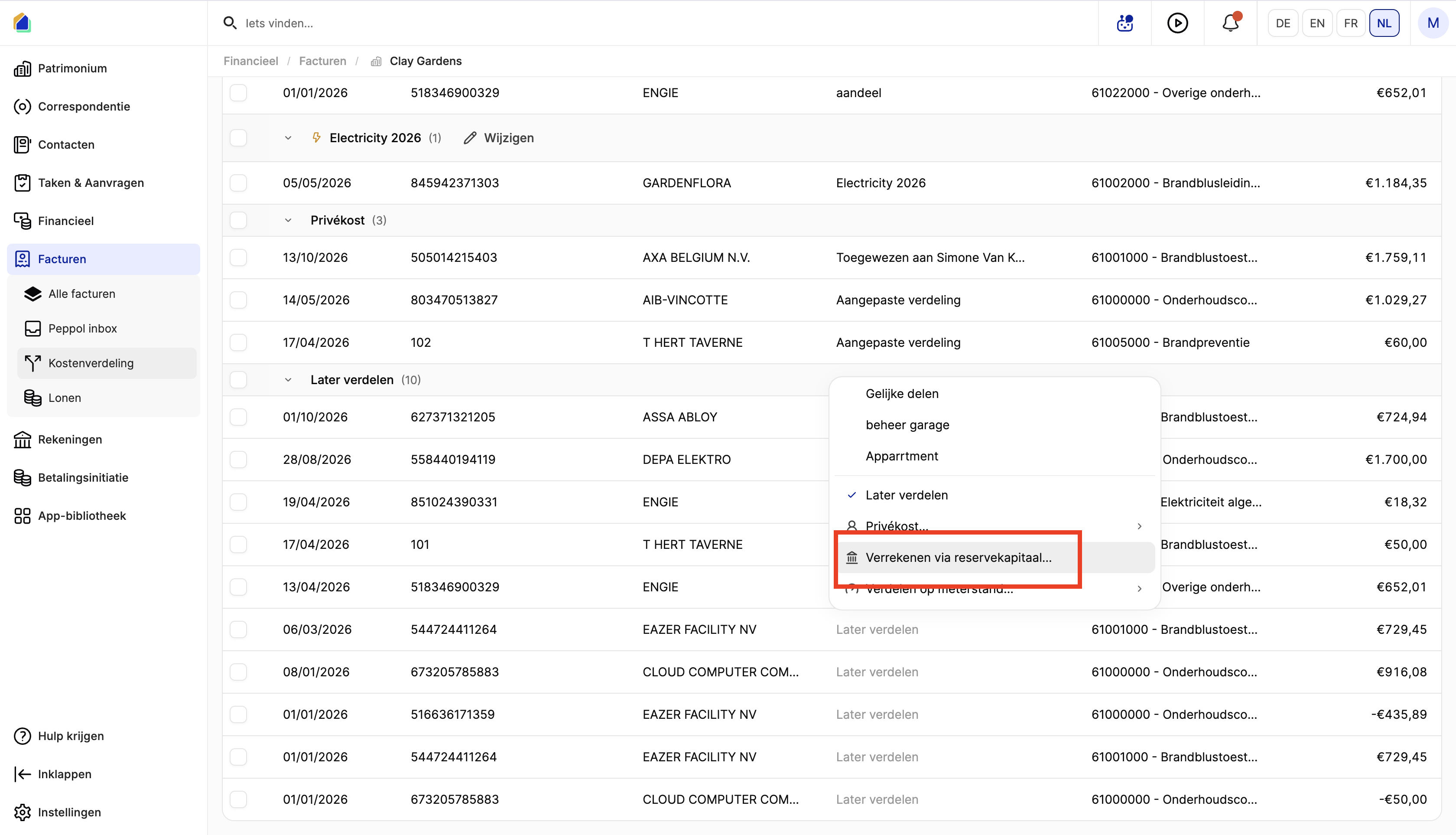
| Menu option | Meaning |
|---|---|
| Equal parts | Split equally |
| Distribute later | Keep for later allocation |
| Private cost... | Charge as a private cost |
| Settle via reserve capital... | Settle against reserve capital ← select this |
| Distribute by meter reading... | Allocate by meter reading |
Add a new withdrawal
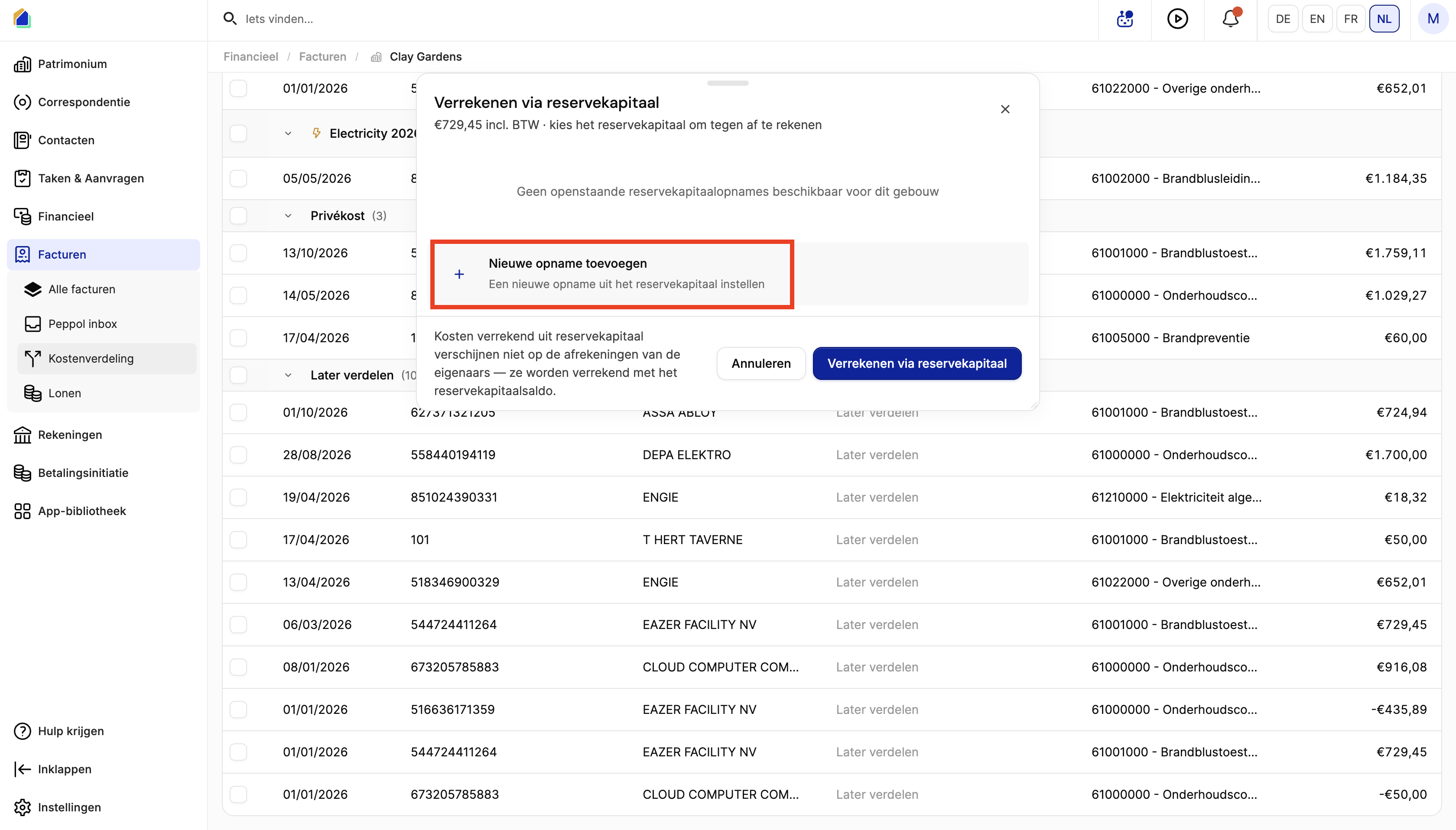
The Settle via reserve capital modal opens and shows the invoice amount (incl. VAT).
If no open withdrawals exist, you see: No outstanding reserve capital withdrawals available for this building.
- Click + Add new withdrawal
- Subtext: Set up a new withdrawal from the reserve capital
TIP
Costs settled from reserve capital do not appear on owners’ cost settlements — they are settled against the reserve capital balance.
Set up the withdrawal
The wizard opens on New reserve capital withdrawal → step Set up withdrawal.
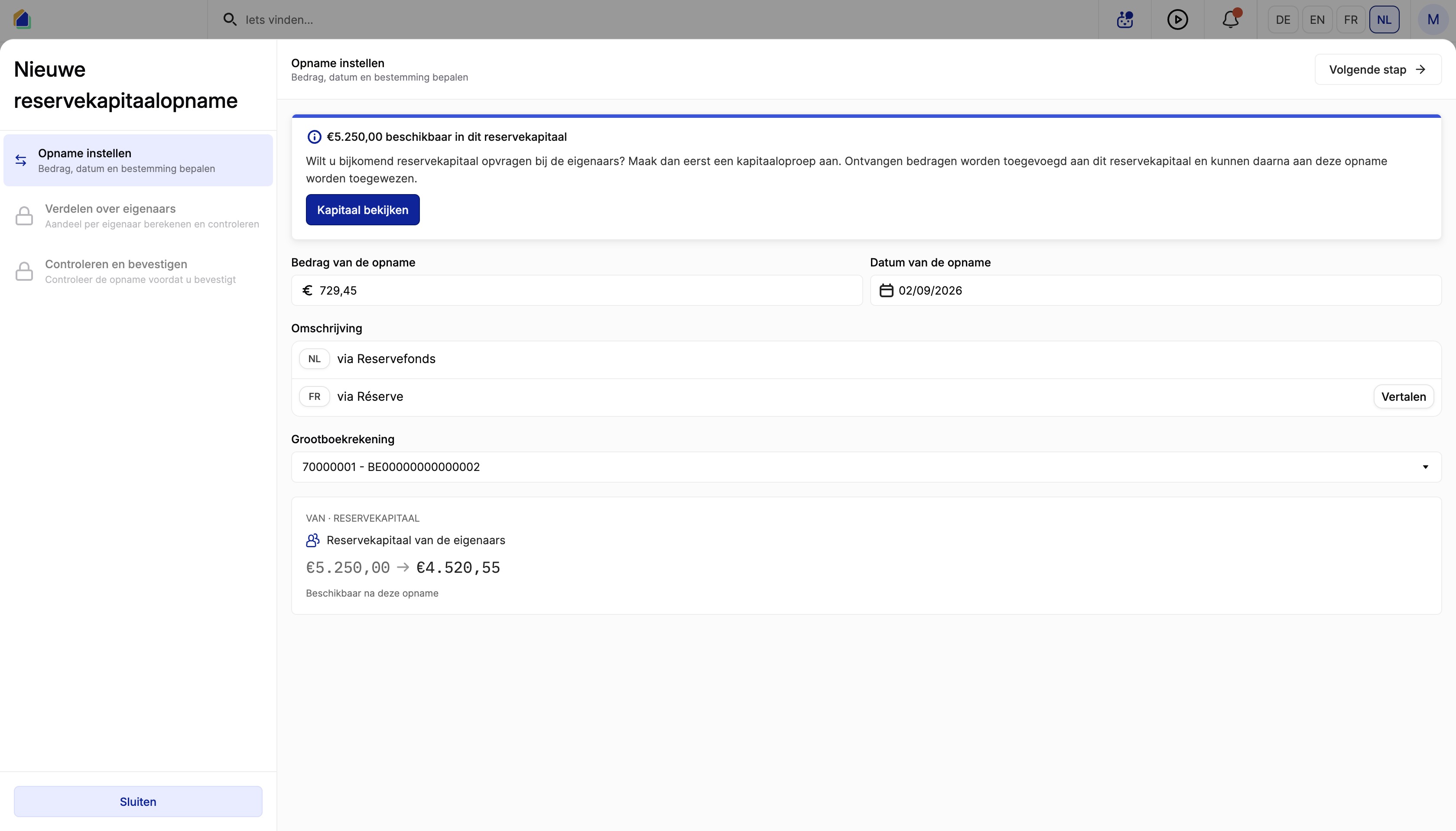
| Field | Description | Required |
|---|---|---|
| Withdrawal amount | Amount to withdraw; usually matches the invoice | Yes |
| Withdrawal date | Date of the withdrawal | Yes |
| Description | Multilingual description (NL / FR). Use Translate if needed | Yes |
| General ledger account | Destination / reserve ledger account | Yes |
- Check the blue banner for the available balance. If more is needed, create an advance request of type Reserve fund first — optional: View capital
- Review the summary FROM · RESERVE CAPITAL: balance after withdrawal (Available after this withdrawal)
- Click Next step →
Distribute among owners
Wizard step Distribute among owners — calculate and check each owner’s share.
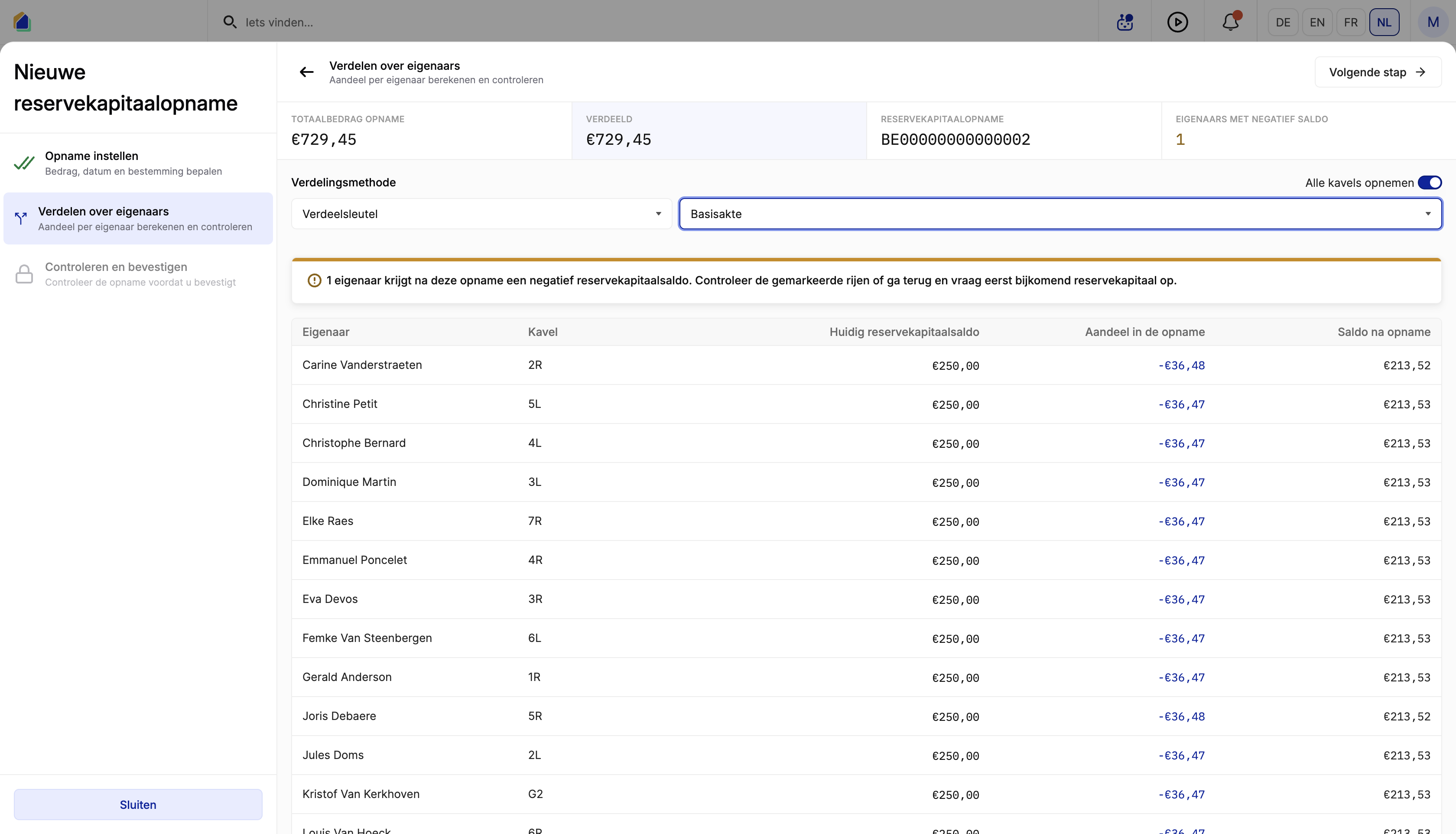
Confirm that Total withdrawal amount and Distributed match.
| Field | Description | Required |
|---|---|---|
| Distribution method | How shares are calculated (e.g. Distribution key) | Yes |
| Distribution key | Specific key (e.g. Basisakte) | Yes |
| Include all lots | Toggle to include all units | — |
| Column | Meaning |
|---|---|
| Owner | Co-owner |
| Lot | Unit |
| Current reserve capital balance | Balance before withdrawal |
| Share in the withdrawal | Amount deducted (negative) |
| Balance after withdrawal | Resulting balance |
WARNING
A yellow warning may appear if an owner would get a negative reserve capital balance. Check the marked rows, or go back and create an additional advance request of type Reserve fund first. The summary can show Owners with negative balance.
Click Next step when the distribution looks correct.
Review and confirm the withdrawal
Wizard step Check and confirm.
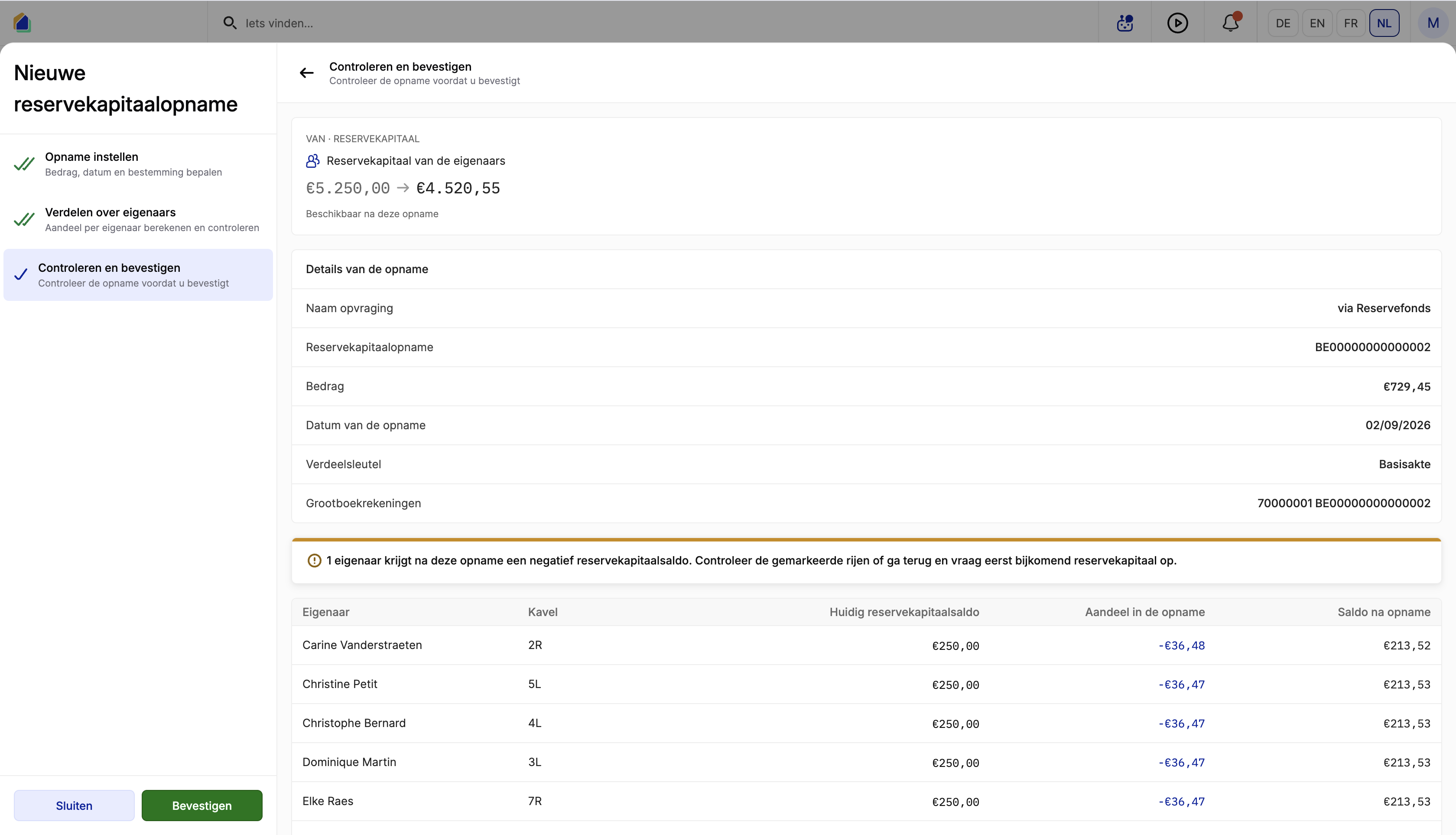
Review Withdrawal details:
| Field | Description |
|---|---|
| Request name | Description of the withdrawal |
| Reserve capital withdrawal | Reference / identifier |
| Amount | Withdrawal amount |
| Withdrawal date | Date of the withdrawal |
| Distribution key | Key used for the split |
| General ledger accounts | Linked ledger account(s) |
- Re-check owner balances and any negative-balance warning
- Click Confirm to create the withdrawal — or Close to exit without confirming
Link the withdrawal to the invoice
After confirming, you return to Settle via reserve capital.
- Select the open withdrawal (status Open, available amount shown)
- Optionally use + Add new withdrawal for another withdrawal
- Click Settle via reserve capital to finalize — or Cancel
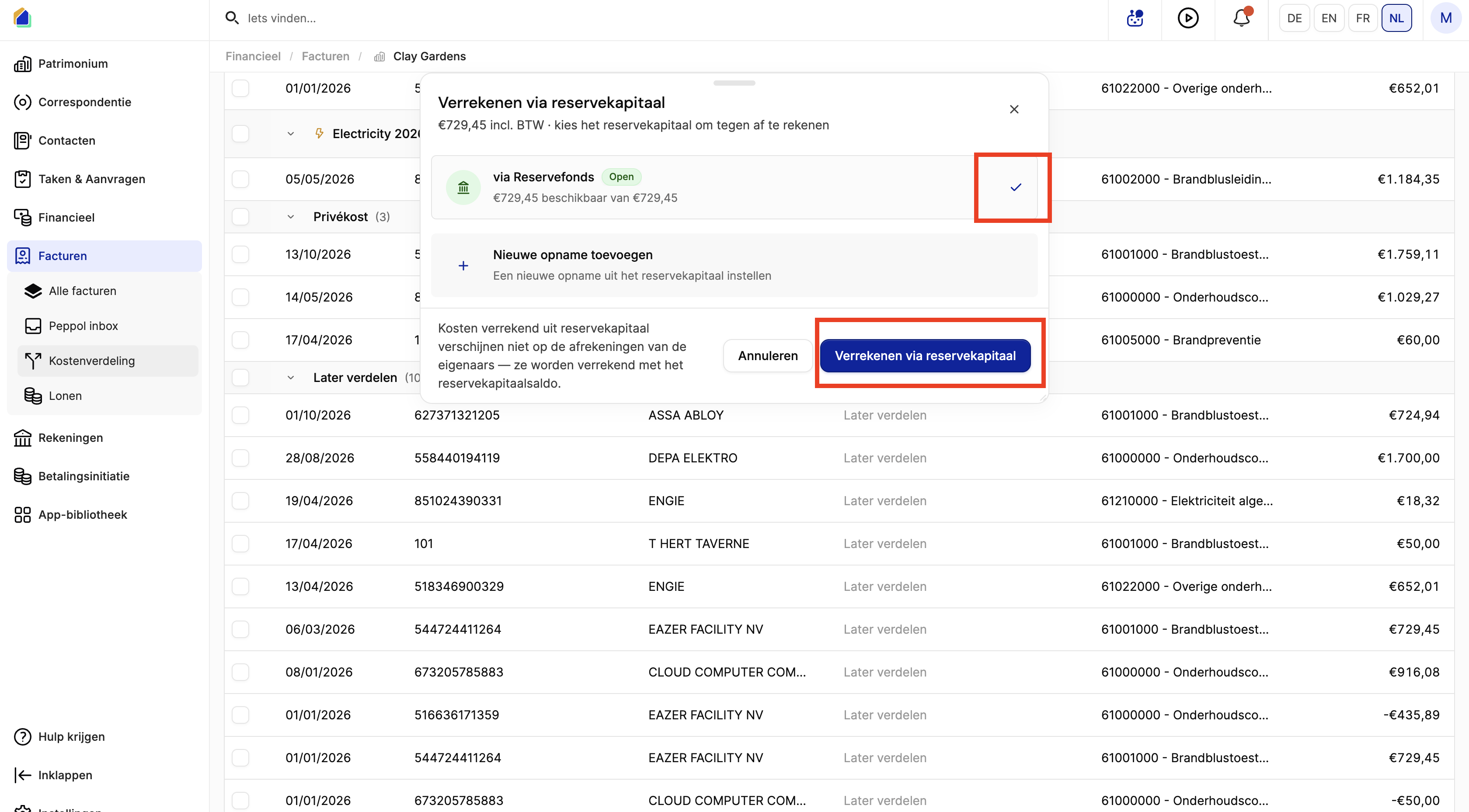
Verify on the invoice
- Go to Financial → Invoices → Cost distribution
- The invoice list shows a Reserve capital badge on the invoice
- Open the invoice detail
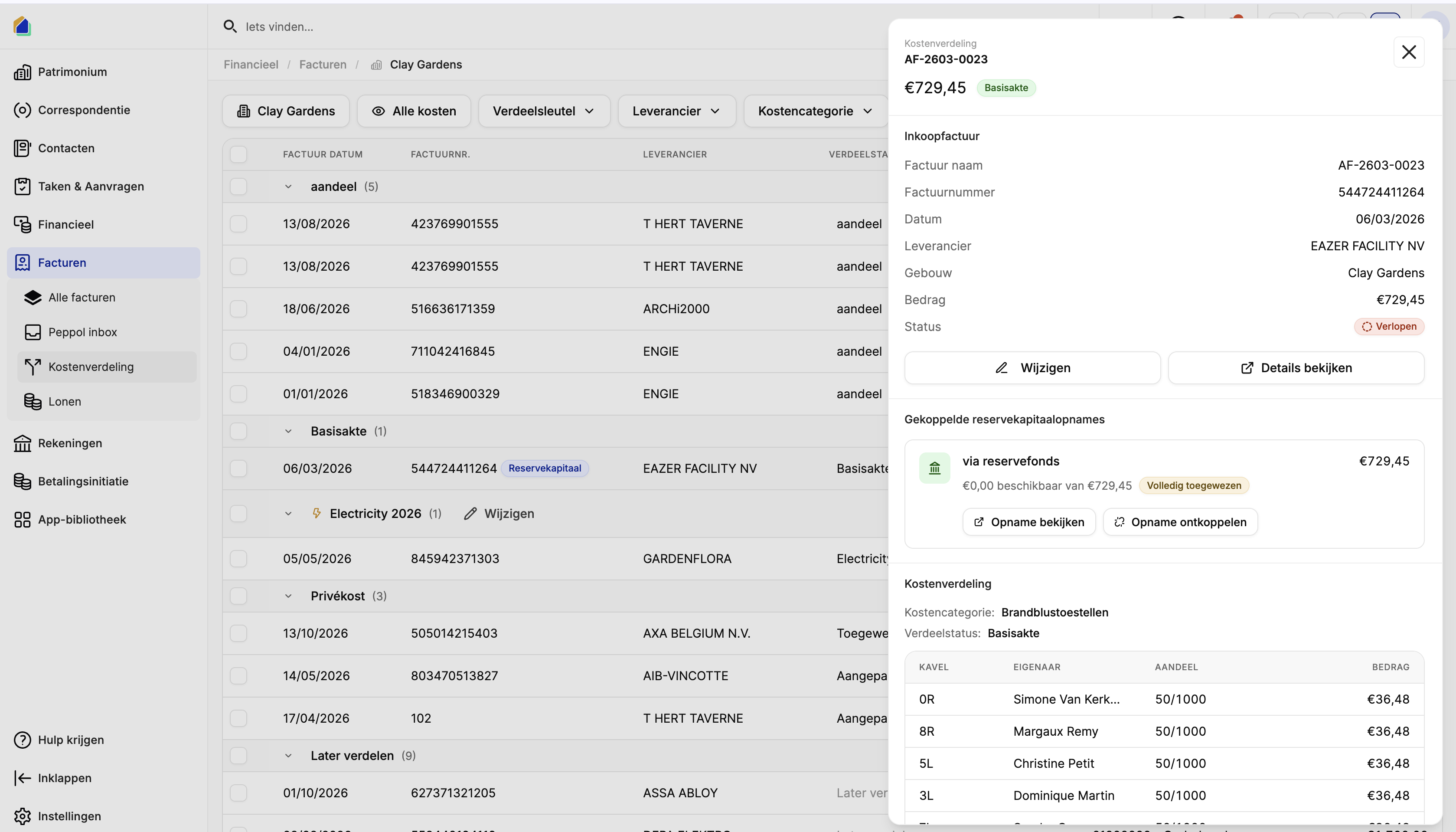
Under Linked reserve capital withdrawals you see:
| Element | Meaning |
|---|---|
| Withdrawal name | Linked withdrawal |
| Amount | Settled amount |
| Fully allocated | Status when nothing remains available |
| View withdrawal / Unlink withdrawal | Open or remove the link |
Cost distribution still shows the owner split and cost category.
Verify under Requests
- Go to Financial → [Building] → Requests
- Under RESERVE CAPITAL, find the withdrawal entry
- Type badge: Withdraw
- Open the detail: status Spent, amount negative
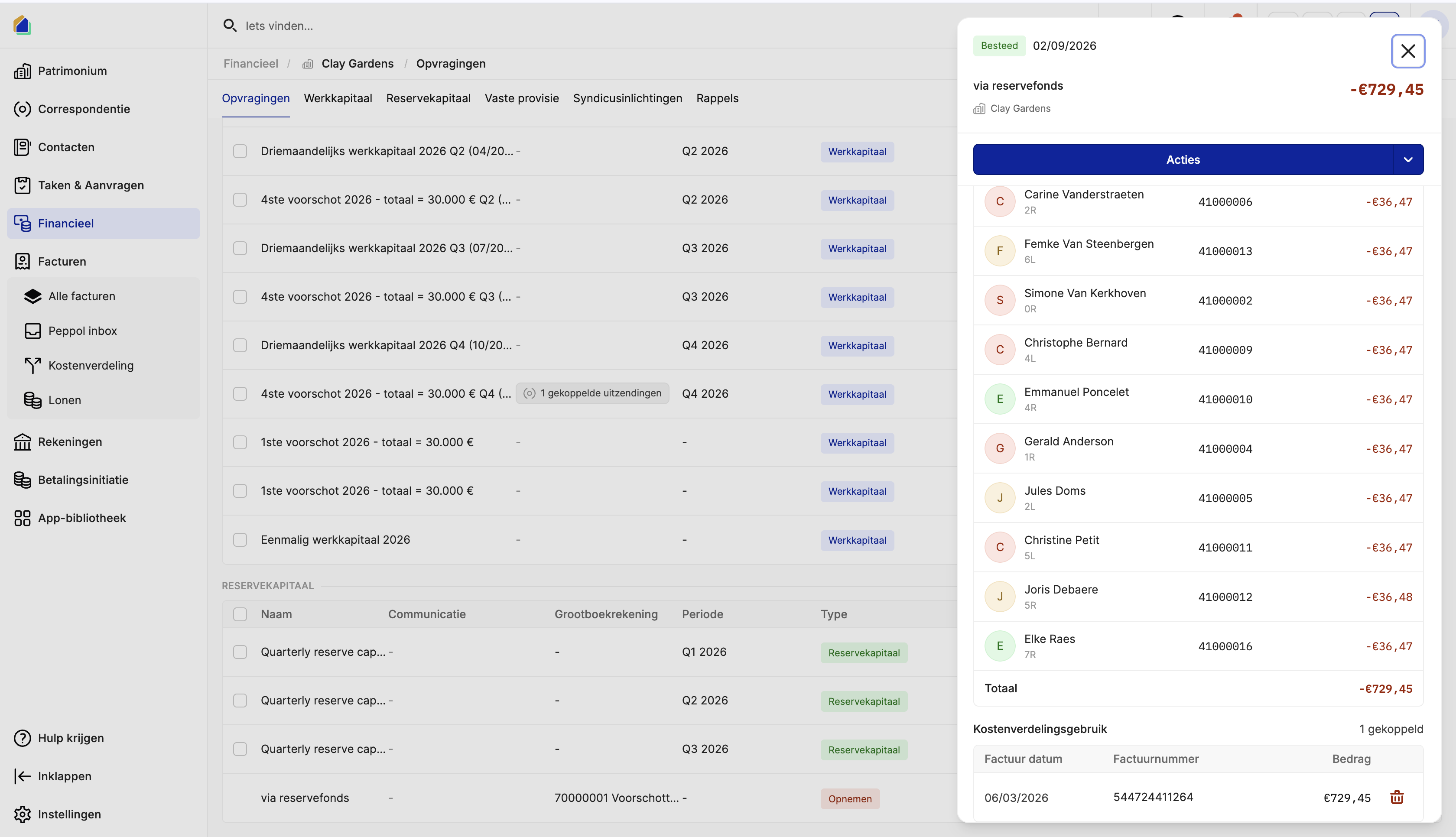
Owner lines show each share. Section Cost allocation usage lists the linked invoice (date, number, amount). You can unlink via the trash icon if needed.
Result
| Location | After settlement |
|---|---|
| Cost distribution list | Invoice shows Reserve capital badge |
| Invoice detail | Linked withdrawal; status Fully allocated |
| Requests → RESERVE CAPITAL | New Withdraw entry; status Spent when fully used |
| Owner cost settlements | These costs do not appear; they reduce the reserve capital balance |
| Reserve capital balance | Reduced by the withdrawal amount |
Good to know
- Enough balance first — if reserve capital is insufficient, create an advance request of type Reserve fund before confirming the withdrawal.
- Negative owner balances — the wizard warns if an owner would go negative. Prefer fixing via an extra advance request of type Reserve fund before you confirm.
- Do not charge owners twice — settling via reserve capital deliberately keeps the cost off owner cost settlements.
- Unlink if needed — use Unlink withdrawal on the invoice, or remove the link under Cost allocation usage on the withdrawal.
- Amount match — the available amount on the withdrawal should cover the invoice before you click settle.
- Finish the last click — creating the withdrawal alone is not enough; you still need to select it and click Settle via reserve capital.
Related articles
Need help?
Contact our team at info@sndq.be or use the Get Help option in the SNDQ application.