

Create a meeting
The meeting feature lets you organize and manage general assemblies and other meetings for a building. You can create different types of meetings, configure participant options, and track the meeting through its lifecycle.
Meeting types
| Type | Description |
|---|---|
| Annual General Meeting | The mandatory yearly meeting for all co-owners |
| Extraordinary General Meeting | Special meeting outside the annual schedule for urgent decisions |
| Board Meeting | Meeting of the building's co-ownership council |
| Budget Meeting | Meeting to discuss and approve the building budget |
| Emergency Meeting | Urgent meeting for emergency situations |
| Other | Any other type of meeting |
Create a new meeting
Navigate to Meetings
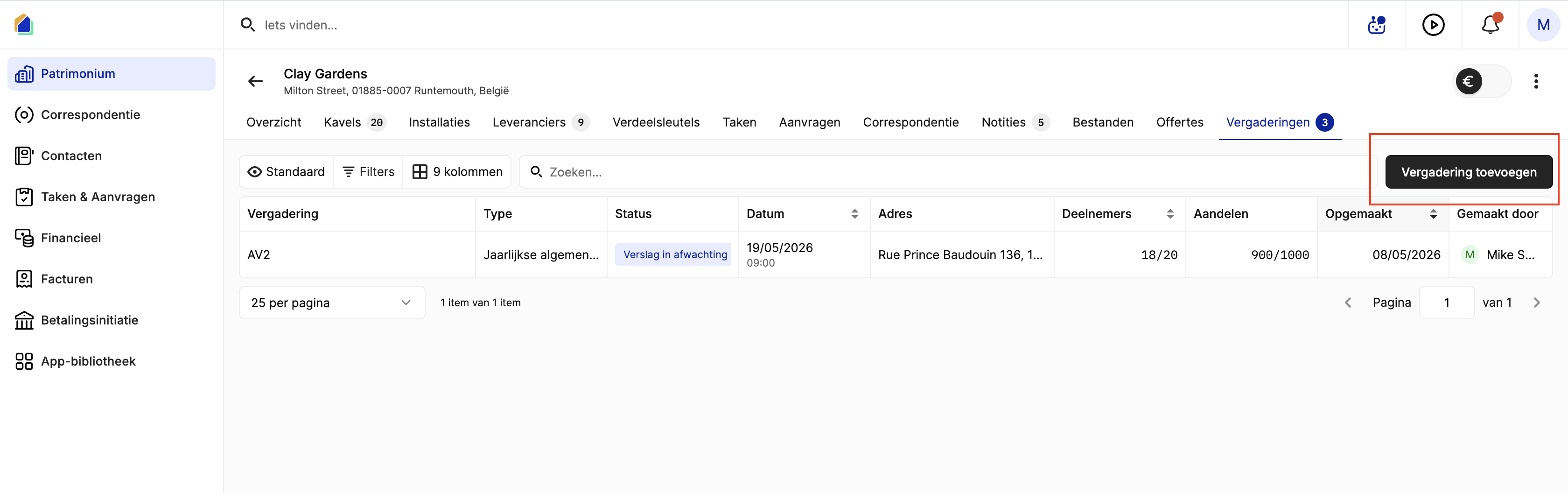
Go to Patrimony, select a building, and click the Meetings tab.
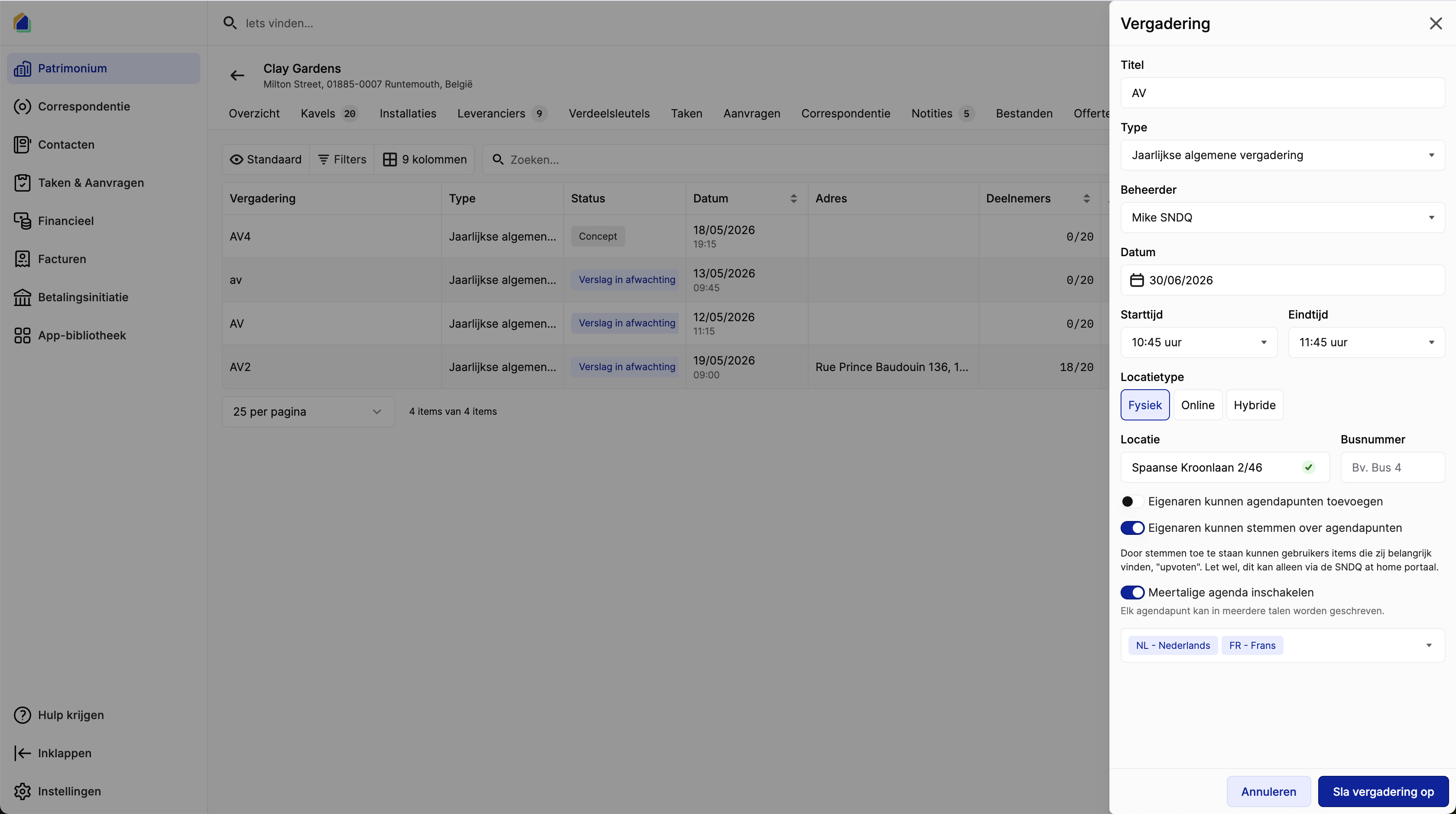
Fill in the meeting details
Click Add meeting in the top right corner. A creation panel opens on the right side.
| Field | Description | Required |
|---|---|---|
| Title | Title of the meeting | Yes |
| Type | Select the meeting type from the dropdown | Yes |
| Manager | Select the manager responsible for this meeting | Yes |
| Date | Date of the meeting | Yes |
| Start time / End time | Start and end time of the meeting | Yes |
| Location type | Choose: Physical, Online, or Hybrid | Yes |
| Location | Search for the physical address | If physical or hybrid |
| Bus number | Unit number at the location | No |
For Online or Hybrid meetings, two additional fields appear:
| Field | Description |
|---|---|
| Platform | Select: Zoom, Teams, Google Meet, or Other |
| Meeting URL | The link to join the online meeting |
Configure owner participation
Two toggles control what co-owners can do via the owner portal:
| Option | Description |
|---|---|
| Owners can add agenda items | When enabled, co-owners can submit agenda items through the portal before the meeting |
| Owners can vote on agenda items | When enabled, co-owners can cast their own votes on voting agenda items through the SNDQ at Home portal. This setting only controls owner portal voting — the syndic can always register votes during the meeting regardless of this setting. |
If you enable Owners can add agenda items, you can also set a deadline for submissions. The deadline must be before the meeting start time.
Save the meeting
Click Save meeting to create the meeting. The meeting is created in Draft status.
Meeting status workflow
| Status | Description |
|---|---|
| Draft | Meeting created but not yet published. Can be edited freely. |
| Scheduled | Meeting is published and invitations can be sent. |
| In Progress | Meeting is currently happening (automatic based on start and end time). |
| Pending Report | Meeting has ended, waiting for the meeting report to be completed. |
| Completed | Meeting is fully completed with report finalized. |
| Cancelled | Meeting has been cancelled. |
TIP
The system automatically transitions to In Progress when the current time is between start and end time, and to Pending Report after the meeting end time.
Related articles
Need help?
Contact our team at info@sndq.be or use the Get Help option in the SNDQ application.