

Create advance requests for owners
In SNDQ, you create advance requests to collect funds from co-owners for the building's shared costs.
How to create a request
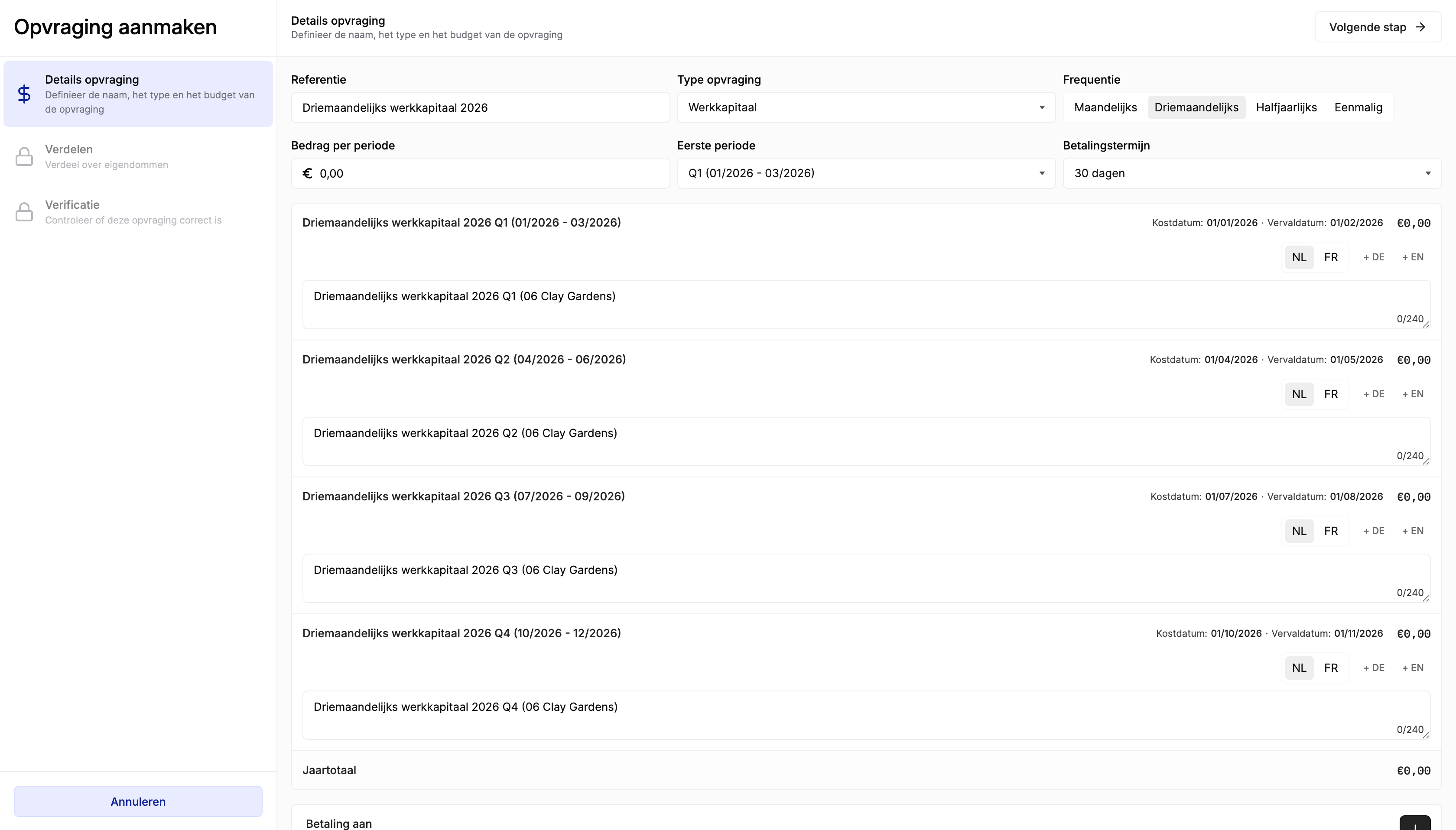
Open the request wizard
- Open Financial
- Go to Owner balances
- Open the Requests tab
- Click Create request
Choose the type and frequency
Select the Request type:
- Working capital — a recurring advance that is settled with the annual statement. This is the most common type — used to cover the day-to-day running costs of the building (cleaning, electricity, insurance, maintenance, etc.).
- Fixed provision — a one-off request for permanent working capital. This amount is typically collected when the building is first set up and serves as a financial buffer for daily operations. It is not settled in the annual statement but can be mentioned in it.
- Reserve fund — capital collected to finance specific future works (roof renovation, facade, elevator replacement, etc.). The amount can fluctuate — extra requests are made when new works are planned, and expenses are paid from the collected funds. Like fixed provision, the reserve fund is not settled in the annual statement but can be mentioned in it.
Then choose a Frequency:
- Monthly → creates 12 requests (Jan–Dec)
- Quarterly → creates 4 requests (Q1–Q4)
- Semi-annual → creates 2 requests per year
- One-off → creates a single request. Use this when your HOA has a non-standard schedule (for example 3 or 5 times a year) — you can create each one-off request individually.
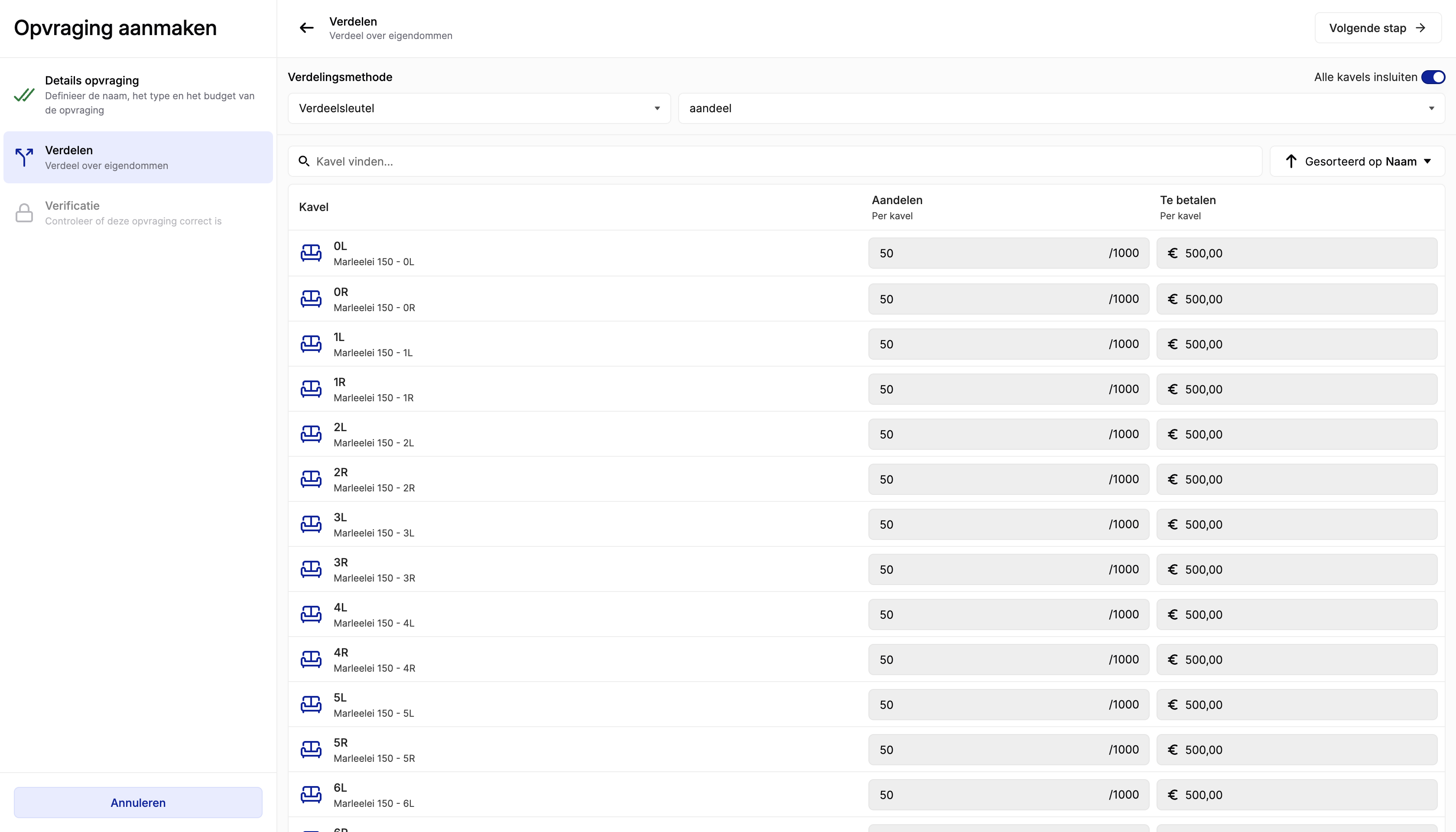
Distribute the advances across owners
After setting the details, you distribute the advances per unit/owner (for example using a distribution key).
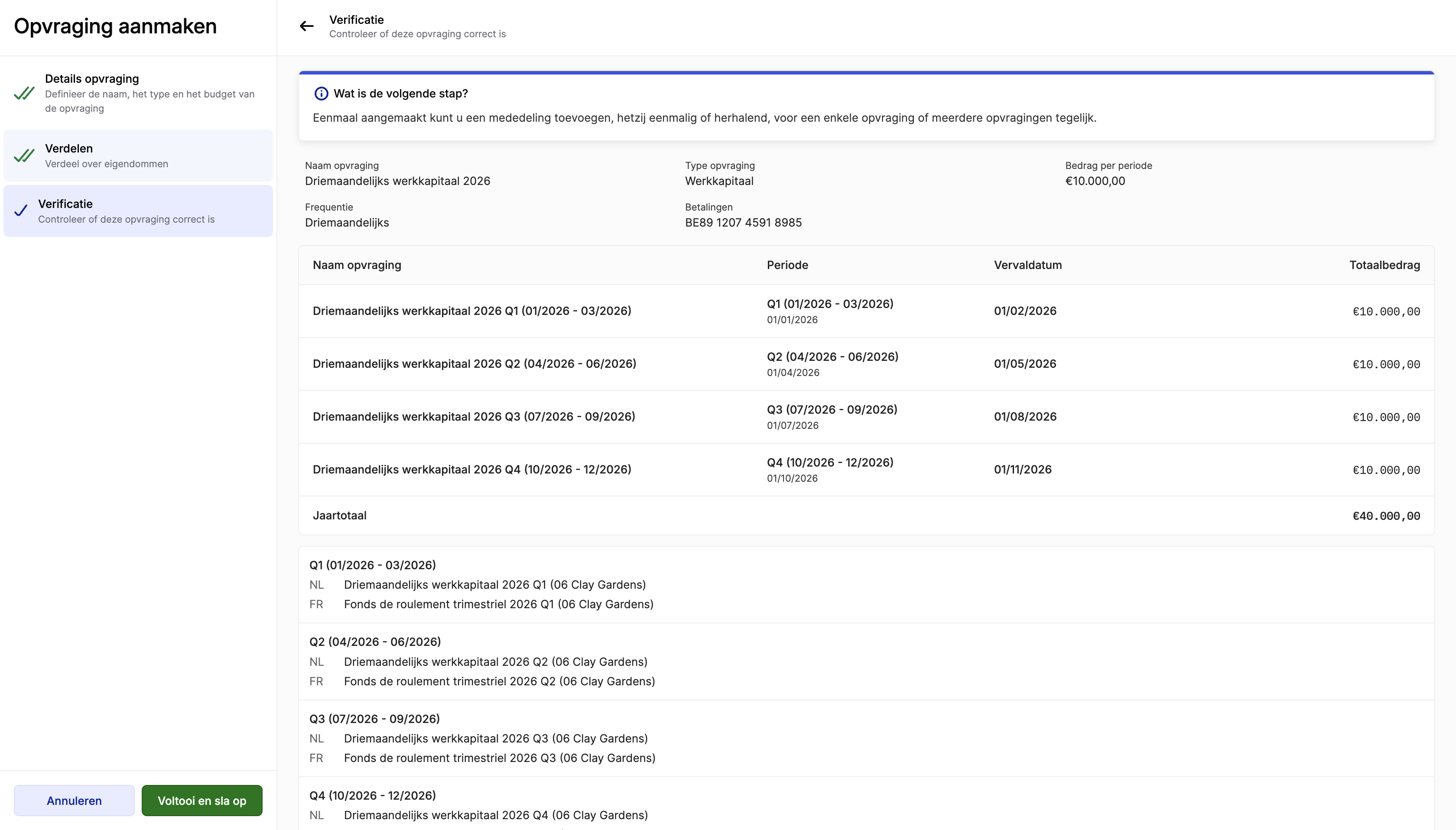
Verify and save
Before saving, review the overview and confirm the amounts, periods, and due dates.
Video — Full flow: create a request
After creation
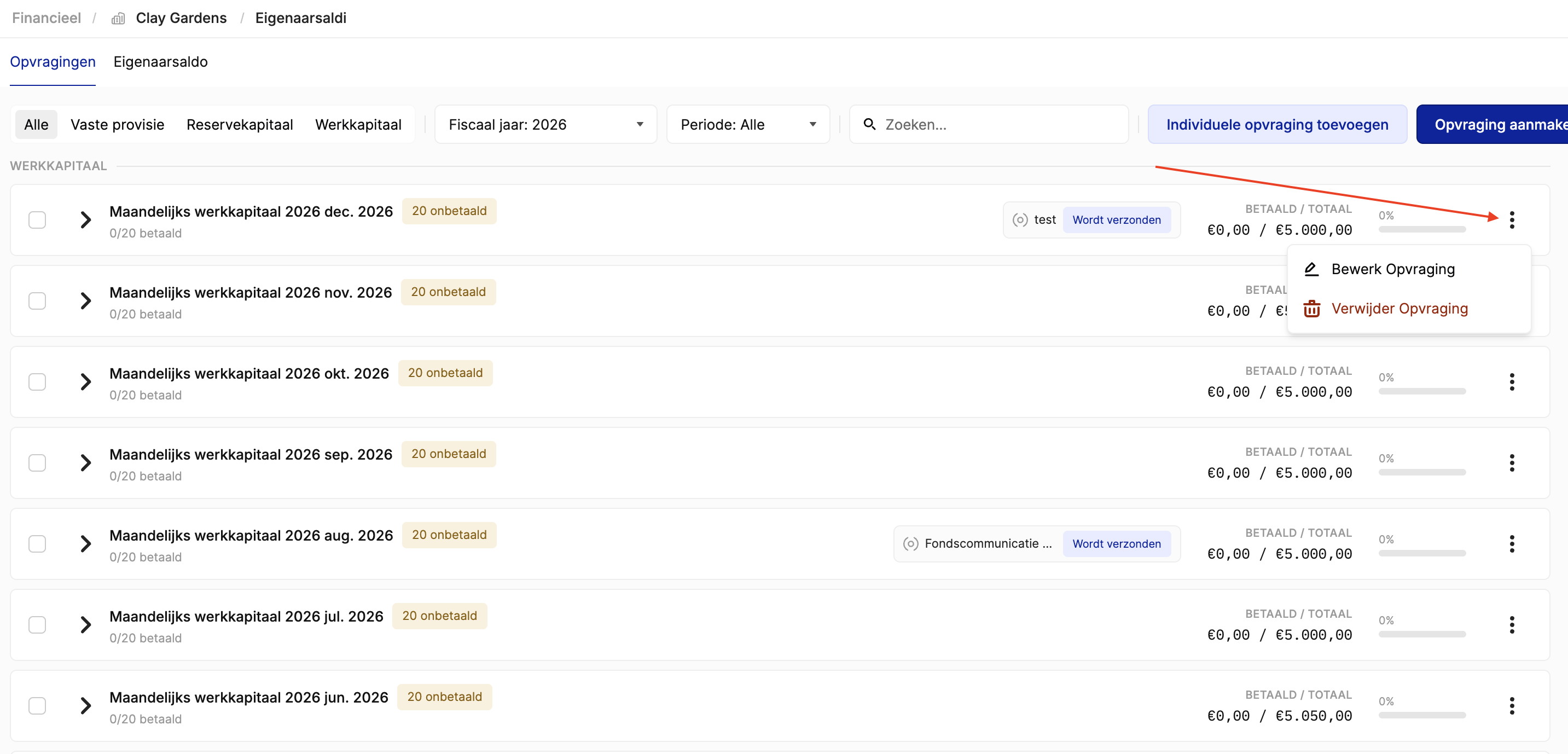
Edit a specific period
If you want to adjust one specific period (for example July), open that period's request to see the detailed advances per owner.
- Click Actions
- Select Edit
- Update the information you need (amount, remittance info, date, …)
Delete a request and create it again
If a request was created incorrectly, you can delete it and create it again.
Video — Edit a request after creation
Related articles
Need help?
Contact our team at info@sndq.be or use the Get Help option in the SNDQ application.