

Record votes
During a General Meeting, agenda items of type Voting require a formal vote by the co-owners. SNDQ lets you register each owner's vote, calculate results based on the configured distribution key, and determine whether a motion is accepted or rejected.
Prerequisites
Before you can register votes, make sure the following is in place:
| Requirement | Where to configure |
|---|---|
| Meeting created and scheduled | Patrimony → Building → Meetings tab |
| Agenda items of type Voting | Meeting → Agenda tab |
| Distribution key assigned | On each voting agenda item |
| Participants marked as present | Meeting → Participants tab |
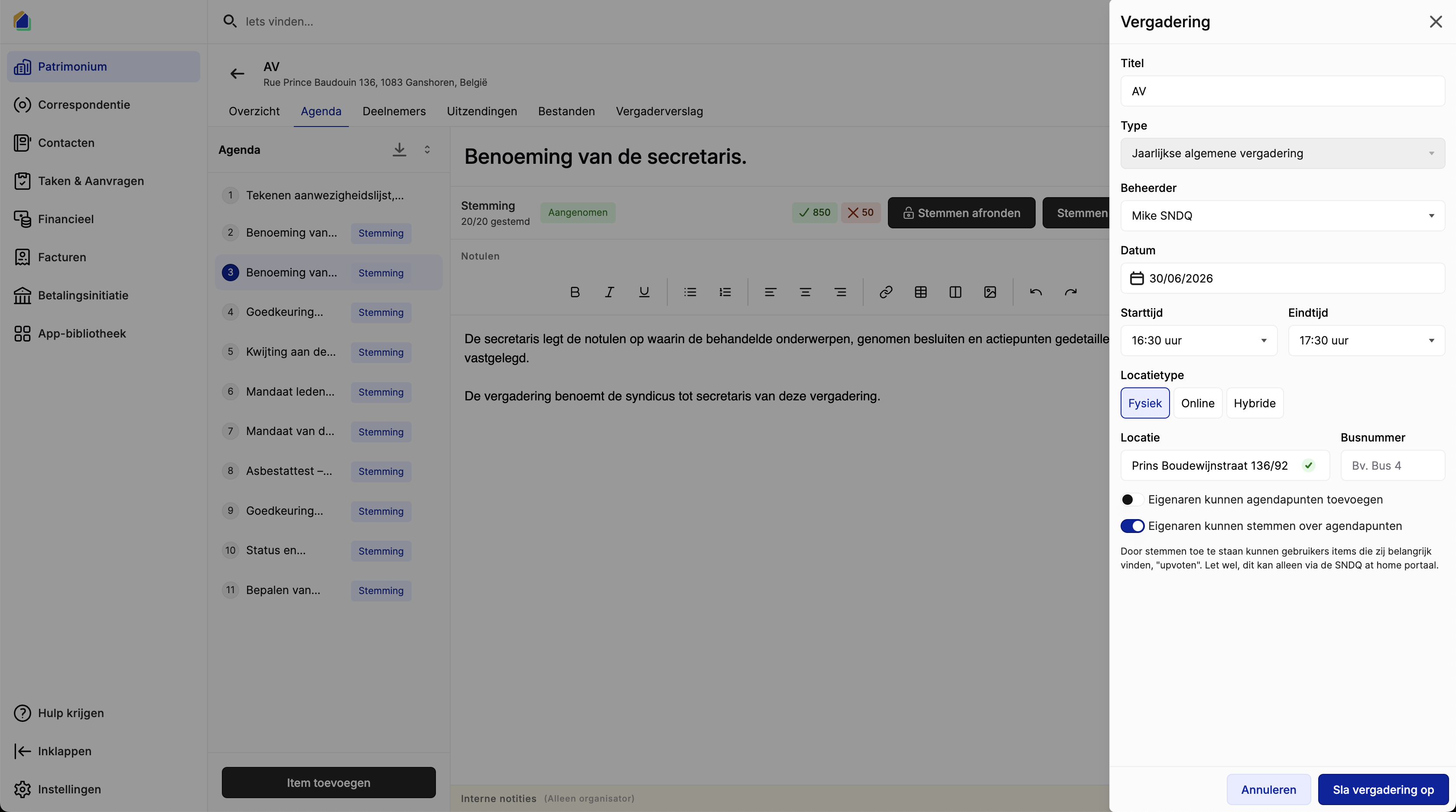
| Owners can vote on agenda items (optional) | Meeting settings — when enabled, co-owners can cast their own votes on voting agenda items through the SNDQ at Home portal. This does not affect the syndic's ability to register votes during the meeting. |
Agenda item types
Each agenda item has a type that determines whether a vote is required.
| Type | Description | Voting |
|---|---|---|
| Informational | For information only — no vote required. Has a Minutes field for recording notes. | No |
| Voting | Requires a formal vote by the co-owners. Shows vote registration buttons. | Yes |
Navigate to vote registration
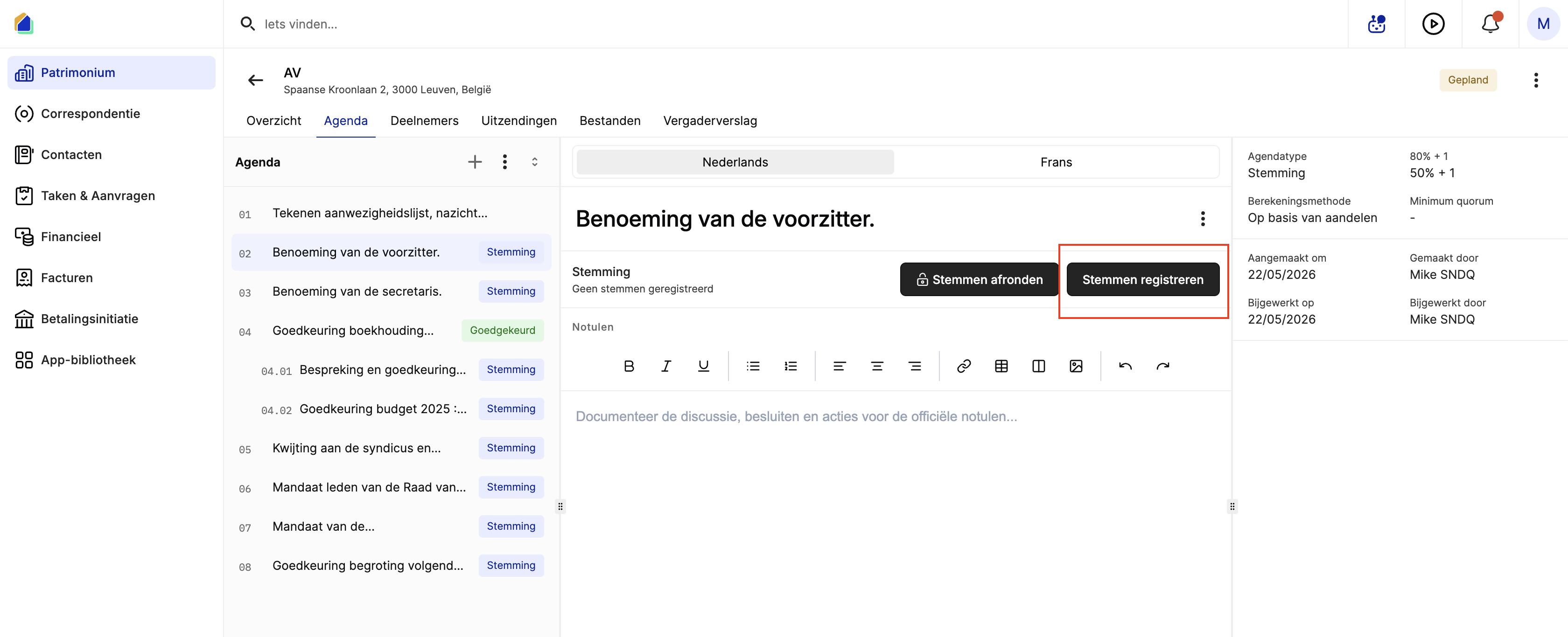
Open a voting agenda item
Go to the meeting → Agenda tab and select a voting agenda item (marked with the blue Voting label).
The detail panel shows:
- The agenda item title and minutes editor
- Voting configuration on the right side: Agenda type, Majority rule, Calculation method, and Minimum quorum
- Two action buttons: Finalize votes and Register votes
Register votes
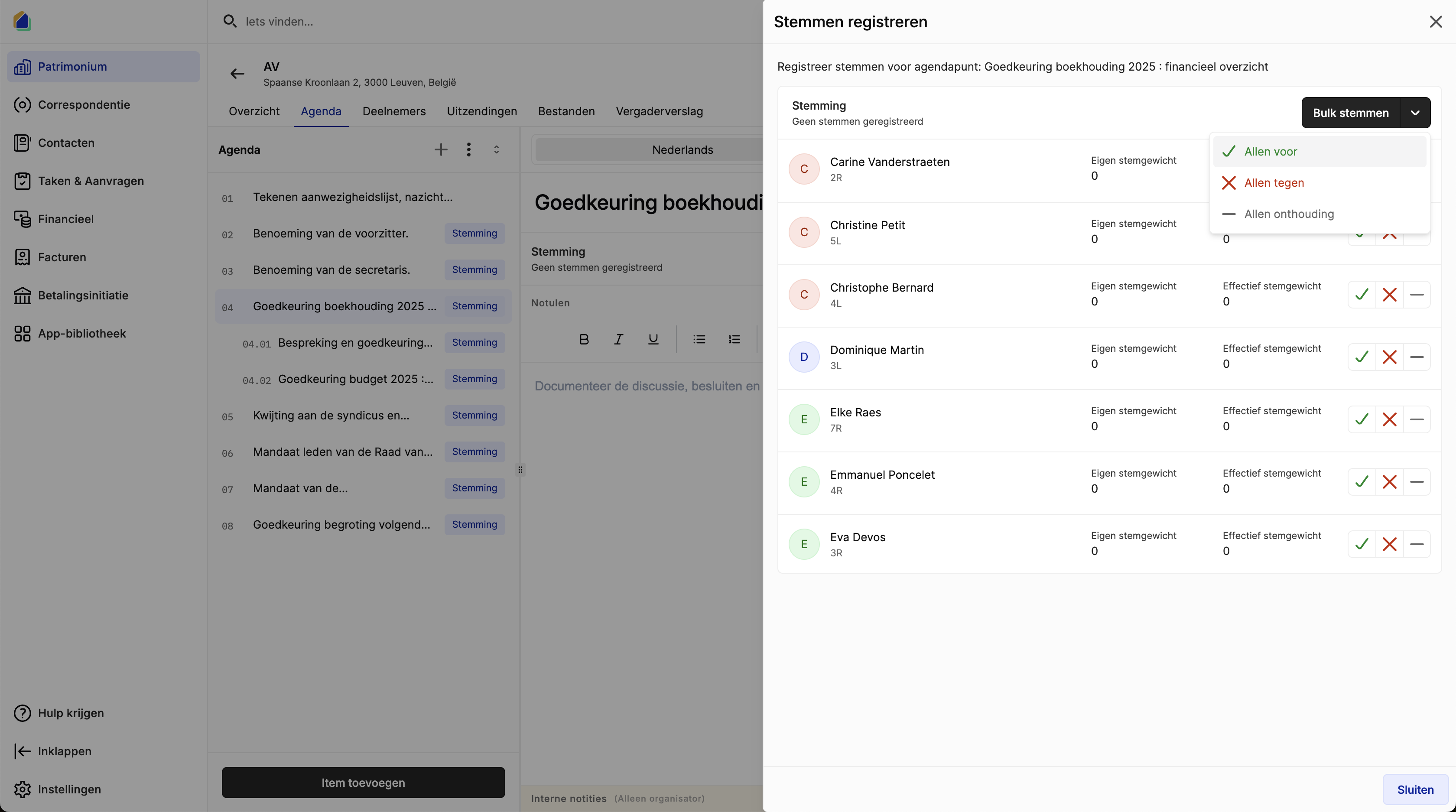
Click Register votes to open the vote registration panel. The panel displays all co-owners with their name, unit, own voting weight, and effective voting weight (including proxy shares).
Bulk vote first, then adjust
The fastest way to register votes is to use Bulk voting:
- Click the Bulk voting button (top right of the panel)
- Choose one of three options:
- All in favor — records a vote in favor for all participants
- All against — records a vote against for all participants
- All abstain — records an abstention for all participants
- Adjust individual votes where needed by clicking the vote buttons per owner:
| Button | Meaning |
|---|---|
| Green checkmark | Vote in favor |
| Red cross | Vote against |
| Grey dash | Abstain |
The header automatically recalculates totals and shows the result (Accepted or Rejected) after each change.
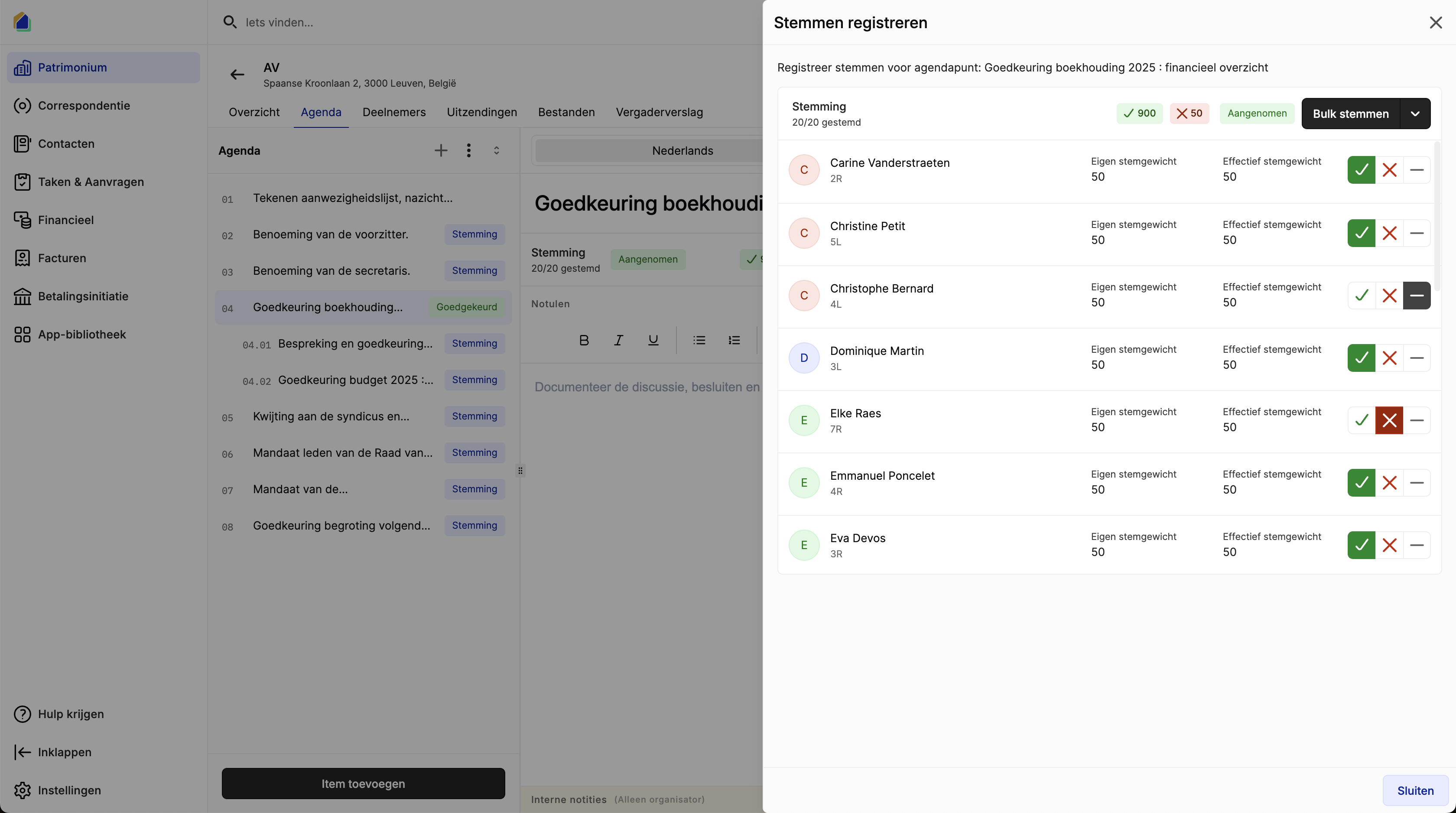
Click Close when you are done registering votes.
Vote results
After all votes are registered, the agenda item updates to show the outcome.
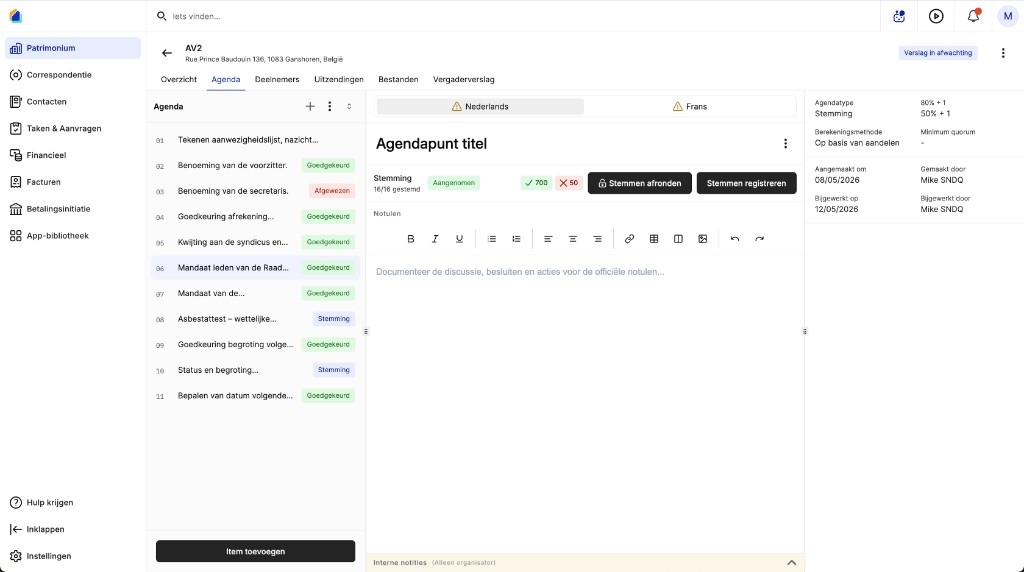
The result appears both in the agenda list and in the detail panel:
- Accepted (green label) — the motion passed
- Rejected (red label) — the motion did not pass
- A summary line shows: e.g. 19/20 voted, 1 absent
Finalize votes
Once all votes for an agenda item are recorded and you are satisfied with the results:
- Click Finalize votes to lock the results
- After finalizing, votes cannot be changed
WARNING
Make sure all votes are correctly registered before finalizing. Once finalized, you cannot modify the vote results.
Vote calculation
Votes are calculated based on the settings configured on the agenda item:
| Setting | Description |
|---|---|
| Majority rule | The required threshold — e.g. 50% + 1, 66.66% + 1, 80% + 1, or 100% |
| Calculation method | How votes are weighted — based on shares, equal weight, or a custom distribution key |
| Minimum quorum | The minimum percentage of voting power that must be present for the vote to be valid |
How abstentions are calculated
Abstentions are excluded from the majority calculation. Only votes in favor and against are counted when determining whether a motion passes the required threshold.
For example, with majority rule 50% + 1:
- 6 in favor, 3 against, 2 abstain → 6 out of 9 counted votes = 66.7% → Accepted
- The 2 abstentions are not included in the denominator
Abstentions are still counted in the participation percentage (how many participants voted), but not in the approval percentage.
Video — Full flow: record votes during a meeting
Good to know
- Only owners marked as present (or represented by a proxy) can vote. Absent owners are excluded from the calculation.
- If an owner holds a proxy, the effective voting weight includes both their own shares and the shares of the owner they represent.
- The agenda list on the left shows the vote status for each item — you can quickly see which items still need votes.
- Informational items only have a Minutes field for recording discussion notes.
- When Owners can vote on agenda items is enabled, co-owners voting through the portal can only vote in favor or against — the abstain option is not available to them. Only the syndic can register abstentions during the meeting.
Related articles
Need help?
Contact our team at info@sndq.be or use the Get Help option in the SNDQ application.