

Send correspondence
Correspondence is the broadcast feature in SNDQ that lets you send messages, documents, and announcements directly to owners. Use it to communicate meeting reports, financial documents, important notices, or any custom message to one or multiple owners across one or more buildings.
Navigate to Correspondence
Go to Correspondence in the left sidebar. The correspondence list shows all sent and draft messages.
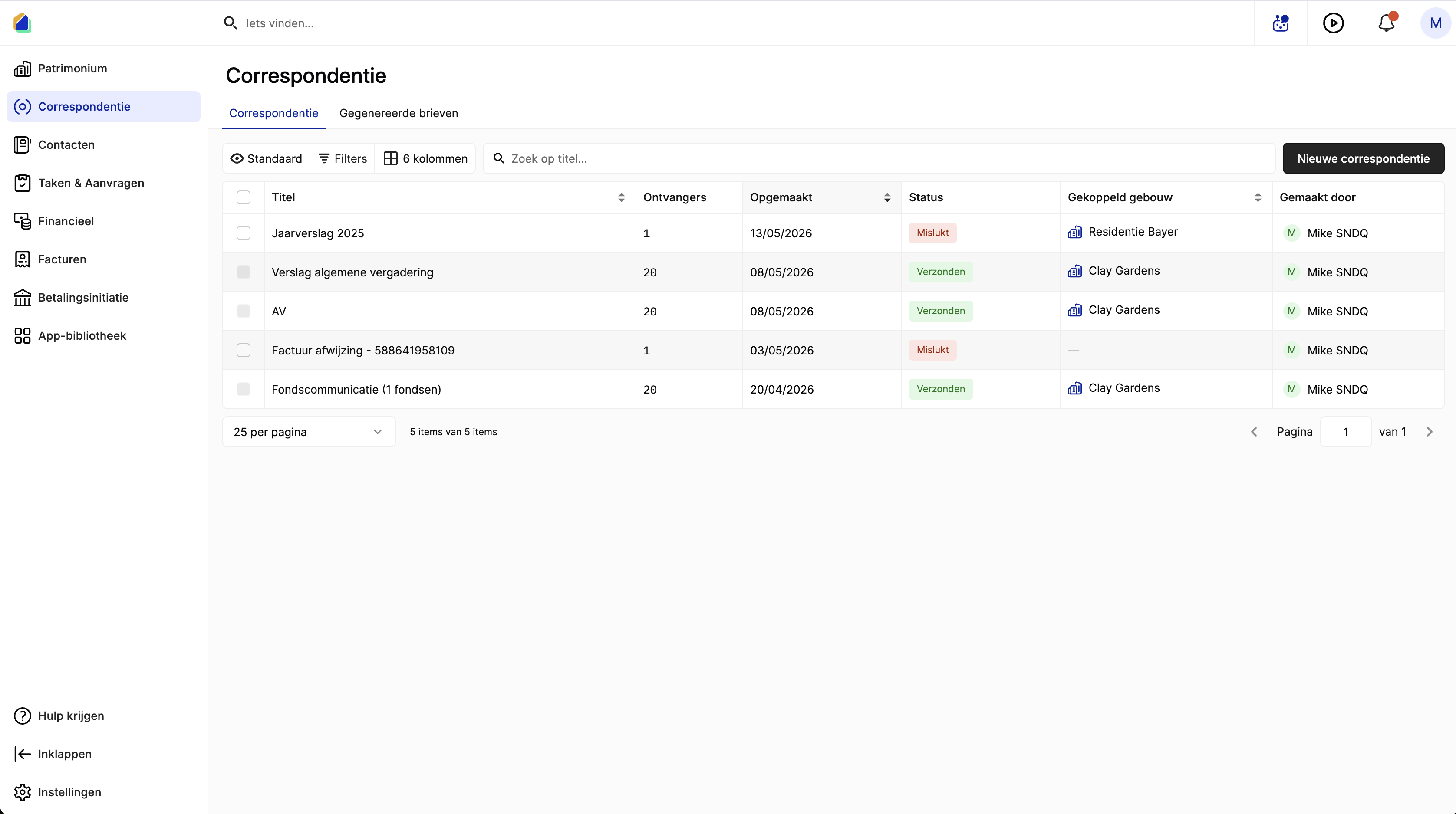
| Column | Description |
|---|---|
| Title | Subject of the correspondence |
| Recipients | Number of recipients |
| Created | Date created |
| Status | Sent, Draft, or Failed |
| Linked building | Building associated with this correspondence |
| Created by | Who created the correspondence |
Create new correspondence
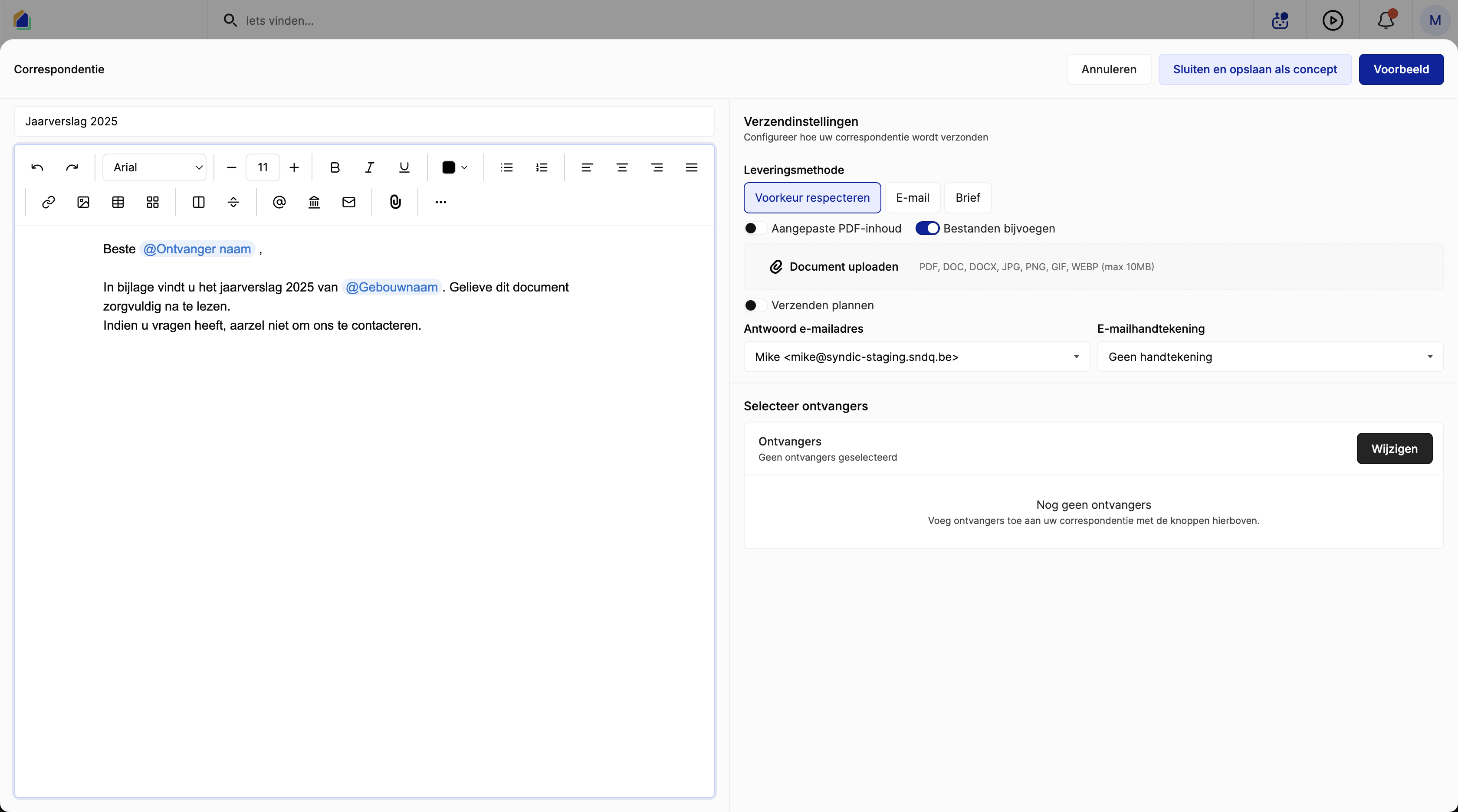
Click New correspondence in the top right corner. The correspondence editor opens.
Compose the message
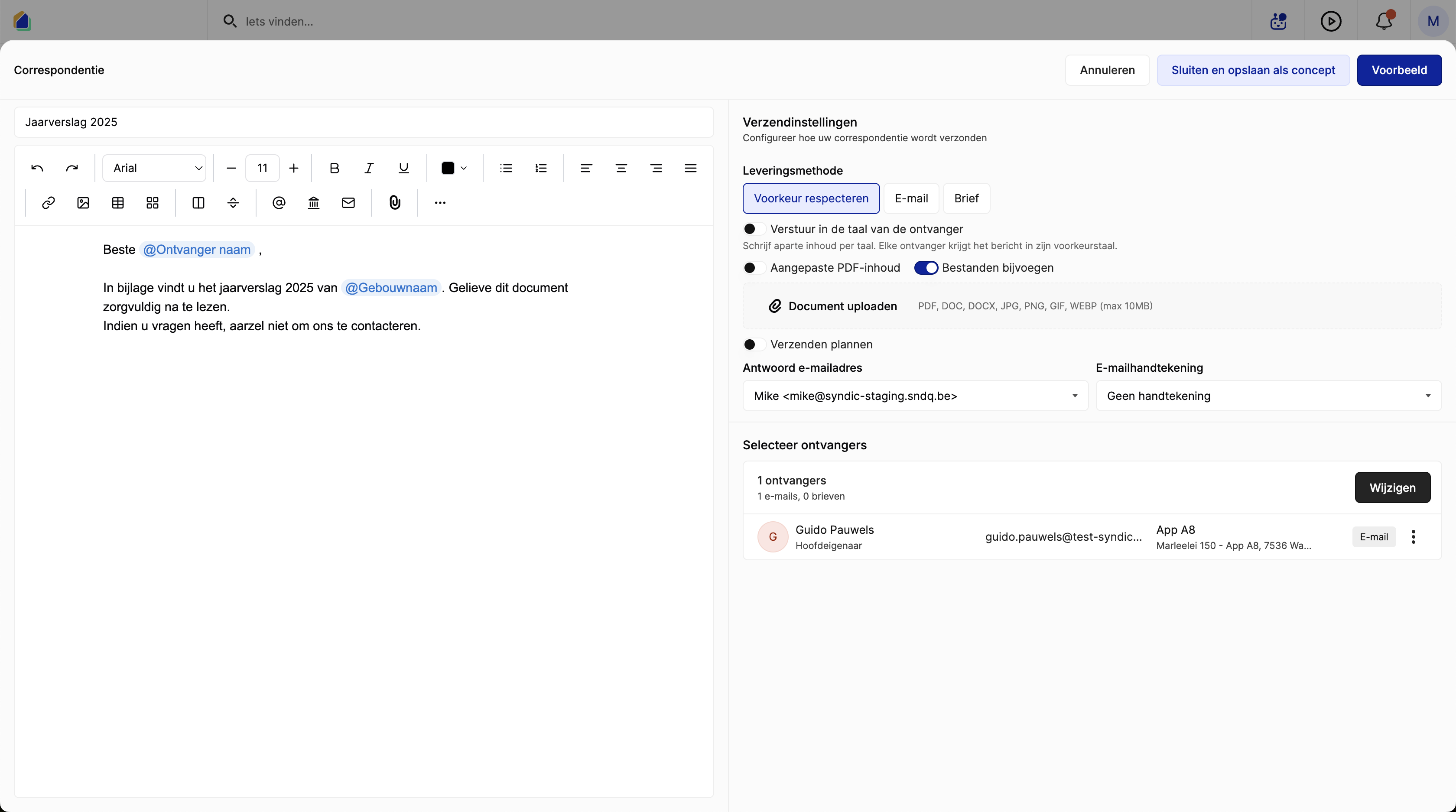
Subject
Enter the subject in the field at the top of the editor.
Message body
Use the rich text editor to write your message. The editor supports formatting (bold, italic, underline), lists, alignment, images, tables, columns, and links.
Use templates
Click Start with a template to insert a pre-made template that auto-fills the message body with standard text.
TIP
If you have a message that you send regularly (e.g. monthly report, meeting invitation, maintenance notice), save it as a template in Settings → Templates. Next time, just insert the template and send.
Dynamic variables (@-commands)
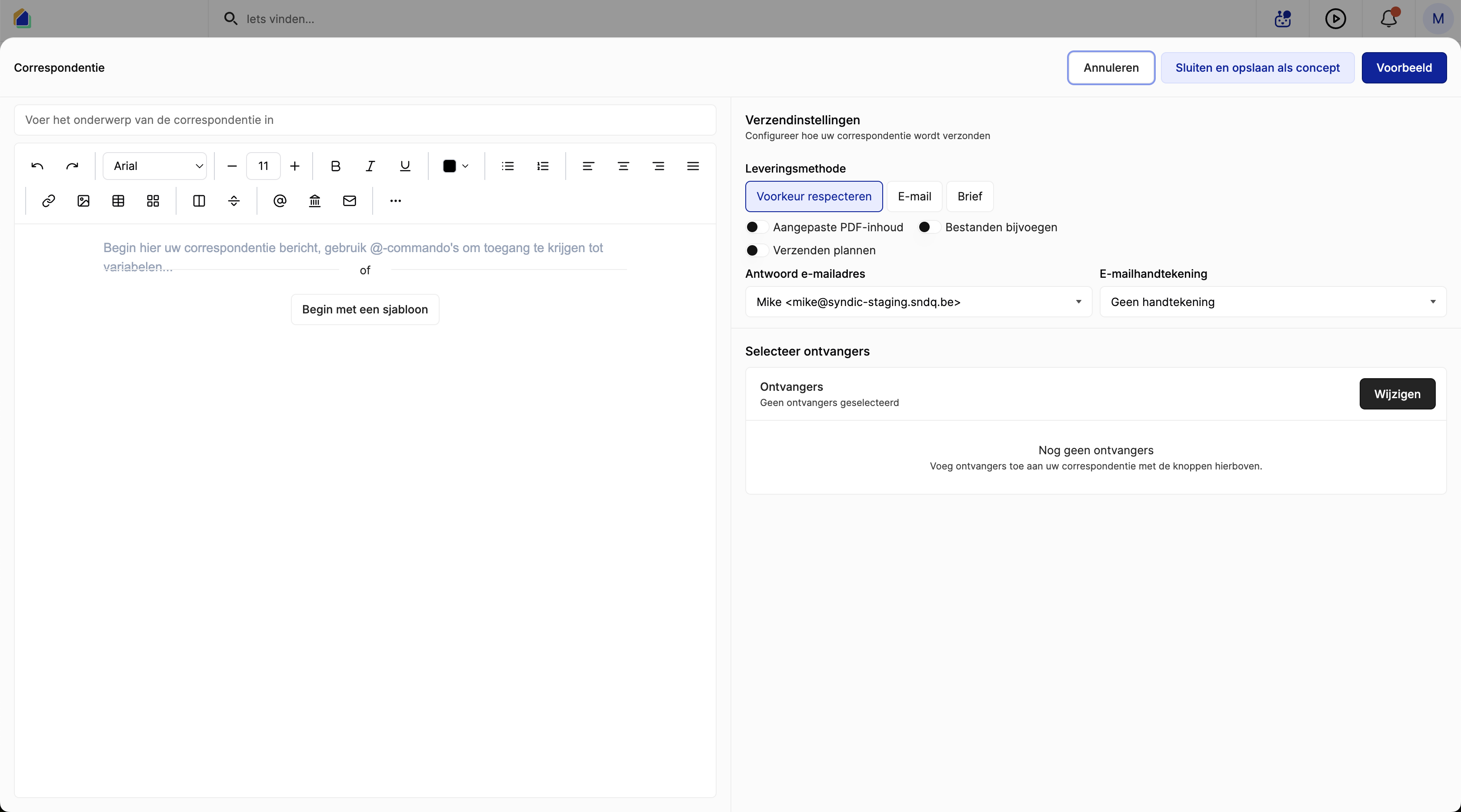
Type @ in the editor to insert dynamic variables that are personalized per recipient. The available variables depend on the context.
Recipient variables
| Variable | Description |
|---|---|
| @Recipient name | Recipient's full name |
| @Recipient email | Recipient's email address |
| @Recipient language | Recipient's preferred language |
| @Recipient phone | Recipient's phone number |
| @Recipient address | Full recipient address |
| @Recipient address line 1 | Street and number |
| @Recipient address line 2 | Postal code and city |
Building variables
| Variable | Description |
|---|---|
| @Building name | Building name (e.g. "Clay Gardens") |
| @Building address | Full building address |
| @Company name building | Legal name of the VME |
| @VAT number building | VAT number of the VME |
| @Enterprise number building | Enterprise number |
| @Total shares building | Total shares in the building |
Meeting variables
| Variable | Description |
|---|---|
| @Meeting title | Meeting title |
| @Meeting type | Meeting type (e.g. General Meeting) |
| @Meeting start date | Meeting date |
| @Meeting start time | Meeting start time |
| @Meeting location address | Full venue address |
| @Meeting manager name | Syndic name |
| @Agenda list | Formatted list of all agenda items |
Broadcast variables
| Variable | Description |
|---|---|
| @Broadcast title | Title of the correspondence |
| @Reply email | Reply-to email address |
| @Current date | Today's date |
Send settings
Delivery method
| Method | Description |
|---|---|
| Respect preference | Respect each owner's communication preference (email or letter) |
| Send to all recipients via email | |
| Letter | Send to all recipients via postal letter (generates PDF) |
Additional options
| Option | Description |
|---|---|
| Send in recipient's language | Write separate content per language tab — each owner receives the version matching their preferred language |
| Custom PDF content | Generate a custom PDF version of the message |
| Attach files | Attach files (PDF, DOC, DOCX, JPG, PNG, GIF, WEBP — max 10MB) |
| Schedule send | Schedule the send for a later date and time |
| Reply email address | Reply-to email address |
| Email signature | Email signature to include |
Select recipients
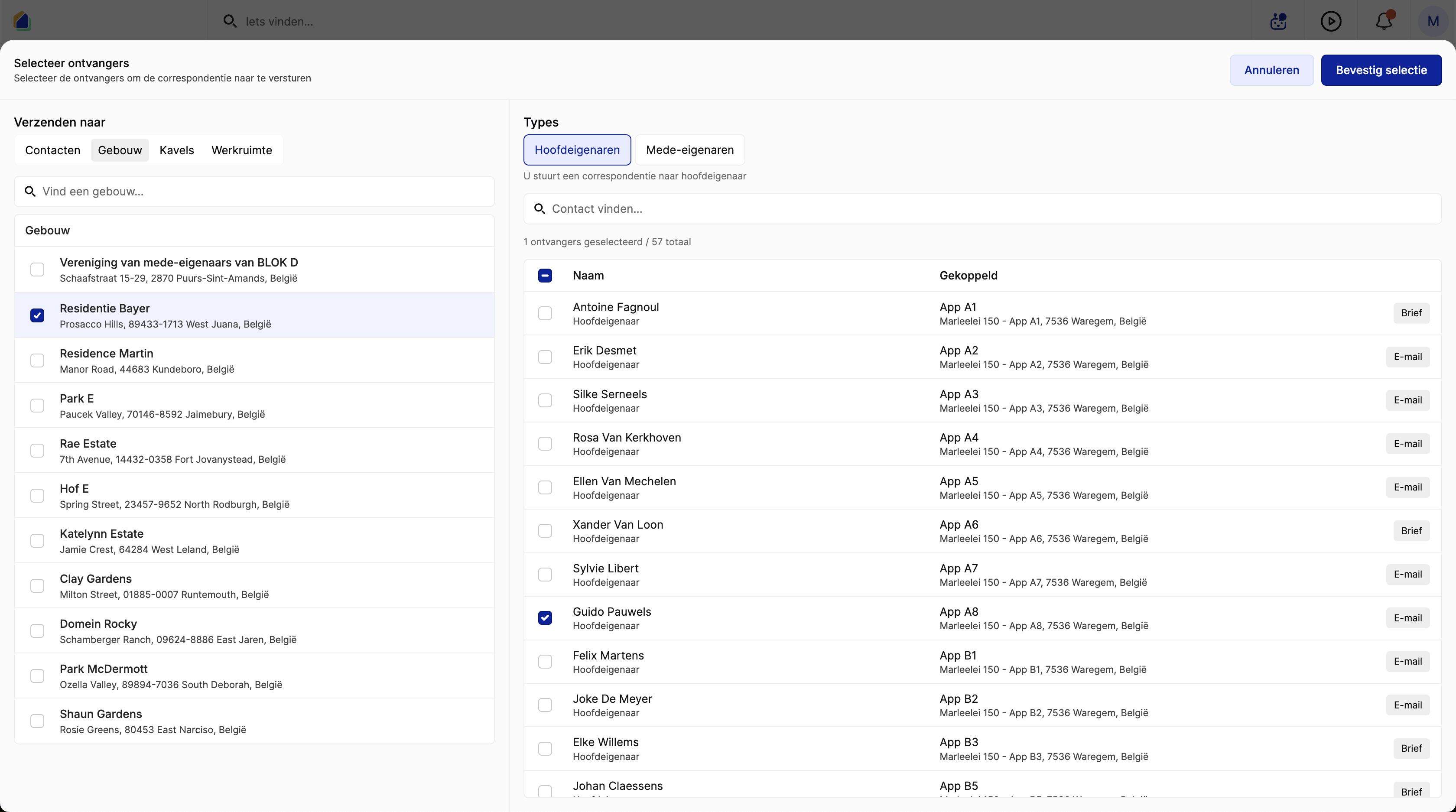
Click Edit next to the recipients section. The recipient selection panel opens.
Filter by source
| Tab | Description |
|---|---|
| Contacts | Select individual contacts |
| Building | Select all owners of a building |
| Units | Select owners of specific units |
| Workspace | Select all contacts in the workspace |
Select by building
- Click the Building tab
- Select one or more buildings from the list
- Choose the recipient type: Primary owners or Co-owners
- The right panel shows all matching owners with their name, unit, and delivery method
- Select individual owners or all
- Click Confirm selection
Preview and send
Save as draft
Click Close and save as draft to save without sending. The correspondence appears in the list with status Draft.
Preview
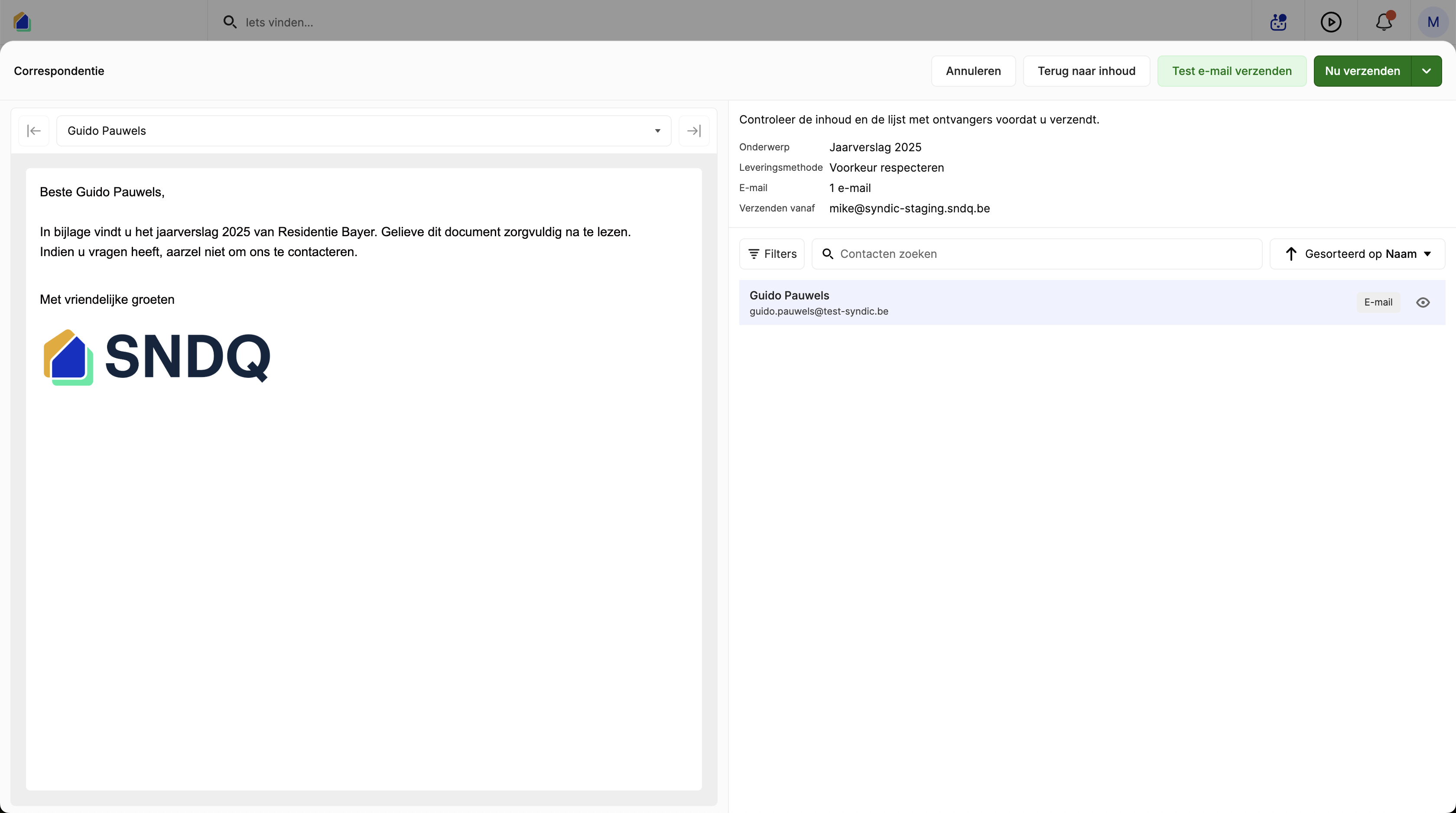
Click Preview to see how each recipient will receive the message. Use the arrows to navigate between recipients. The preview shows the personalized message with all @-variables filled in.
Test email
Click Send test email to send a test version to yourself before sending to all recipients.
Send
Click Send now to send to all recipients immediately.
Video — Full flow: create and send correspondence
Common use cases
| Use case | How |
|---|---|
| Send meeting report | Use via meeting → Send report (auto-selects owners and attaches PDF) |
| Send document to all owners | Create new correspondence → attach file → select building → send |
| Send personal message | Create new correspondence → select individual contact → write message → send |
| Send notice to specific units | Create new correspondence → select units via Units tab → send |
| Multi-language announcement | Enable Send in recipient's language → write content per language tab → send |
Good to know
- Delivery preference — owners with letter preference show as "Letter" recipients. These generate a PDF that must be printed and mailed manually.
- Failed delivery — check the correspondence list for Failed status. This usually means the recipient has no valid email address.
- @-variables — these are replaced per recipient. Always preview to verify they render correctly.
- File attachments — supported formats: PDF, DOC, DOCX, JPG, PNG, GIF, WEBP. Maximum size: 10MB.
- Multi-language — when Send in recipient's language is enabled, you must write separate content for each language tab.
- Draft — correspondence saved as draft can be edited and sent later.
- Generated letters — correspondence sent via letter is available in the Generated letters tab for download and printing.
Related articles
Need help?
Contact our team at info@sndq.be or use the Get Help option in the SNDQ application.