

Create a supplier
Suppliers are the companies and service providers that invoice your building — cleaning services, electricians, insurance companies, energy providers, etc. Correct supplier data is critical for:
- Invoice processing — purchase invoices are linked to a supplier. The VAT number is used for Peppol invoice matching and tax reporting.
- Payment matching — outgoing bank payments are matched to suppliers via their IBAN. Without a correct IBAN, payments cannot be automatically reconciled.
- Payment initiation — when paying invoices via Isabel 6 or Ponto, the supplier's IBAN is used as the beneficiary account.
Video — Create a supplier
Navigate to suppliers
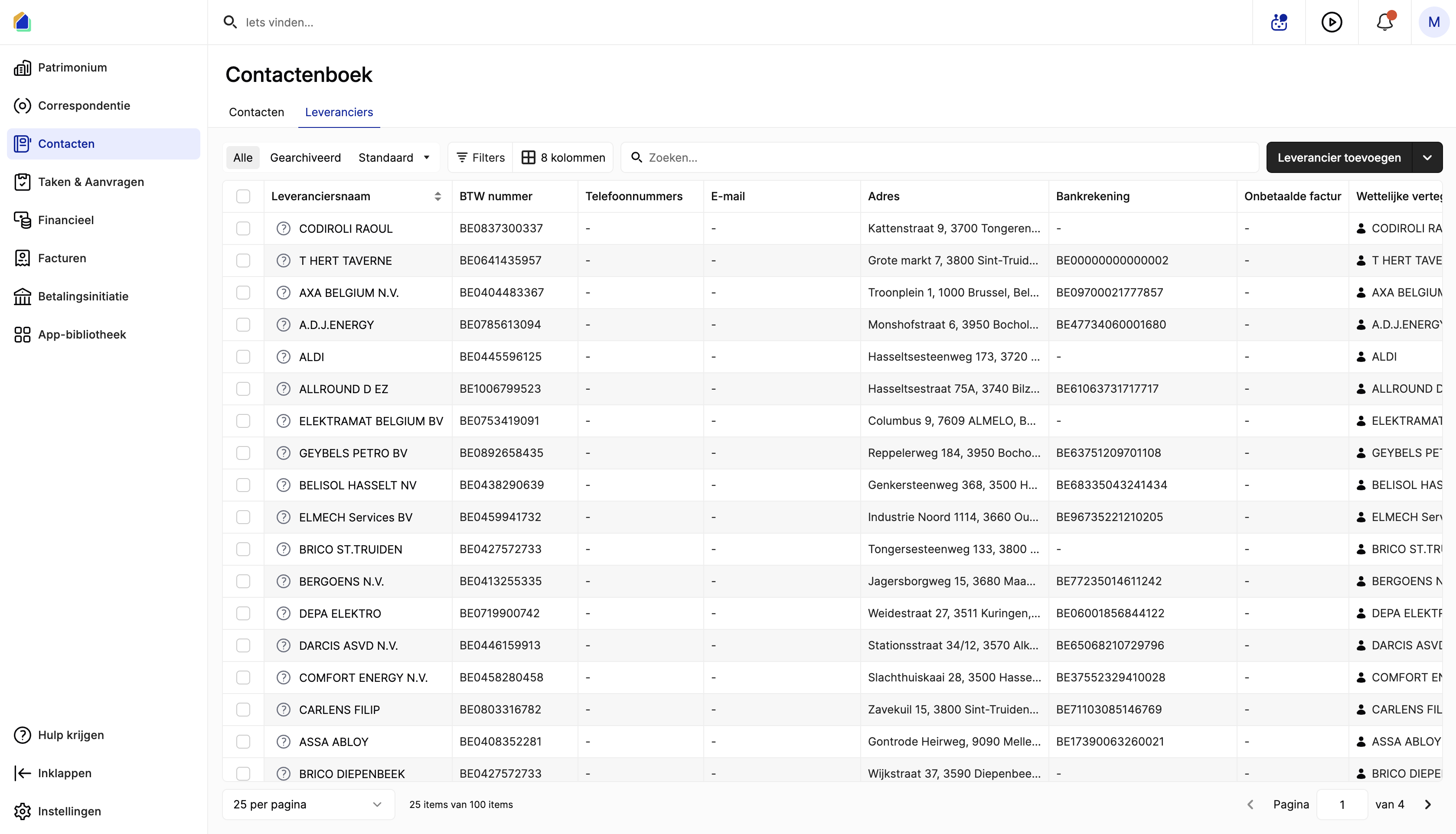
Go to Contacts in the left sidebar, then click the Suppliers tab.
The supplier list shows:
| Column | Description |
|---|---|
| Supplier name | Company name |
| VAT number | VAT number (e.g. BE0837300337) |
| Phone numbers | Phone numbers |
| Email address | |
| Address | Business address |
| Bank account | IBAN |
| Unpaid invoices | Unpaid invoice amount |
| Legal representative | Legal representative |
Create a new supplier
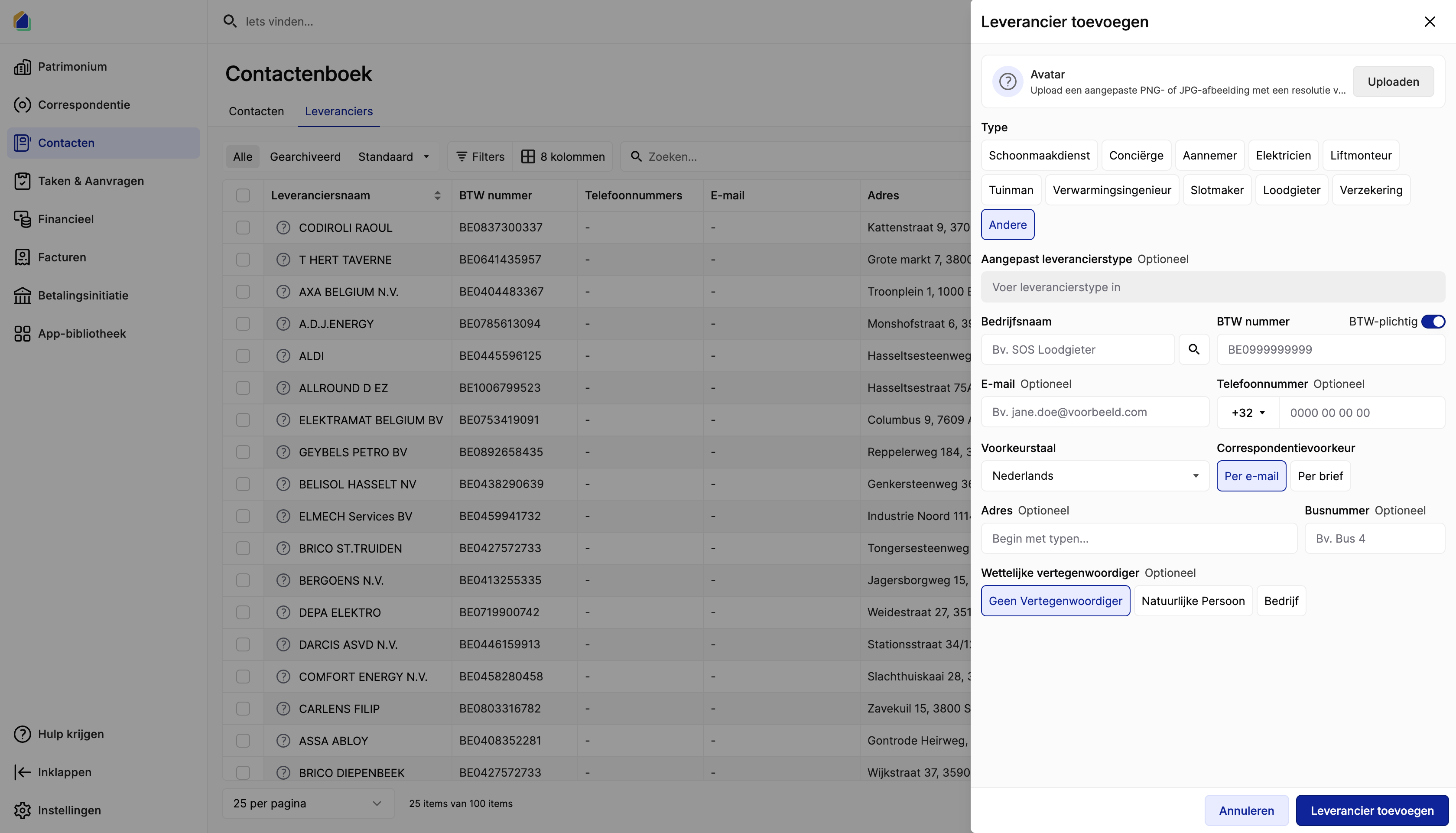
Click Add supplier in the top-right corner. A creation panel opens.
Supplier type
Choose a predefined supplier type:
| Type | Description |
|---|---|
| Cleaning service | Cleaning company |
| Concierge | Concierge |
| Contractor | Building contractor |
| Electrician | Electrician |
| Elevator technician | Lift technician |
| Gardener | Gardener |
| Heating engineer | Heating engineer |
| Locksmith | Locksmith |
| Plumber | Plumber |
| Insurance | Insurance company |
| Other | Custom type |
If none of the predefined types apply, select Other and fill in the Custom supplier type field.
Company information
| Field | Description | Required | Why it matters |
|---|---|---|---|
| Company name | Company name | Yes | Used to identify the supplier across the platform |
| VAT number | VAT number (e.g. BE0999999999) | Recommended | Used for Peppol invoice matching, tax reporting, and duplicate detection |
| VAT liable | Toggle on/off | — | Indicates if the supplier charges VAT |
WARNING
The VAT number is used to automatically detect incoming Peppol invoices from this supplier. Without it, Peppol invoices cannot be linked to the correct supplier. It is also used to prevent duplicate suppliers — the system warns if a supplier with the same VAT number already exists.
Contact information
| Field | Description | Required |
|---|---|---|
| Email address | No | |
| Phone number | Phone number (e.g. +32) | No |
| Preferred language | Language for correspondence | No |
| Correspondence preference | By email or By letter | No |
Address
| Field | Description |
|---|---|
| Address | Business address (start typing to search) |
| Box | Bus/unit number (e.g. Box 4) |
Legal representative
| Option | Description |
|---|---|
| No representative | No legal representative |
| Natural person | An individual as representative |
| Company | A company as representative |
Click Add supplier to create the supplier.
Add bank account (IBAN)
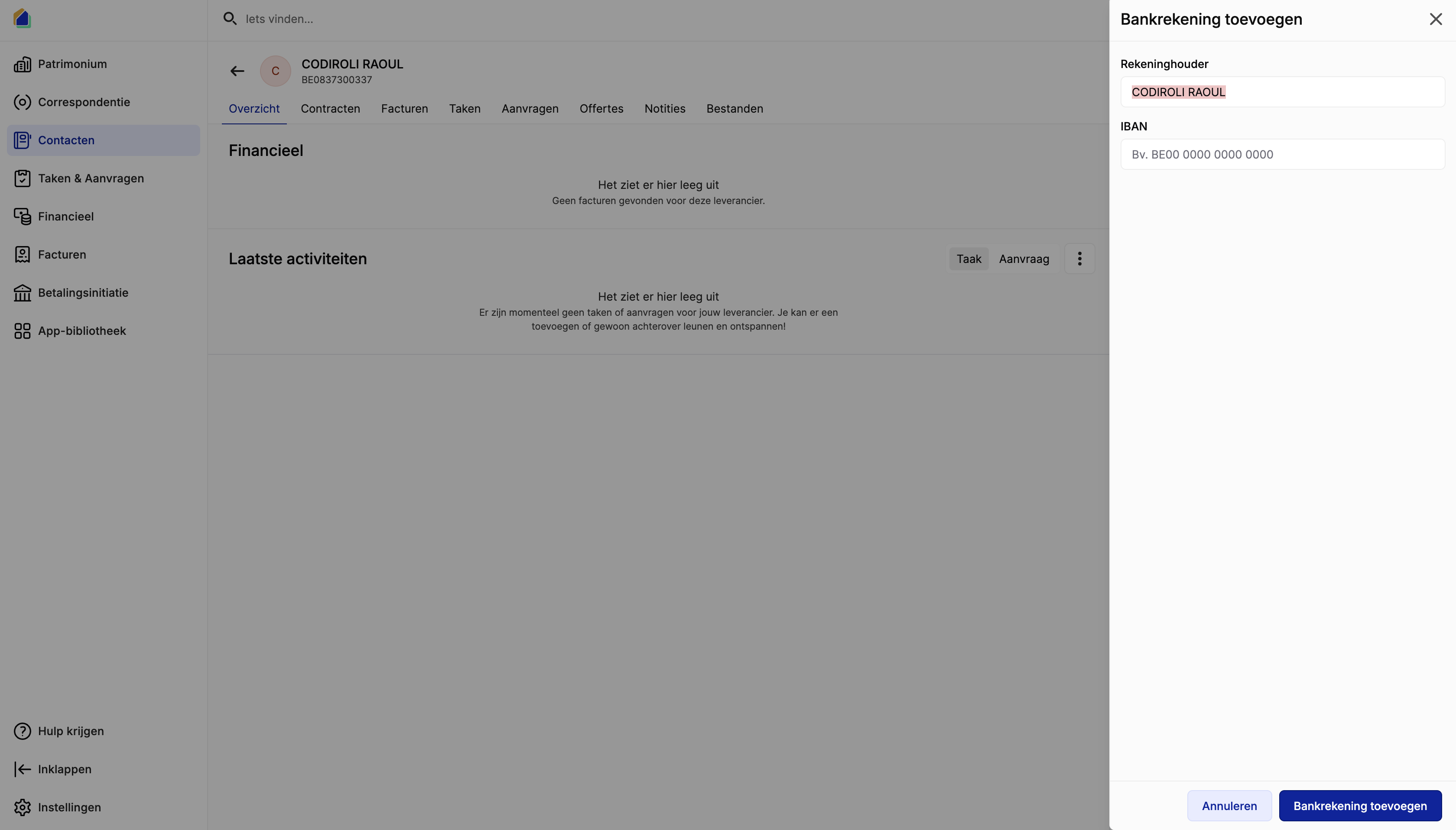
After creating the supplier, open the supplier detail page. In the Bank accounts section (bottom right), click +.
| Field | Description | Why it matters |
|---|---|---|
| Account holder | Account holder name (auto-filled) | — |
| IBAN | Bank account number (e.g. BE00 0000 0000 0000) | Payment matching and payment initiation |
WARNING
Without the correct IBAN:
- Outgoing payments to this supplier will not be automatically matched during batch reconciliation
- You cannot initiate payments to this supplier via Isabel 6 or Ponto
- Manual payment assignment will be required every time
Supplier detail page
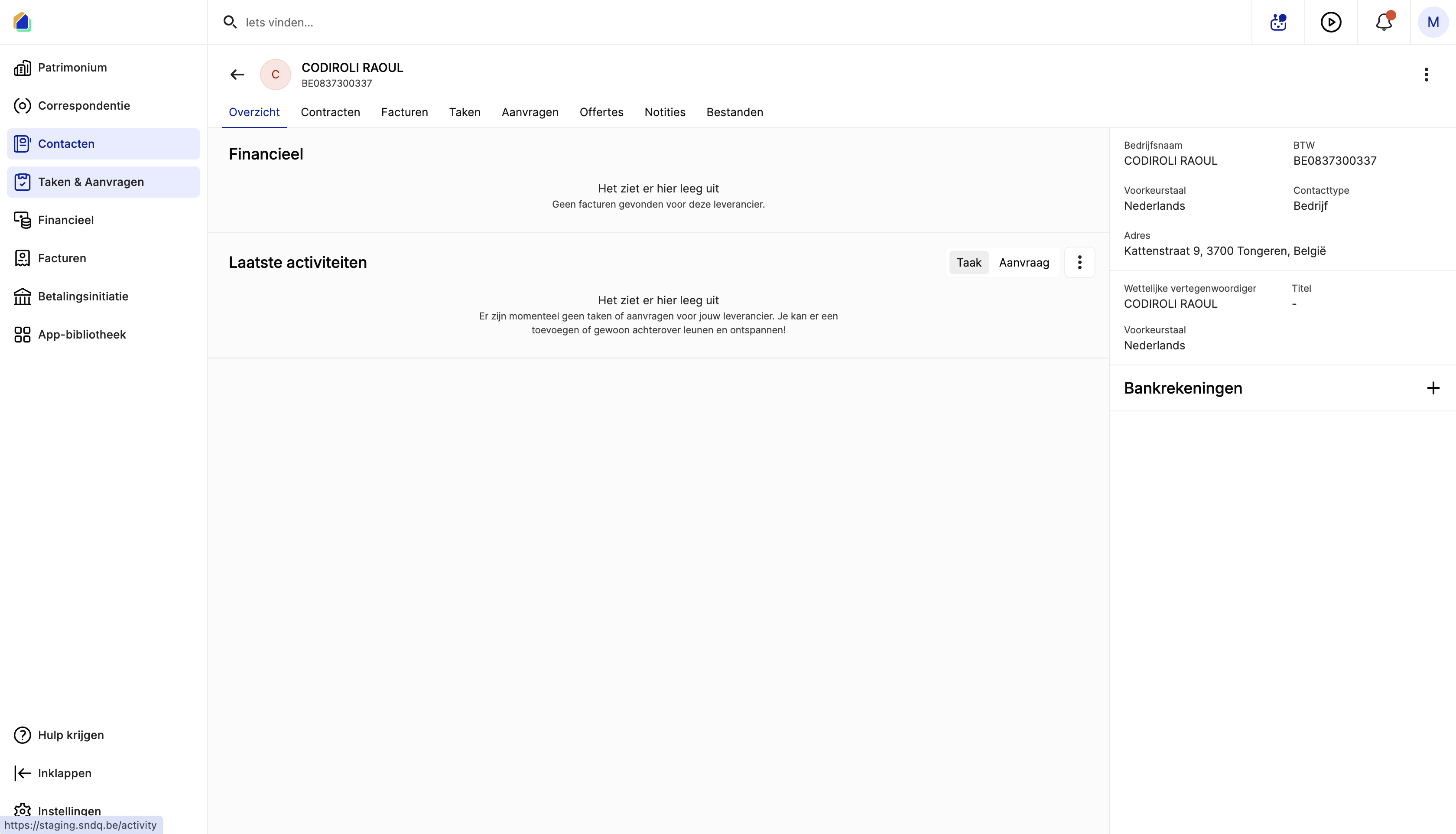
After creation, the supplier detail page shows an overview with tabs and a right sidebar.
Tabs:
| Tab | Description |
|---|---|
| Overview | Financial overview and latest activities |
| Contracts | Service contracts with this supplier |
| Invoices | All purchase invoices from this supplier |
| Tasks | Tasks related to this supplier |
| Requests | Requests/quotes from this supplier |
| Quotes | Quotes |
| Notes | Notes |
| Files | Files and documents |
Right sidebar:
| Field | Description |
|---|---|
| Company name | Company name |
| VAT | VAT number |
| Preferred language | Preferred language |
| Contact type | Company |
| Address | Business address |
| Legal representative | Legal representative and title |
| Bank accounts | IBAN(s) — click + to add more |
Avoid duplicate suppliers
Each supplier should exist only once in the system. Duplicates cause:
- Split invoices — invoices are spread across multiple supplier records, making financial reporting inaccurate
- Failed payment matching — payments may match the wrong supplier record
- Incorrect reporting — supplier totals and balances become unreliable
How to avoid duplicates:
- Search first — before creating, search by company name or VAT number in the supplier list
- Check VAT number — the system warns if a supplier with the same VAT number already exists
- Use consistent naming — use the official company name from the VAT register (e.g. "ENGIE ELECTRABEL NV" not "Engie" or "Electrabel")
TIP
If you find a duplicate, do not delete it if it has linked invoices. Contact SNDQ support to merge the duplicate suppliers.
Good to know
- VAT number is the primary identifier for suppliers. Always fill it in when available.
- IBAN is essential for payment matching and payment initiation. Add it immediately after creating the supplier.
- One contact per supplier — do not create multiple contacts for the same company. Use the single supplier record for all buildings.
- Building link — after creating a supplier, link it to the relevant building(s) via building settings → supplier settings. See Configure building supplier settings.
- Peppol matching — incoming Peppol invoices are matched to suppliers by VAT number. Without the VAT number, the system cannot auto-detect the supplier.