

Configure building supplier settings
When a supplier is linked to a building, you can configure default settings that apply automatically when creating invoices for that supplier. This saves time and ensures consistent accounting.
Open supplier settings
- Go to Financial > select the building > Suppliers.
- Click on a supplier to open its detail panel.
- Scroll down to the Building supplier settings section.
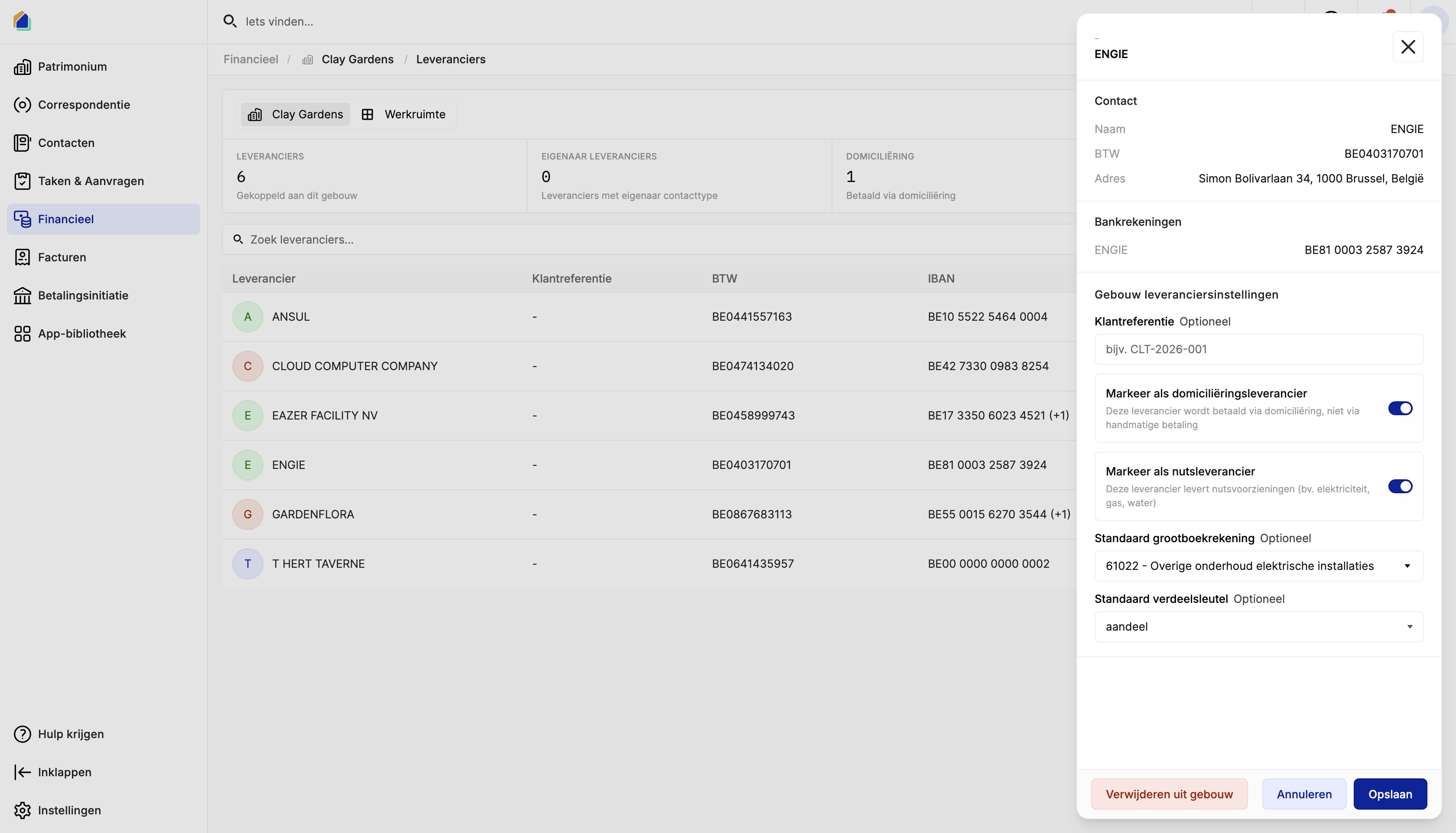
Available settings
| Setting | Description |
|---|---|
| Mark as direct debit supplier | Toggle — This supplier collects payments via direct debit from the HOA's bank account, instead of the HOA paying manually. Invoices automatically get payment status Completed. |
| Mark as utility supplier | Toggle — This supplier provides utilities (e.g. electricity, gas, water). |
| Customer reference | Reference number per building (e.g. CLT-2026-001). Used on invoices and correspondence. |
| Default ledger account | Default accounting account for invoices from this supplier (e.g. 61022 — Other maintenance electrical installations). |
| Default distribution key | Default distribution key for cost lines (e.g. shares). |
Save time with defaults
By setting the default ledger account and distribution key, you avoid having to manually select them every time you create an invoice for this supplier. This is especially useful for recurring invoices from utility suppliers.
Video — Configure building supplier settings
Related articles
Need help?
Contact our team at info@sndq.be or use the Get Help option in the SNDQ application.