

Create a contact
Contacts are the foundation of SNDQ. Every co-owner, supplier, and tenant is a contact. Accurate contact data is essential for:
- Broadcasts & correspondence — emails, letters, and meeting invitations are sent based on the contact's email and correspondence preference
- Payment matching — bank payments are matched to owners and suppliers via their IBAN
- Invoicing — supplier contacts are linked to purchase invoices
- Meetings — co-owners receive invitations and can vote based on their contact record
Video — Create a contact
Navigate to contacts
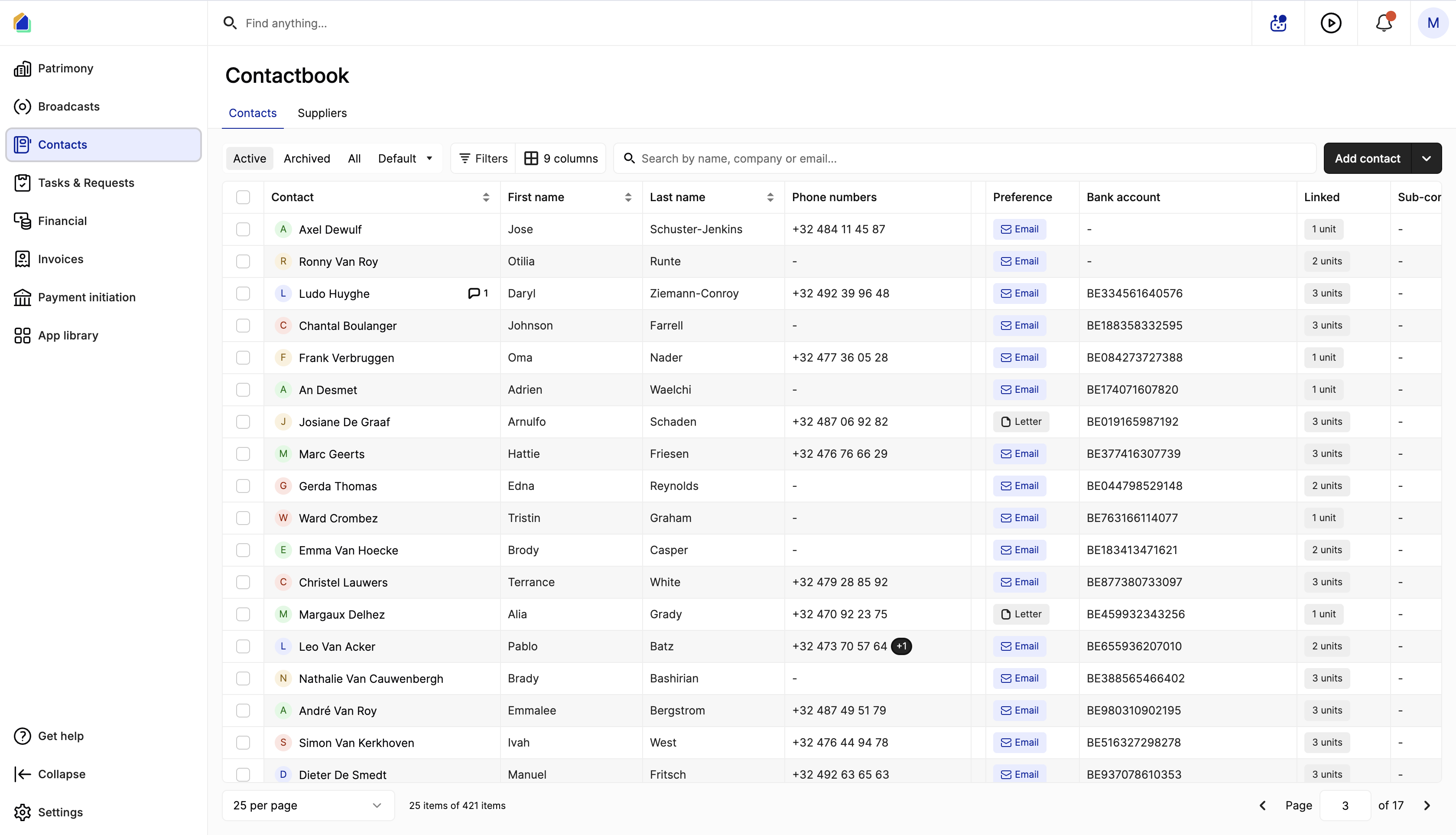
Go to Contacts in the left sidebar. The Contactbook shows two tabs:
| Tab | Description |
|---|---|
| Contacts | All persons and companies (owners, tenants, board members, etc.) |
| Suppliers | Supplier contacts linked to buildings |
Contact list overview
The contact list displays the following columns:
| Column | Description |
|---|---|
| Contact | Full name |
| First name | First name |
| Last name | Last name |
| Phone numbers | Phone number(s) |
| Preference | Correspondence preference: Email or Letter |
| Bank account | IBAN number (if configured) |
| Linked | Number of linked units (e.g. "3 units") |
| Sub-contacts | Number of sub-contacts |
Use the filter tabs Active, Archived, All, Default, or create custom filters to narrow the list.
Create a new contact
Click Add contact in the top-right corner. A creation panel opens with the following fields.
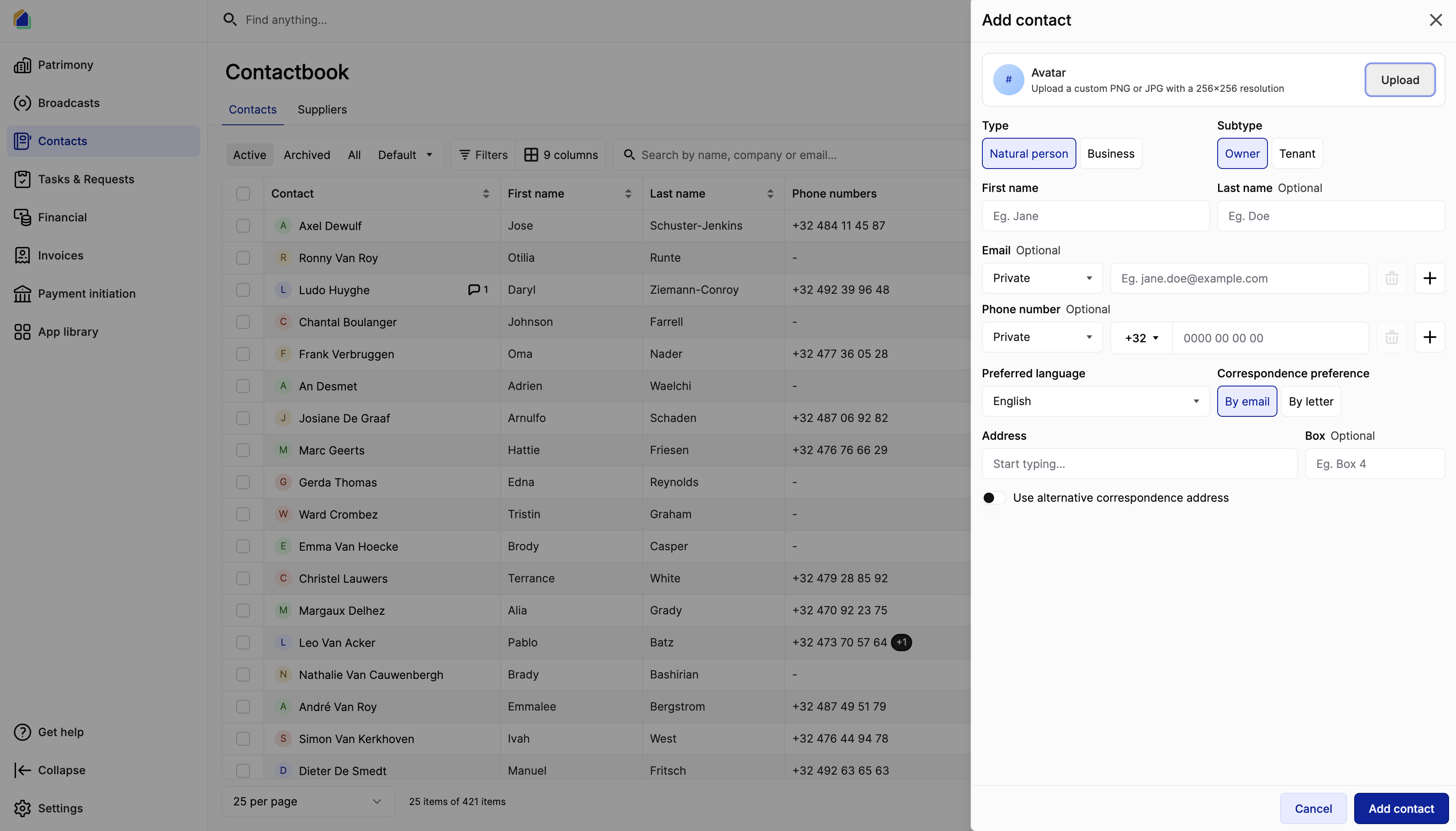
Contact type
| Type | Description |
|---|---|
| Natural person | An individual person (co-owner, tenant, board member) |
| Business | A company or organisation |
Contact subtype
| Subtype | Description |
|---|---|
| Owner | A co-owner of a unit in the building |
| Tenant | A tenant renting a unit |
Basic information
| Field | Description | Required |
|---|---|---|
| Avatar | Upload a custom PNG or JPG (256×256 resolution) | No |
| First name | First name of the contact | Yes |
| Last name | Last name of the contact | No |
Email
| Field | Description | Used for |
|---|---|---|
| Email address | Broadcasts, meeting invitations, correspondence | |
| Type | Private or Work | — |
You can add multiple email addresses by clicking +.
WARNING
Without an email address, the contact can only receive physical letters — not emails. This affects meeting invitations, provision letters, and all other correspondence.
Phone number
| Field | Description |
|---|---|
| Phone number | Phone number with country code (e.g. +32) |
| Type | Private or Work |
You can add multiple phone numbers by clicking +.
Communication settings
| Field | Options | Used for |
|---|---|---|
| Preferred language | English, Nederlands, Français, Deutsch | Broadcasts — the contact receives correspondence in their preferred language |
| Correspondence preference | By email or By letter | Broadcasts — determines how the contact receives all correspondence |
WARNING
The correspondence preference determines the default delivery method for all broadcasts, meeting invitations, and provision letters. If set to By letter, the contact will receive physical mail instead of email.
Address
| Field | Description |
|---|---|
| Address | Street address (start typing to search) |
| Box | Bus/unit number (e.g. Box 4) |
| Use alternative correspondence address | Toggle to set a different address for correspondence |
Bank account number (IBAN)
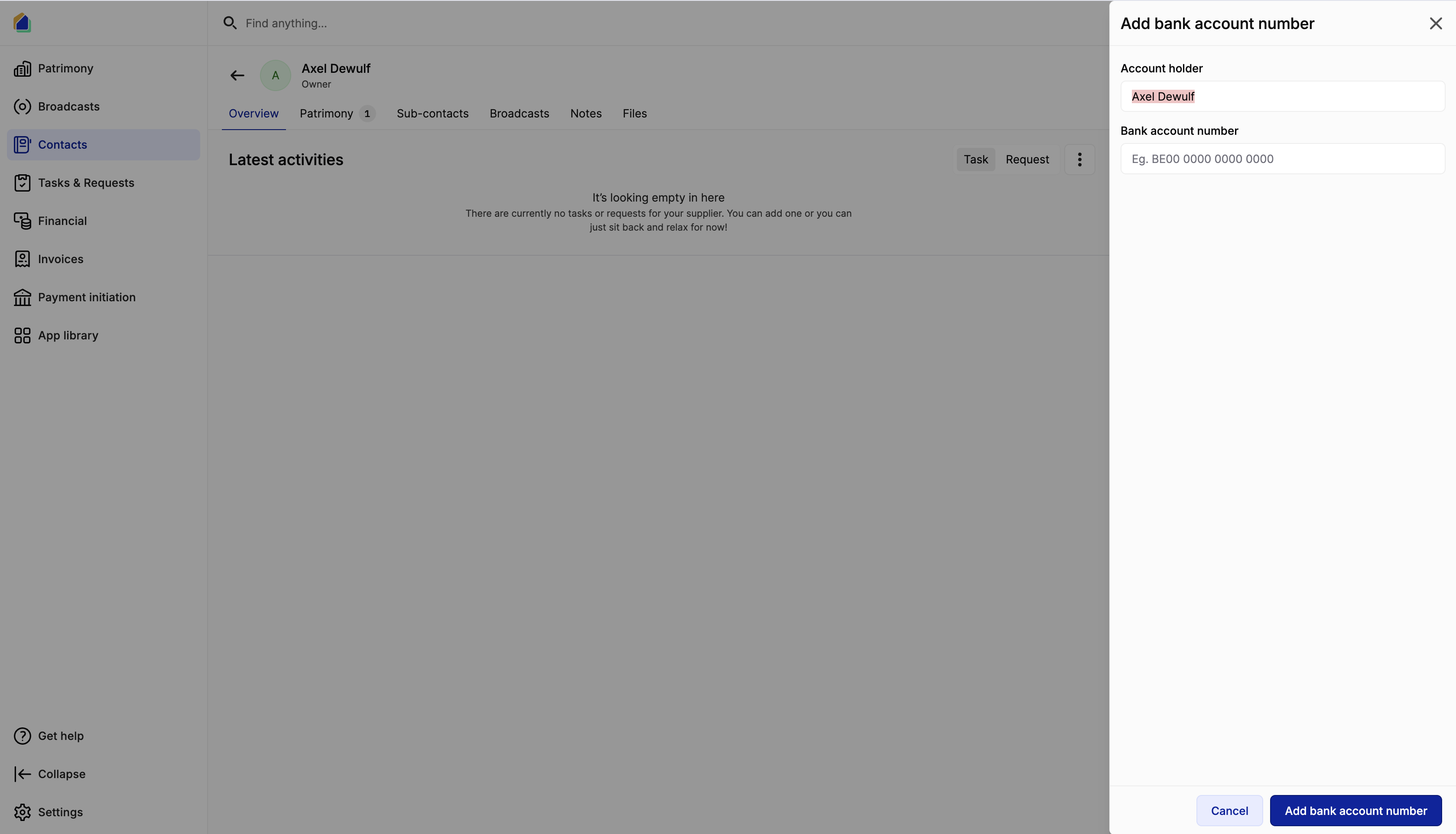
After creating the contact, go to the contact detail page and click Add bank account number.
| Field | Description | Used for |
|---|---|---|
| Account holder | Name on the bank account (auto-filled with the contact name) | — |
| Bank account number | IBAN (e.g. BE00 0000 0000 0000) | Payment matching |
WARNING
The IBAN is used to automatically match incoming bank payments to owners and outgoing payments to suppliers. Without a correct IBAN:
- Owner payments will not be recognised during batch reconciliation
- Supplier payments will not be linked to purchase invoices
- Internal transfers between accounts won't be detected
Why each field matters
| Field | Impact |
|---|---|
| No email → no email broadcasts, only physical letters. Meeting invitations, provision letters, and reports won't be delivered digitally. | |
| Correspondence preference | Determines if the contact receives emails or physical letters for all correspondence. |
| Preferred language | All broadcasts and generated documents are sent in this language. |
| IBAN | No IBAN → payments from/to this contact cannot be automatically matched. Manual assignment required. |
| Address | Required for physical letters. Also used in meeting attendance lists and official documents. |
Good to know
- One contact, multiple roles — a contact can be both an owner and a supplier. Use sub-contacts for complex structures.
- Multiple IBANs — a contact can have multiple bank account numbers. All IBANs are used for payment matching.
- Multiple emails/phones — add as many contact methods as needed.
- Archived contacts — contacts can be archived (not deleted) when no longer active. Archived contacts are hidden from the active list.
- Sub-contacts — for companies with multiple contact persons, add sub-contacts under the main business contact.
- Linked units — the Linked column shows how many building units are associated with this contact (via ownership or tenancy).