

Send provision letters to owners
After creating advance requests, you can send provision letters to owners so they know how much to pay and when. SNDQ lets you send these via email or as a downloadable letter — depending on each owner's communication preference.
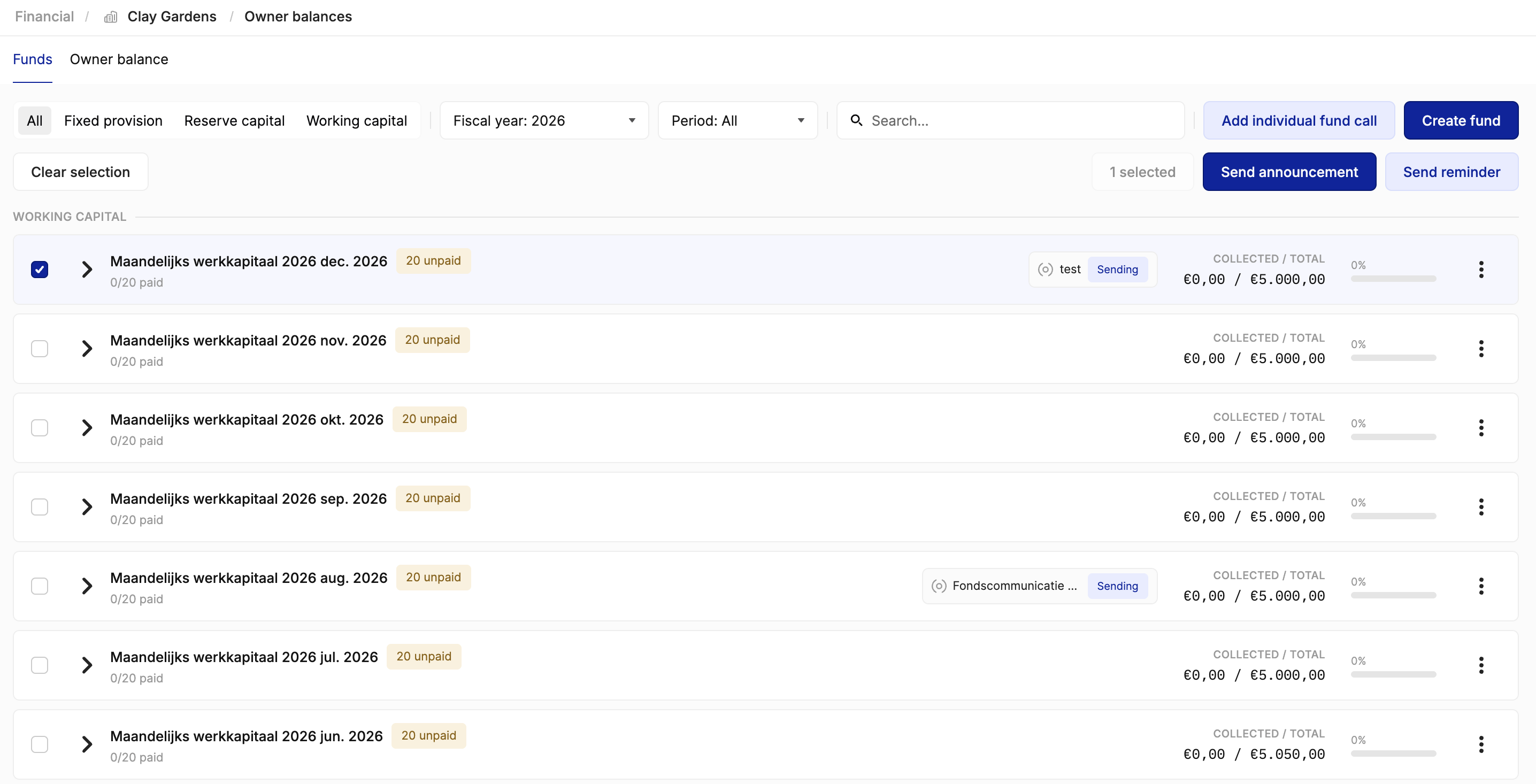
Select the advance request to send
- Go to Financial > Owner balances > Requests tab.
- Tick the checkbox next to the fund you want to send (e.g. "Monthly working capital 2026 Dec. 2026"). This selects all owners in that fund.
- You can also open the fund and select individual advance requests if you only need to notify specific owners.
- Click Send announcement.
Configure the correspondence
The correspondence editor opens. Here you configure how the provision letters are delivered.
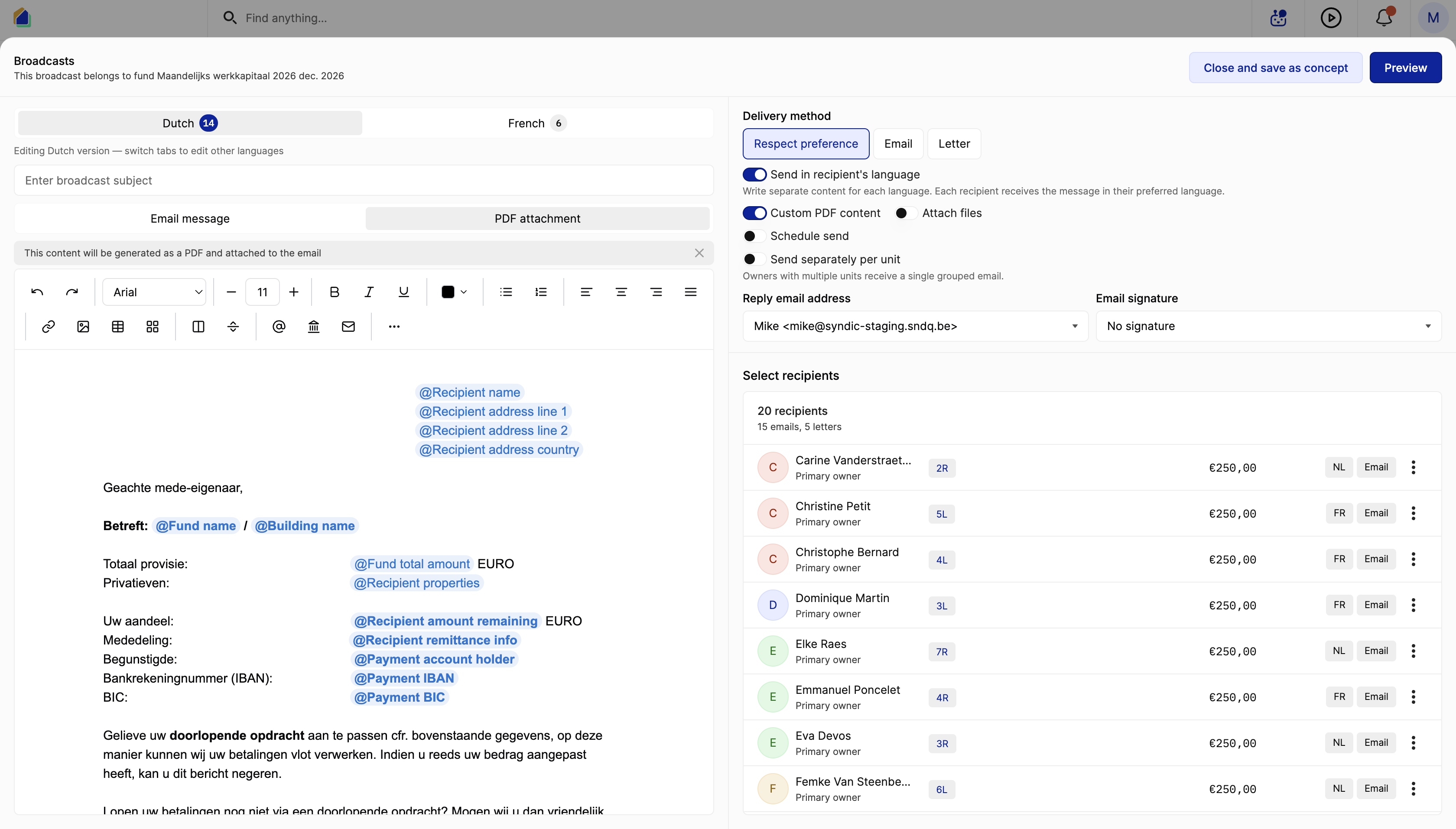
Choose a Delivery method:
- Respect preference — uses each contact's preferred delivery method. If an owner's preference is set to Letter, a PDF letter is generated. If set to Email, the provision is sent by email.
- Email — sends all provision letters by email, regardless of preference.
- Letter — generates all provision letters as downloadable PDF letters.
Additional options:
- Custom PDF content — includes a PDF attachment with the provision details alongside the email.
- Schedule sending — schedule the provision letters to be sent at a future date and time.
- Send separately per unit — owners with multiple units receive one combined letter instead of separate letters per unit.
Set the Reply email address and Email signature as needed.
Template management
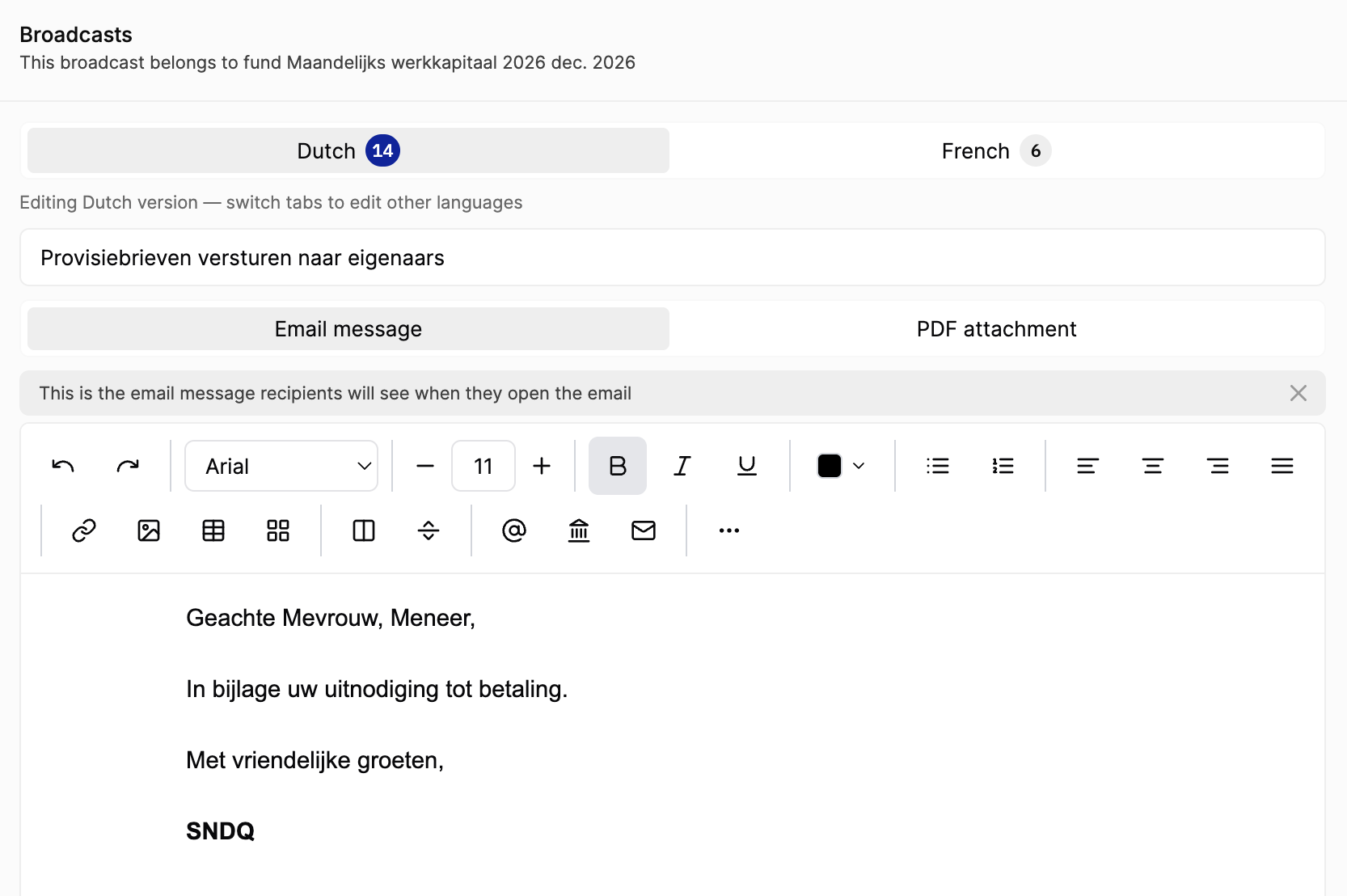
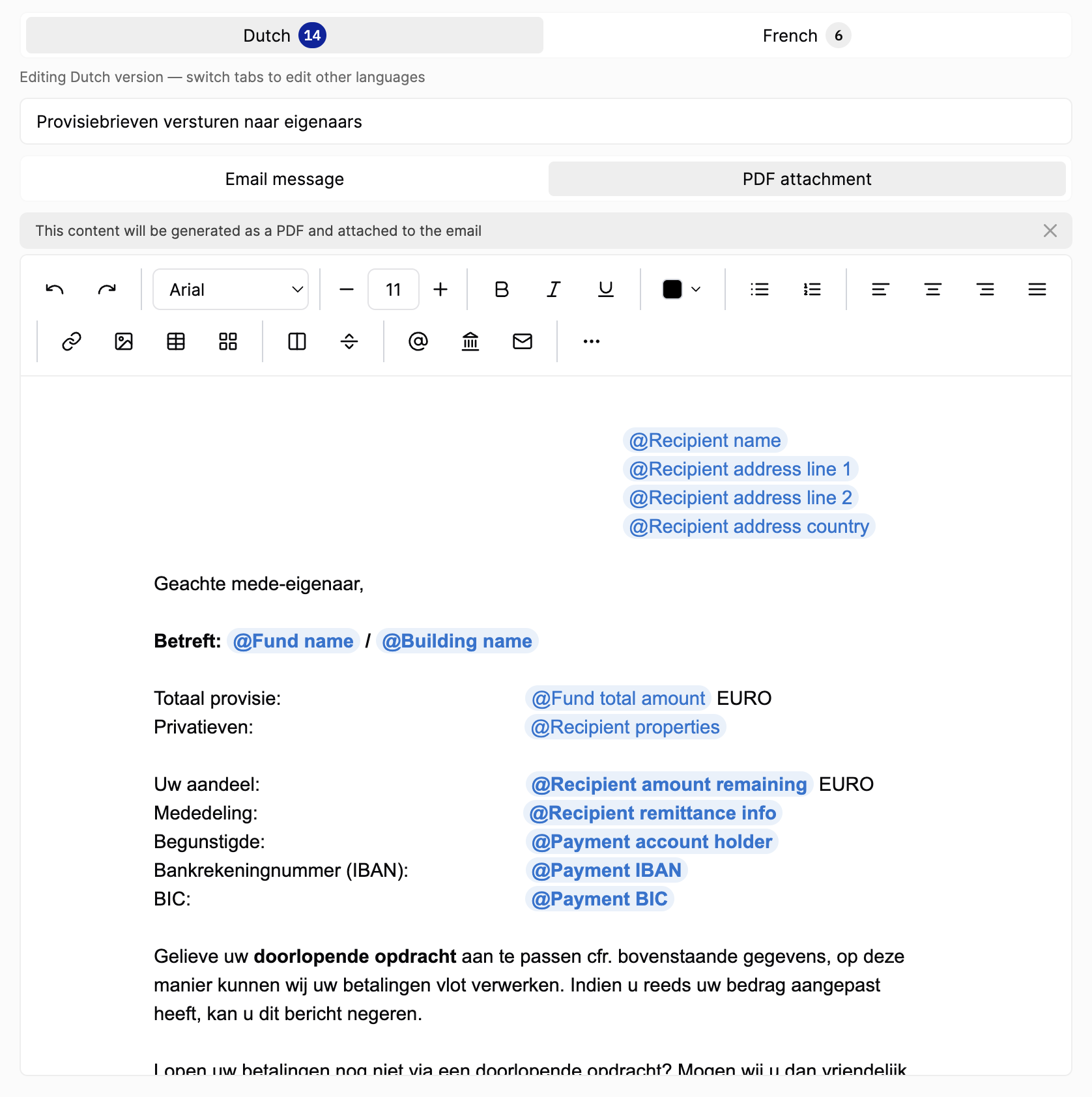
If you have already configured your email and PDF templates in Settings > Templates, the email body and PDF attachment content are loaded automatically. You only need to adjust them if you want to change something for this specific correspondence.
Use the language tabs (Dutch, French, etc.) to review or edit the Email message and PDF attachment content for each language. The system automatically sends each owner their correspondence in the correct language.
On the right side, you see the list of all recipients. You can exclude an owner by clicking the three-dot menu (⋮) next to their name and removing them from the list.
Preview before sending
Once everything is configured, click Preview to see exactly what each owner will receive.
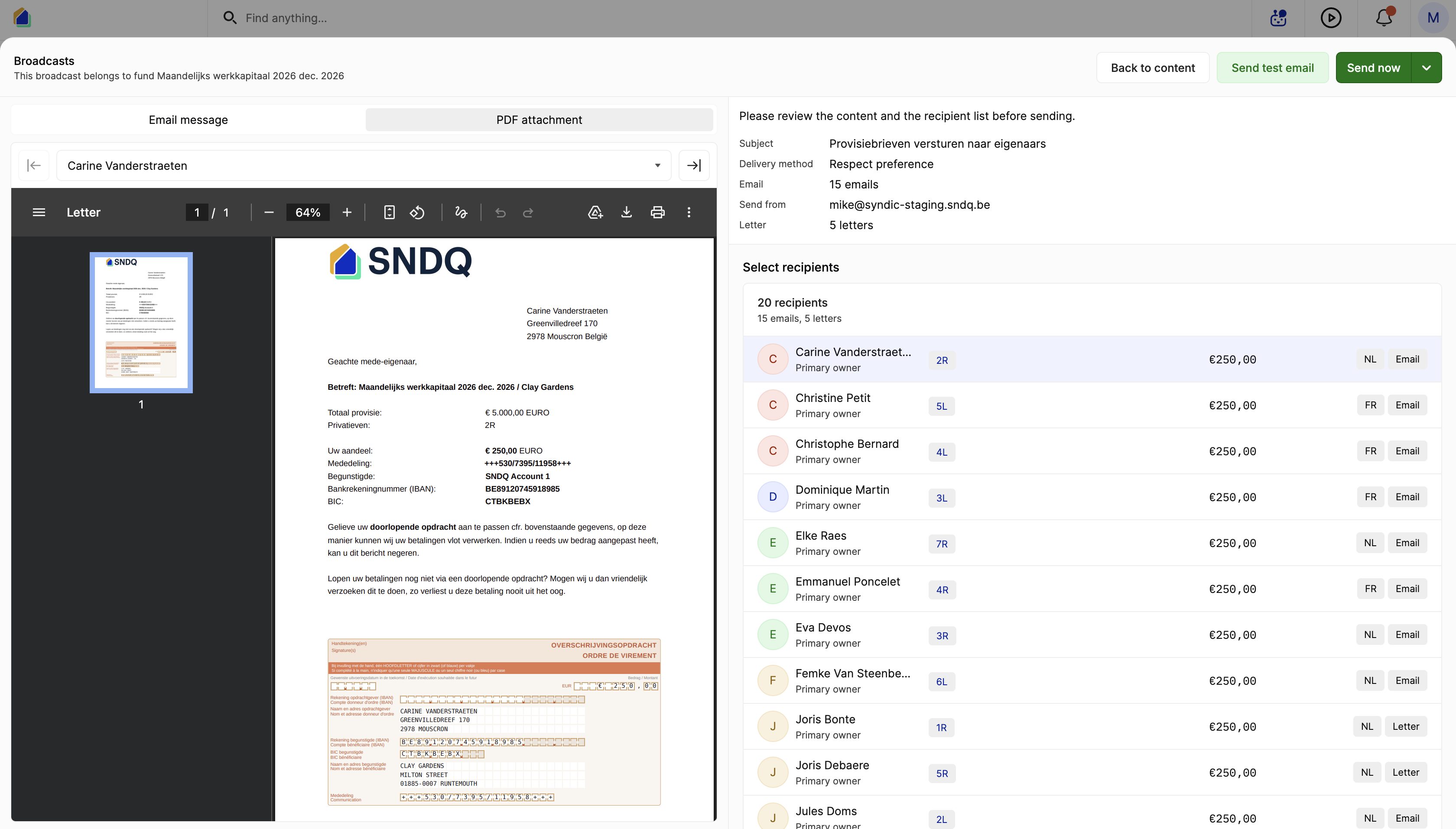
Browse through the list of owners on the right and click each name to check their preview. Make sure the amounts, communication details, and bank information are correct.
Send a test email
If this is the first time you are sending correspondence through SNDQ, click Send test email to send yourself a test so you can see what the final result looks like.
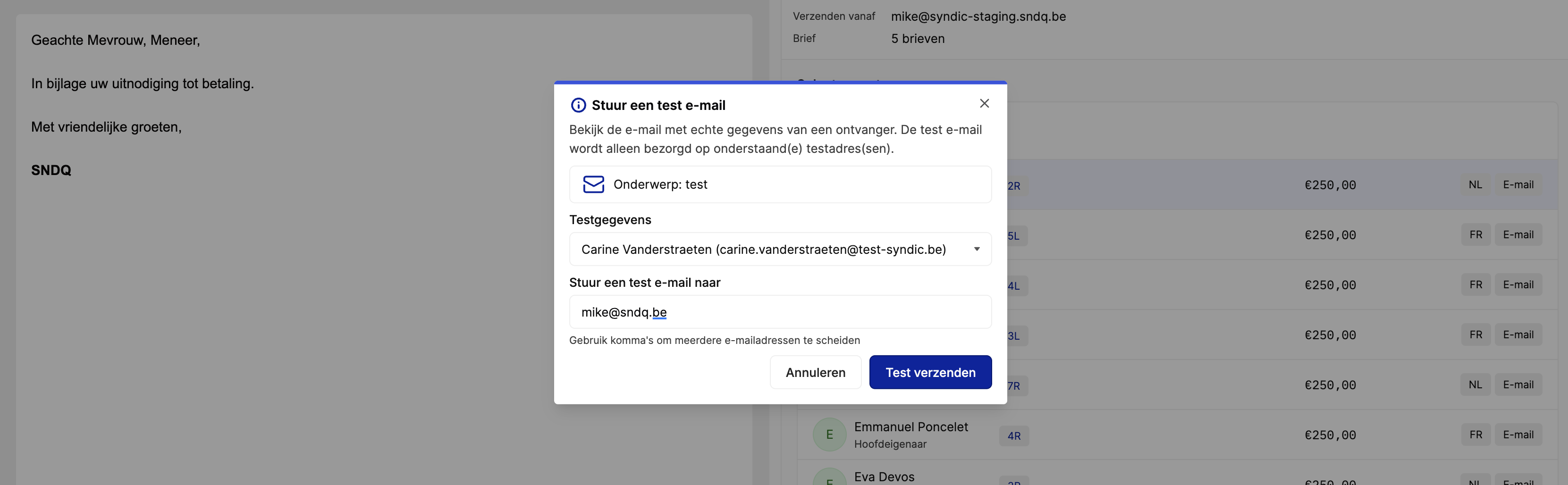
- Send a test email to — enter your own email address. The test email will only be sent to this address.
- Test data — select which owner's data is used to fill in the template placeholders (fund name, amounts, etc.). The selected owner will not receive an email — their data is only used to populate the preview.
Click Send test to send the test to yourself, then check your inbox.
Send the provision letters
When you are satisfied with the preview, click Send now to send the provision letters to all selected owners.
Track delivery status
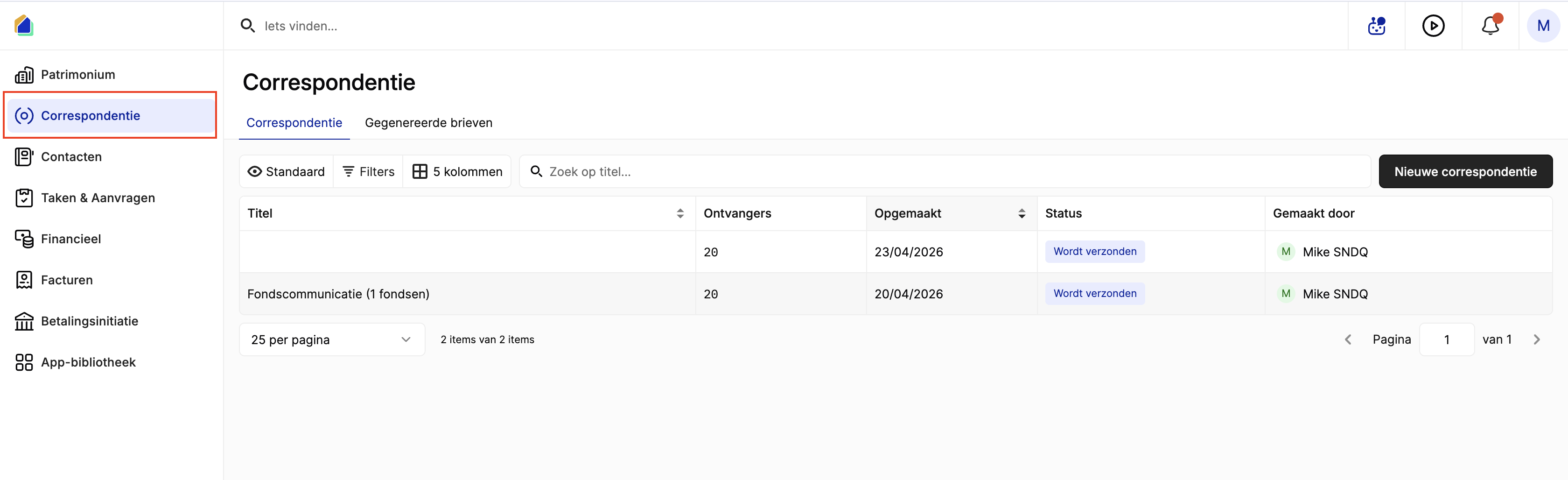
After sending, you are taken to the Correspondence overview. Click on the correspondence you just created to see the delivery status of each recipient.
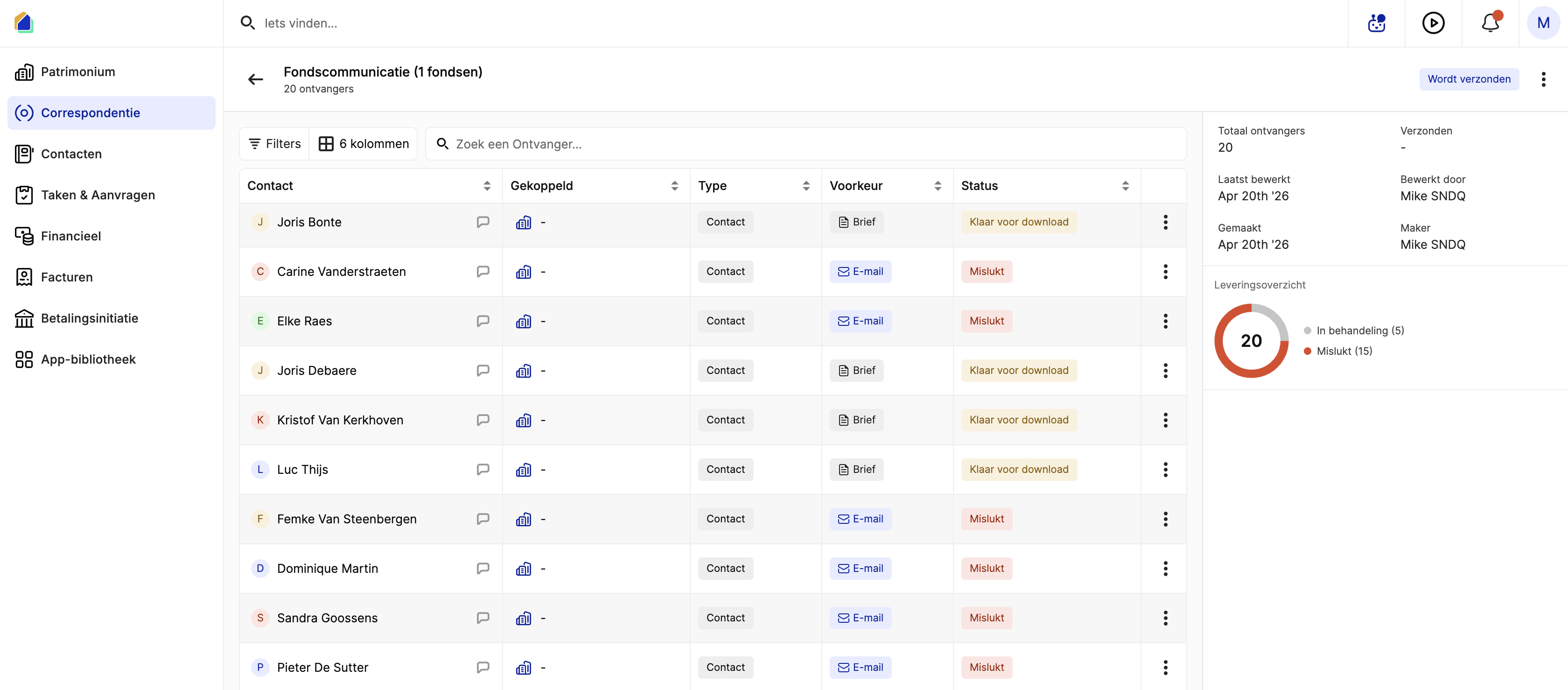
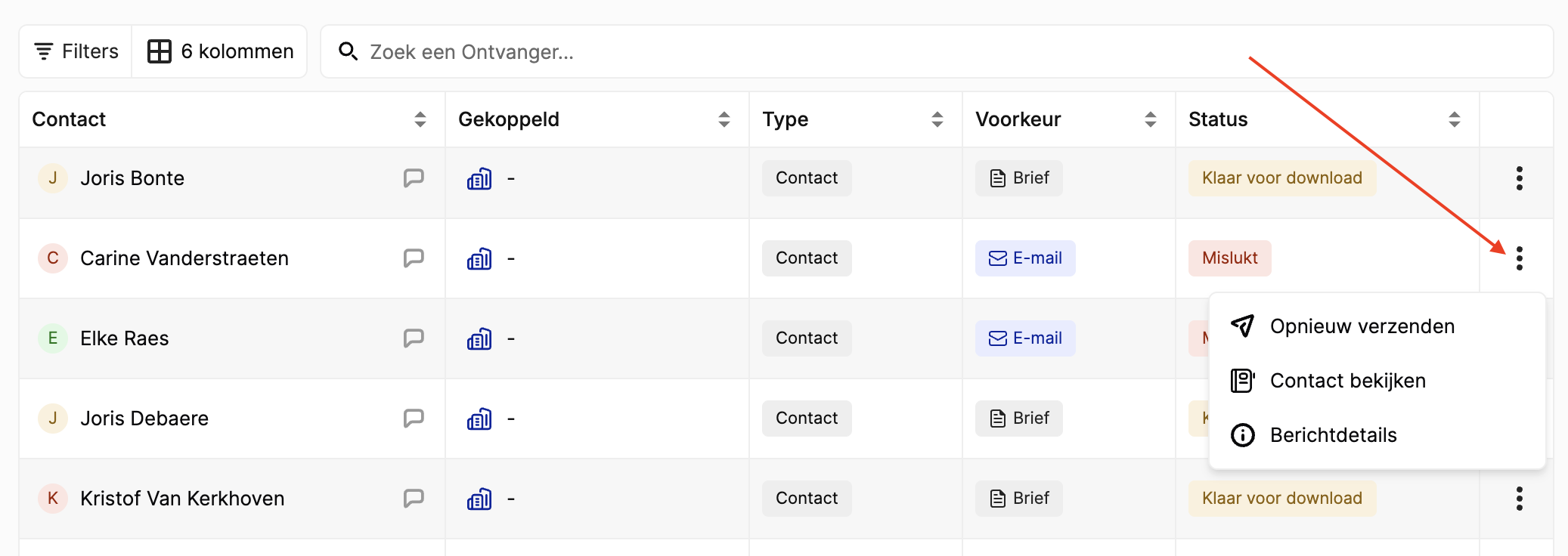
Check the Status column for each owner:
- Ready for download — the letter PDF is ready to be downloaded (for owners with letter preference).
- Failed — the email failed to send. Check whether the owner's email address is correct, then click the three-dot menu (⋮) and select Resend.
Handle physical letters
For owners who receive a physical letter (preference set to Letter):
- Click the three-dot menu (⋮) next to the owner's name.
- Download the letter PDF.
- Print and send the letter via post.
- Mark the letter as sent so you can easily track which letters have been delivered.
Video — Full flow: send provision letters
Related articles
Need help?
Contact our team at info@sndq.be or use the Get Help option in the SNDQ application.