

Batch reconcile payments
After owners pay their advance requests, you need to assign those incoming payments to the correct advance requests. The Batch reconcile feature matches payments to advance requests automatically based on IBAN and remittance info, so you can process all owners at once instead of assigning them one by one.
How it works
Open batch reconcile
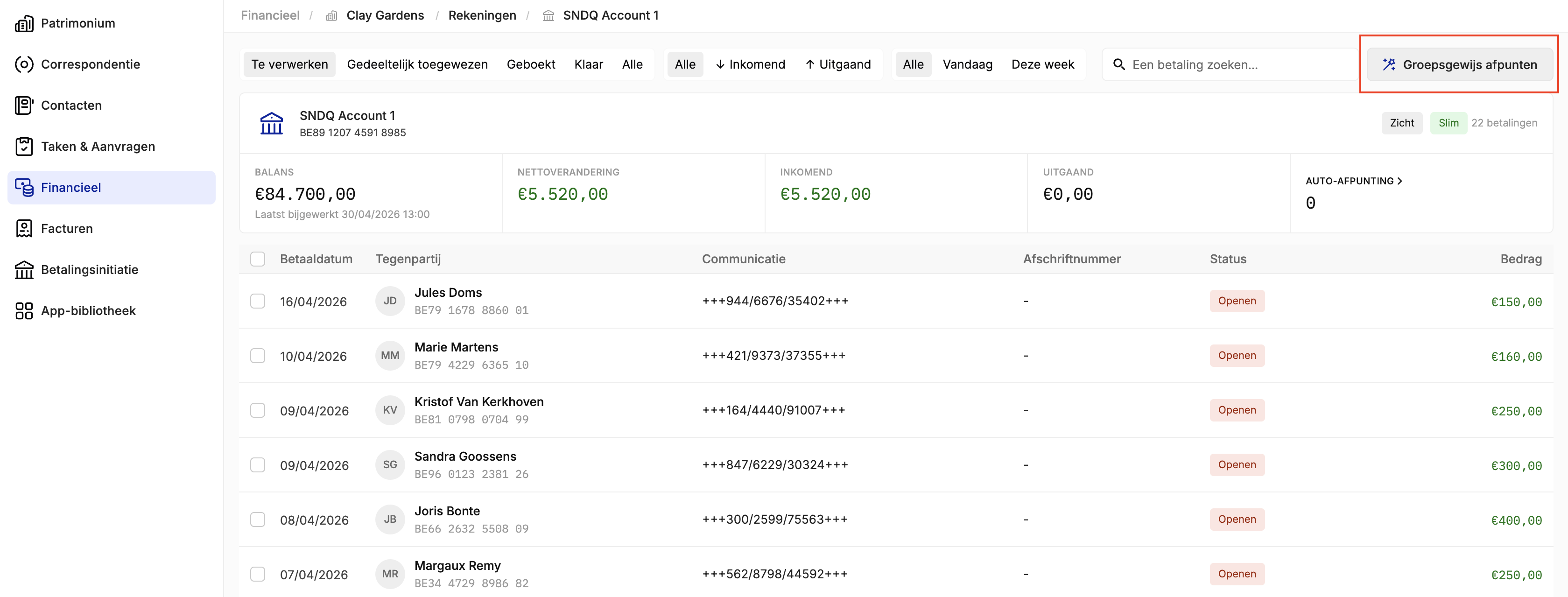
- Go to Financial > Accounts and select the bank account of the building.
- Click the Batch reconcile button in the top right corner.
Review the matching overview
The batch reconcile screen shows all owners with their payments on the left and the corresponding advance requests on the right.
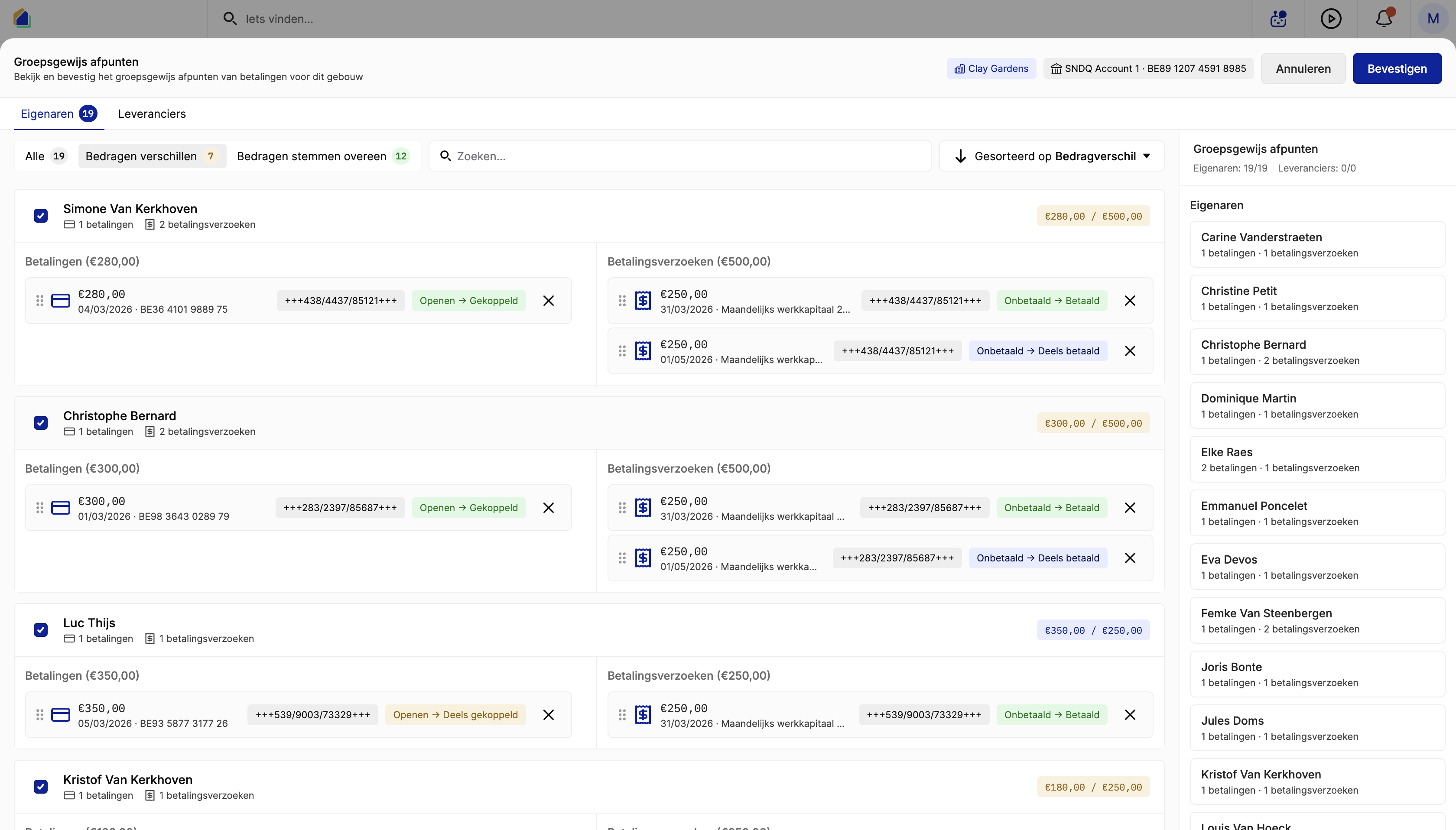
SNDQ automatically matches payments to advance requests based on:
- IBAN — the system compares the IBAN of the incoming payment with the bank accounts stored in each owner's contact. If an owner has multiple bank accounts, make sure all IBANs are added to their contact so matching works correctly.
- Remittance info — if the owner uses the correct remittance info (structured communication) from the advance request when making the payment, the matching will be more accurate.
Improve matching accuracy
Make sure each owner's contact has the correct bank account(s) configured. If an owner pays from different bank accounts, add all IBANs to their contact. Also, encourage owners to use the remittance info provided in the provision letter — this helps the system match payments to the right advance request.
Filter by matching status
Use the tabs at the top to filter owners:
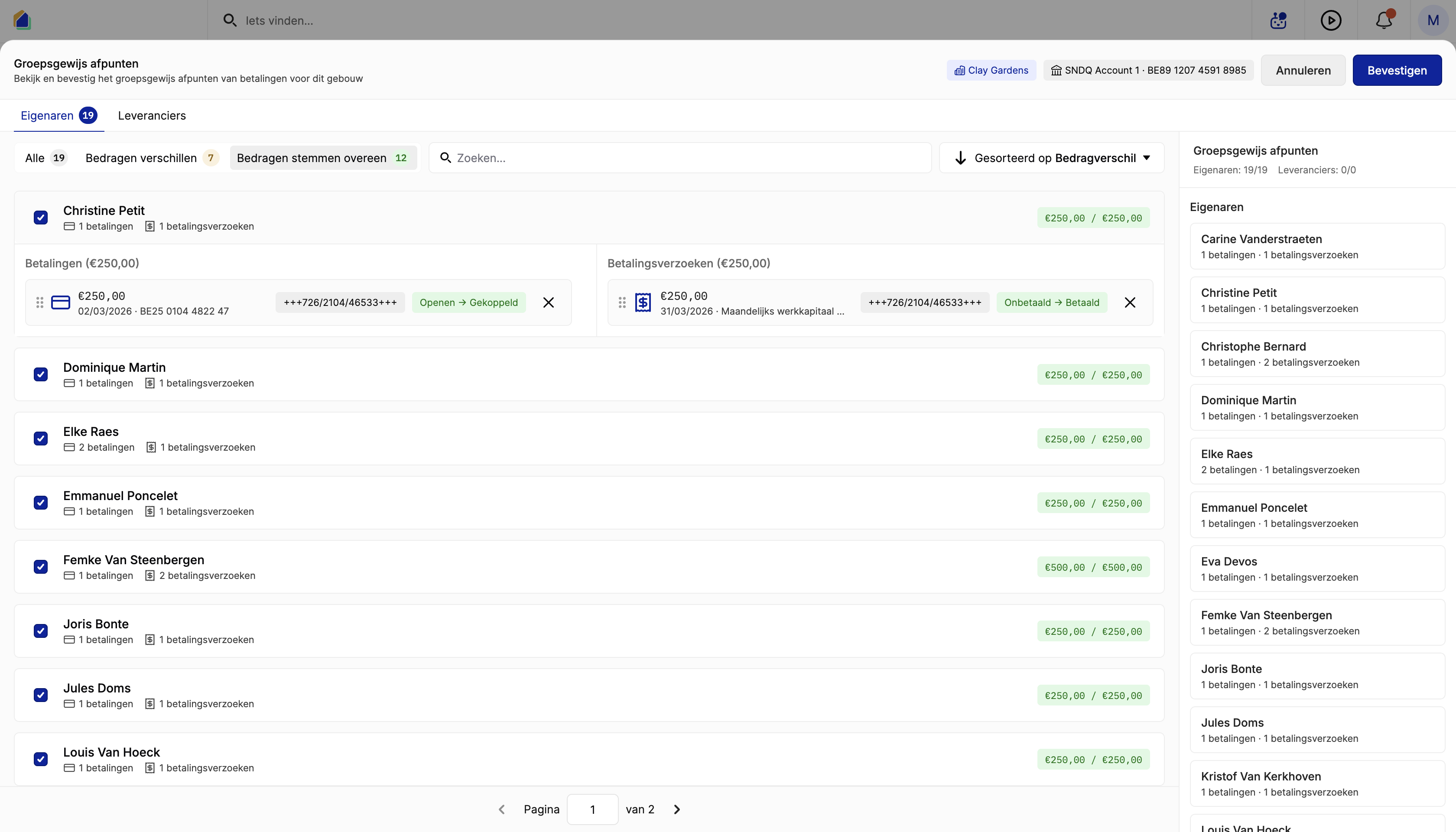
- All — shows all owners with their matched payments and advance requests.
- Amounts differ — filters owners whose payment does not fully cover their advance requests. This means the owner paid less than the total requested amount.
- Amounts match — filters owners whose payment exactly matches the total advance requests.
Suppliers tab
The Suppliers tab works the same way but for outgoing payments. If you have invoices and outgoing payments to suppliers, SNDQ matches those payments to the corresponding invoices automatically. For a detailed guide, see Assign purchase invoices to payments.
Confirm the reconciliation
Once you have reviewed the matching, click Confirm to assign all matched payments to their advance requests.
Video — Full flow: batch reconcile
After reconciliation
Overpayments
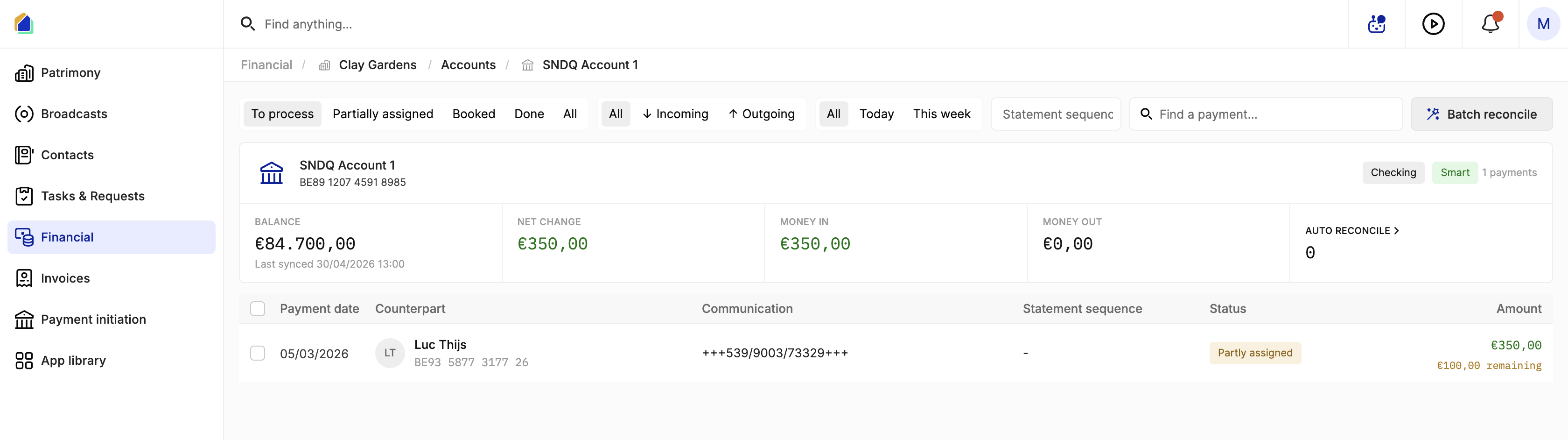
If an owner paid more than the total advance requests, the remaining amount stays visible on the bank account screen. You will see that the surplus has already been posted to the owner's ledger, even though it still appears in the To process tab. The next time you run Batch reconcile, this remaining amount will be assigned to the owner's new advance requests automatically.
Check owner balances
After reconciling, go to Financial > Owner balances to see which advance requests have been assigned. Open an individual owner to check whether they have paid in full or still owe an amount.
Video — Verify owner balances after reconciliation
Related articles
Need help?
Contact our team at info@sndq.be or use the Get Help option in the SNDQ application.