

Assign purchase invoices to payments
After a payment is initiated and processed by the bank, you need to link the outgoing bank payment to the corresponding purchase invoice. This confirms that the invoice has been paid and updates both the payment and invoice status.
There are two ways to do this:
- Manual — link individual payments to invoices one by one
- Batch reconcile — automatically match and link multiple supplier payments at once
Manual linking
You can link from either direction: starting from the invoice, or starting from the payment.
From the invoice
Use this when you are reviewing an invoice and want to find the matching bank payment.
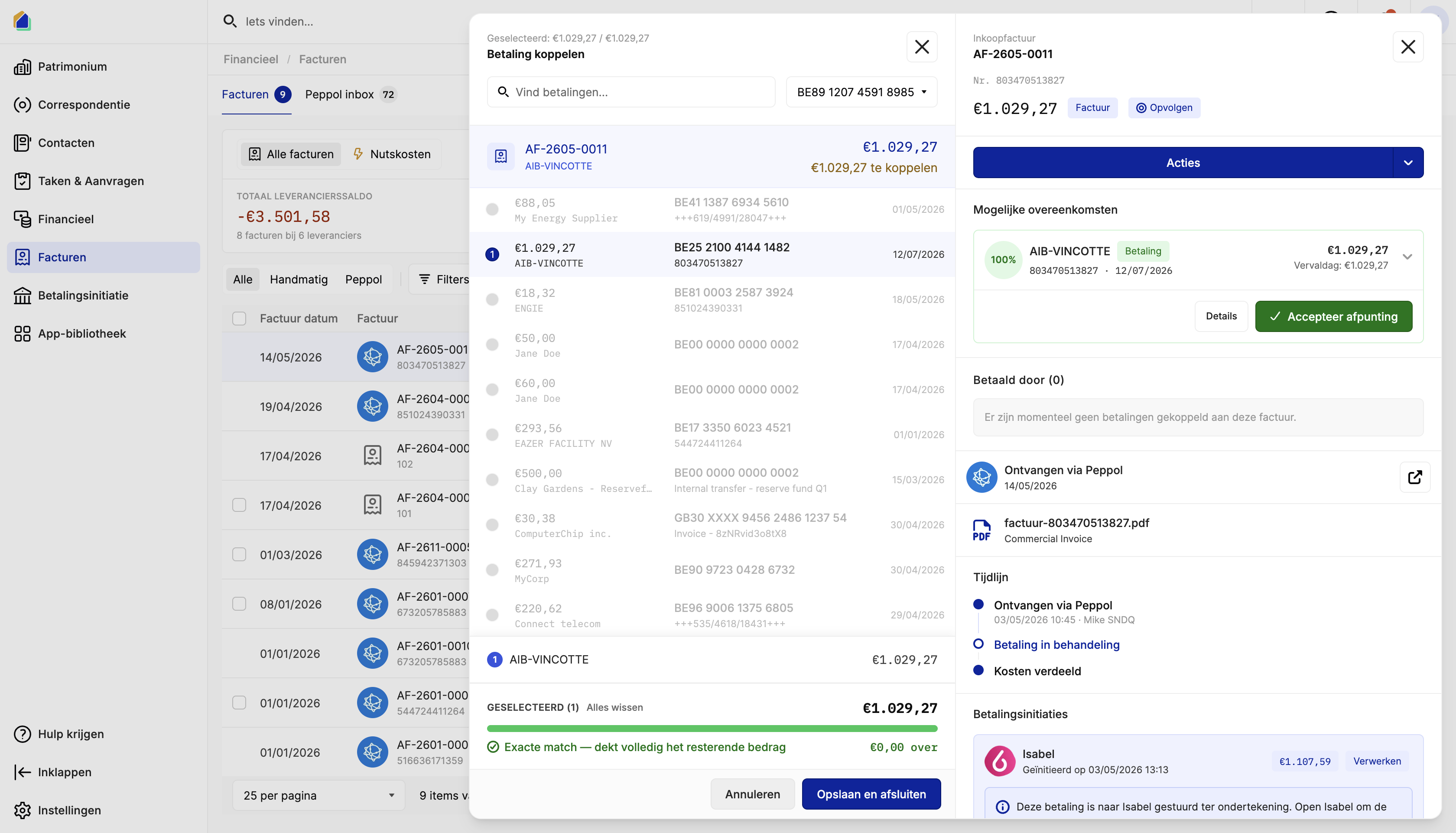
Open the invoice in Invoices, click Actions and select Link payment. A dialog opens showing the invoice at the top and a list of available payments from your bank account below.
The system highlights Possible matches with a match percentage. Select the correct payment, verify the match summary at the bottom — an exact match shows the remaining amount as €0.00 — and click Save and close.
From the payment
Use this when you are reviewing bank payments and want to find the matching invoice.
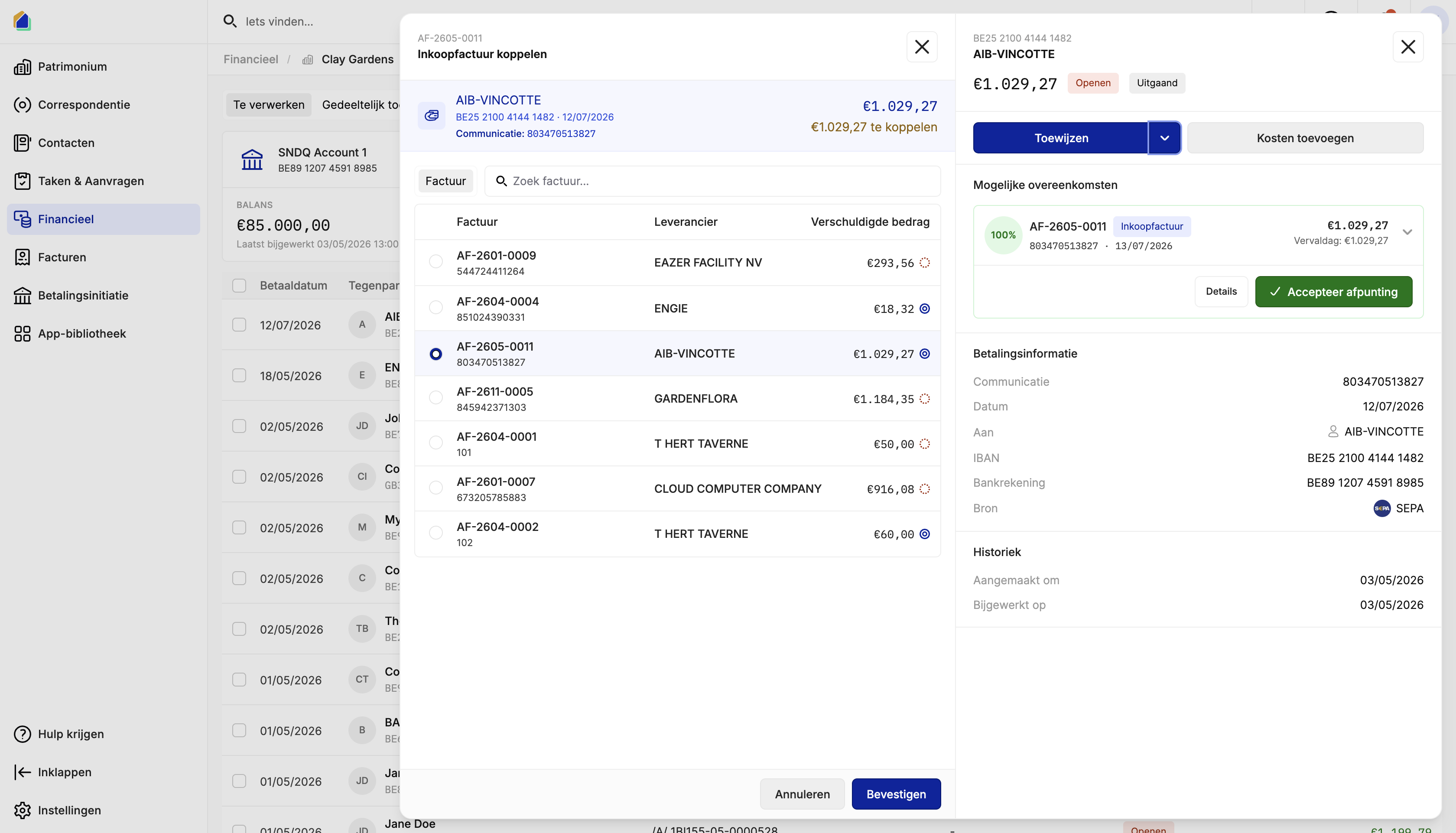
Open the bank account in Financial, find the outgoing payment, and click Assign. A dialog opens showing the payment details at the top and a list of open purchase invoices below.
The system shows Possible matches ranked by match percentage. Click Accept match to select the suggested match, or manually pick an invoice from the list. Review the payment details on the right panel and click Confirm.
How matching works
The system uses a smart algorithm to suggest the best match between payments and invoices:
| Factor | Weight | How it works |
|---|---|---|
| Reference | 40% | Compares the payment communication with the invoice structured communication |
| Name | 40% | Compares the payment counterpart name with the supplier name |
| Date | 20% | How close the payment date is to the invoice due date |
An exact match (100%) means the same amount, identical reference, and dates within 7 days. A fuzzy match (60% or higher) combines the three factors. Below 60% or different amounts, no match is suggested.
Batch reconcile
Use this to match and link multiple supplier payments at once for an entire building.
Open batch reconcile
Go to Financial and select the bank account. Click Batch reconcile in the top right corner.
Switch to the Suppliers tab
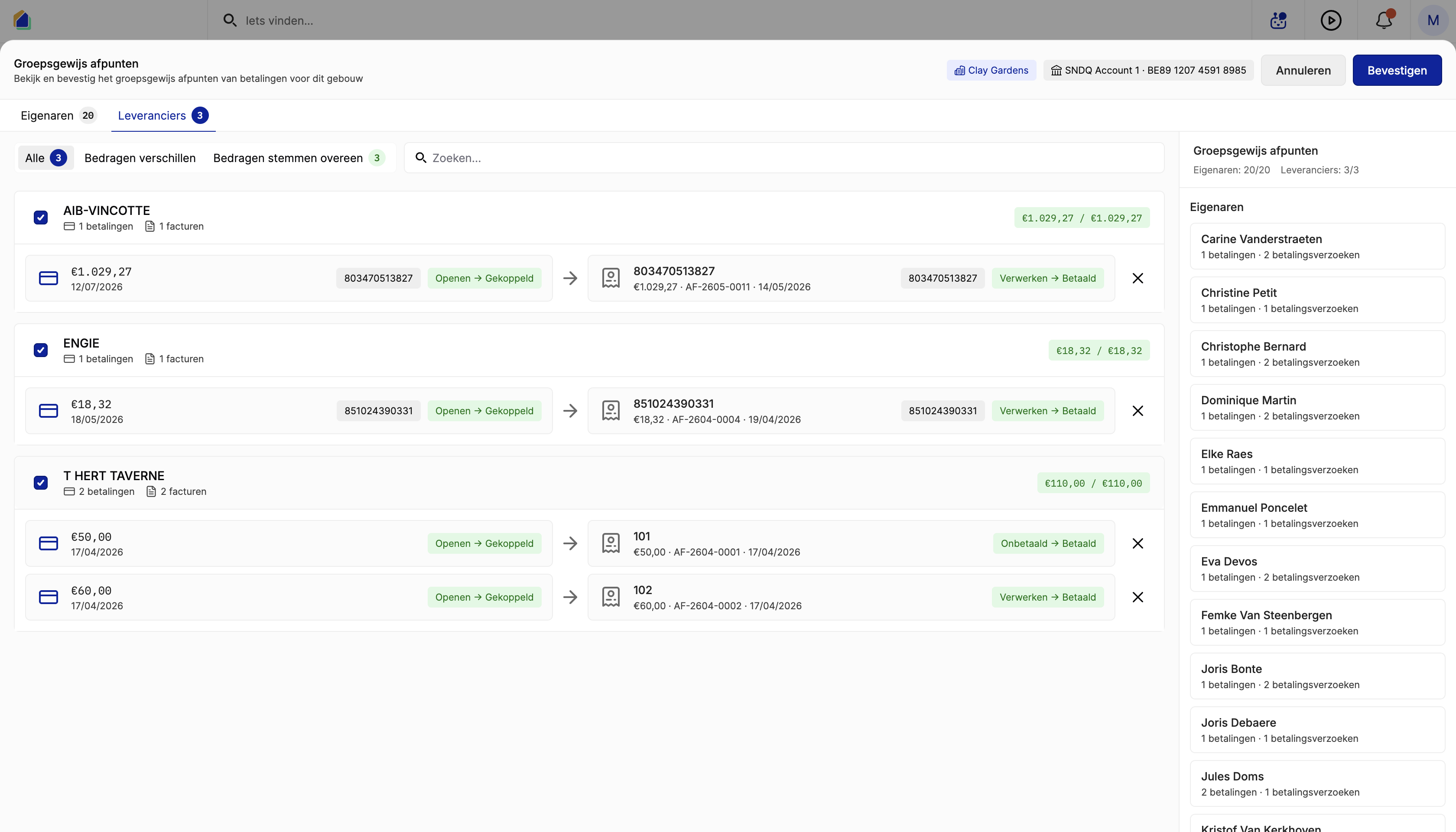
The batch reconcile screen has two tabs: Owners and Suppliers. Click the Suppliers tab.
Review the matches
The system automatically groups payments by supplier and matches them to open invoices. Each row shows the supplier name, number of payments, number of invoices, and the matched amount.
Use the filter tabs to narrow down:
- All — show all suppliers
- Amounts differ — suppliers where payment and invoice amounts do not match
- Amounts match — suppliers where amounts match exactly
Click on a supplier to expand and see the individual matches. Each match shows the payment on the left, an arrow indicating the link direction, and the invoice on the right — including the status change preview (e.g. Open to Assigned for payments, Unpaid to Paid for invoices).
Confirm all matches
Review the summary on the right sidebar showing how many owners and suppliers will be reconciled. Click Confirm to process all matches at once.
Video — Full flow: batch reconcile supplier invoices
Status changes after linking
| Entity | Before | After |
|---|---|---|
| Payment | Open | Assigned (fully consumed) or Partial (partially consumed) |
| Invoice | Unpaid | Paid (fully covered) or Partial (partially covered) |
| Invoice | Processing | Paid (initiated payment now matched) |
Unlinking a payment
If you linked the wrong payment, open the invoice detail, go to the Paid by section, and click the unlink action on the payment. This reverses the status changes: the payment goes back to Open or Partial, and the invoice remaining amount is restored.
Good to know
- One-to-one for batch — batch reconcile creates strict one payment to one invoice matches. Complex scenarios (multiple payments for one invoice) require manual linking.
- Credit notes — credit note invoices are matched to incoming payments (refunds), not outgoing payments.
- Already initiated — even if a payment was initiated via Isabel or Ponto and shows as Processing, you can still manually link a bank payment to mark it as paid.
Related articles
Need help?
Contact our team at info@sndq.be or use the Get Help option in the SNDQ application.