

Delete a purchase invoice
Deleting a purchase invoice removes it from the system. Depending on the invoice's current state and related data, deletion may be blocked to protect financial integrity. This article explains when you can delete, when you cannot, and how to resolve blocked scenarios.
How to delete
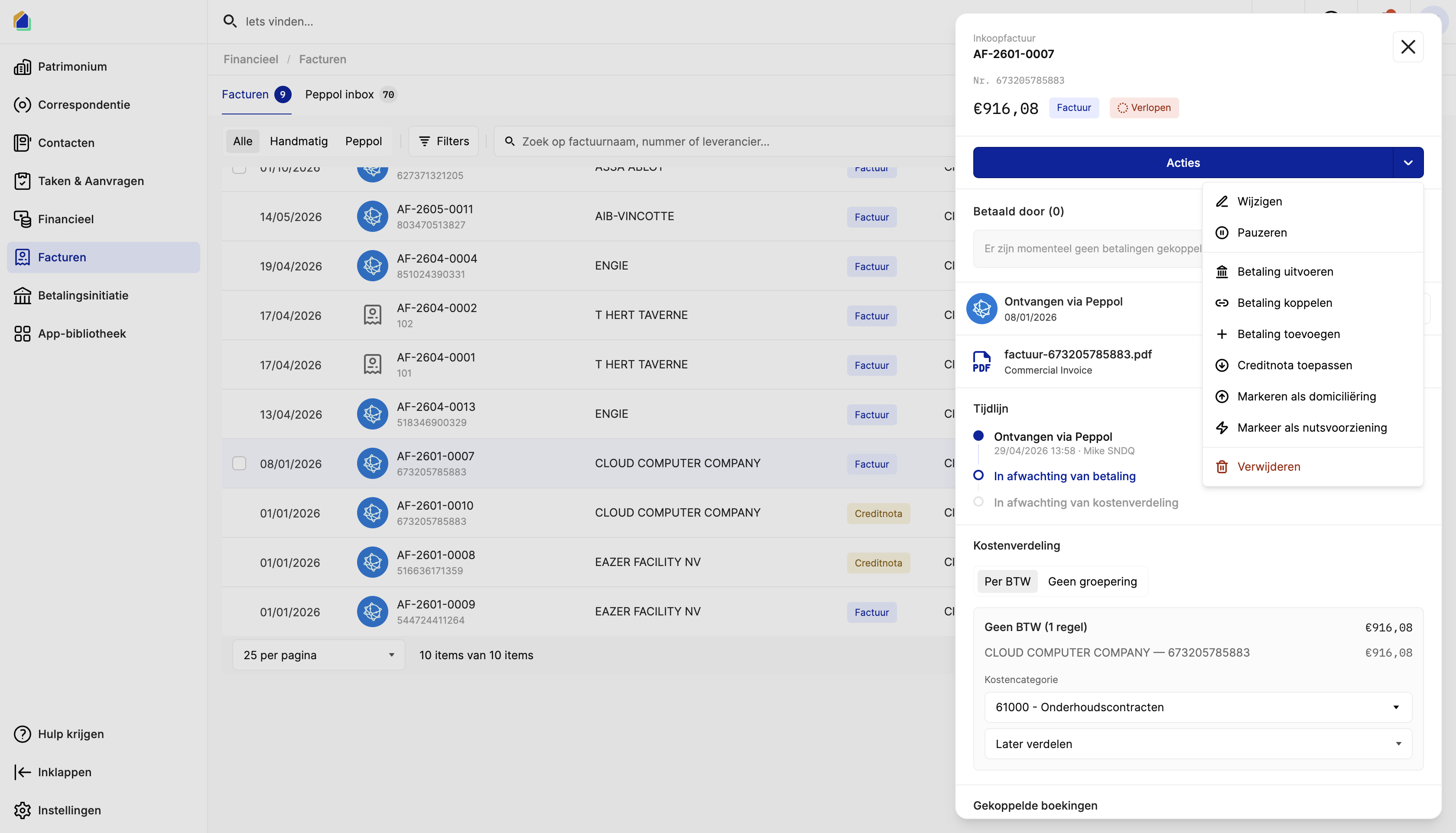
Open the purchase invoice, click Actions and select Delete. Confirm the deletion.
When can you delete?
| Scenario | Can delete? | Notes |
|---|---|---|
| Draft invoice (no payments, no allocations) | Yes | Cleanest case — no dependencies |
| Approved invoice, unpaid (no linked payments) | Yes | Invoice approved but never paid |
| Invoice with cost allocation (no settlement, no payment requests) | Yes | Allocation data is cleaned up automatically |
| Peppol invoice (converted, no other blockers) | Yes | Peppol inbox status reverts to Received |
| Credit note (no other blockers) | Yes | Same rules as regular invoices |
| Payment initiation failed/rejected/cancelled | Yes | Terminal failure states do not block deletion |
| Invoice with applied credit note (no matched payments) | Yes | Credit note application alone does not block deletion |
| Direct debit invoice (after cancelling direct debit) | Yes | Cancel direct debit first, then delete |
When is deletion blocked?
| Scenario | Why it is blocked |
|---|---|
| Payments have been matched | Bank payments are already linked to this invoice. Unlink the payments first. |
| Payment initiation is pending | A payment is waiting to be signed or sent. Cancel the payment initiation first. |
| Payment initiation is processing | A payment is being processed by the bank. Wait for completion or cancel. |
| Payment initiation is completed | The bank has already processed the payment. The invoice cannot be deleted. |
| Cost settlement allocations exist | Costs have been settled to owners. Reverse the cost settlement first. |
| Payment requests created for allocation costs | The allocation costs have been converted into payment requests. Remove the linked transactions first. |
How to resolve blocked deletions
Payments have been matched
Open the invoice detail, go to the Paid by section, and unlink each matched payment. After unlinking, you can delete the invoice.
Payment has been initiated (Pending)
Go to the Payment initiation section in the invoice detail and click Cancel on the payment initiation. Wait for the status to change to Cancelled, then delete the invoice.
Payment has been initiated (Processing)
Open Isabel 6 or Ponto and cancel the payment in the banking platform. Once cancelled in the bank, go back to the invoice detail, open the Payment initiation section and click Cancel. Wait for the status to update to Cancelled, then delete the invoice.
TIP
The payment status in SNDQ syncs automatically every 5 minutes. If you cancelled in the bank, you may need to wait a few minutes before you can cancel it in SNDQ.
Video — Cancel an initiated payment and delete the invoice
Payment has been initiated (Completed)
The payment has been executed by the bank — you typically should not delete this invoice. If absolutely needed, verify the payment status in Isabel 6 or Ponto, unlink the matched bank payment from the invoice (see above), cancel the payment initiation in SNDQ, and then delete.
Invoice with direct debit
If the invoice is marked as direct debit, the supplier collects payment automatically via SEPA direct debit. The invoice payment status shows Completed because payment is handled outside the normal flow.
To delete: open the invoice detail, click Actions and select Cancel direct debit. This resets the payment status back to Unpaid and removes the direct debit flag. Now you can delete the invoice.
TIP
You can only cancel direct debit if no bank payments have been matched to the invoice yet. If payments are already matched, unlink them first.
Video — Cancel direct debit and delete the invoice
Cost settlement allocations
Go to the building's cost settlement, reverse or delete the settlement that includes this invoice, then delete the invoice.
Payment requests created for allocation costs
Find the linked transactions or payment requests, remove or unlink them from the allocation, then delete the invoice.
Good to know
- Peppol invoices — when a Peppol invoice is deleted, the Peppol inbox item status reverts from Converted back to Received, making it available for conversion again.
- Credit notes — credit notes follow the same deletion rules as regular invoices.
Related articles
Need help?
Contact our team at info@sndq.be or use the Get Help option in the SNDQ application.