

Convert a Peppol invoice
Peppol invoices are electronic invoices received automatically via the Peppol network. They arrive in the Peppol Inbox with status New and need to be converted into a Purchase Invoice before they can be processed and paid.
Status workflow
| Status | Meaning |
|---|---|
| New | Just arrived, not yet processed |
| Converted | Successfully linked to a purchase invoice |
| Accepted | Business acceptance sent back to supplier via Peppol |
| Rejected | Rejected with reason, notification sent to supplier |
How to convert
Open the Peppol Inbox
Navigate to Invoices > Peppol Inbox. You will see all received invoices with their status, date, invoice number, and supplier name.
Select an invoice
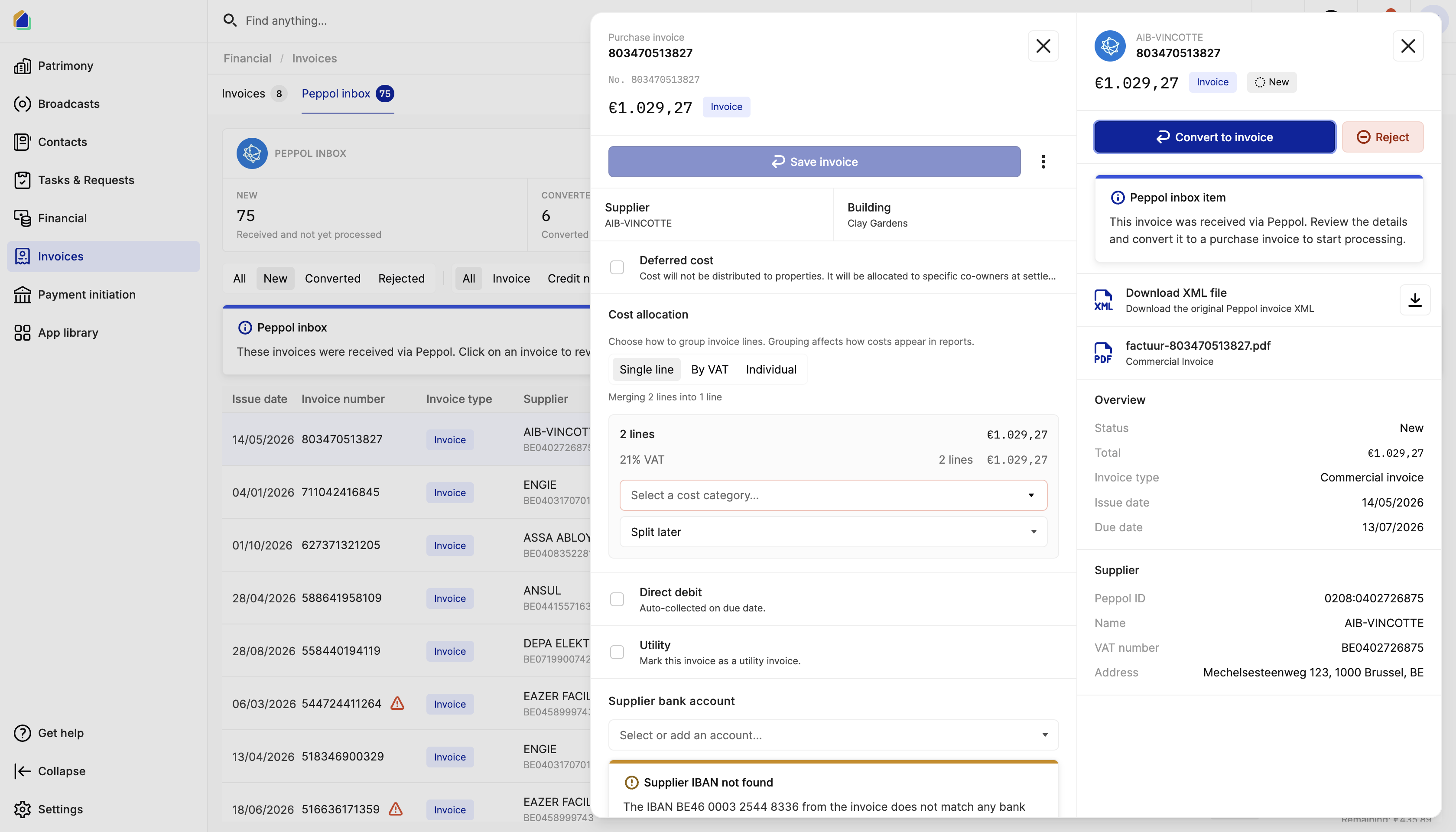
Click on a new (unprocessed) invoice. A detail panel opens on the right showing:
- PDF preview of the original invoice
- Parsed metadata (supplier, Peppol ID, amount, type)
Click Convert to invoice
Click the Convert to invoice button. A sub-sheet opens on the left with the pre-filled invoice data from the Peppol XML.
Two ways to review
Quick review (sub-sheet)
If the invoice already has complete and correct information, you can review and save it directly from the sub-sheet:
- Verify the Supplier and Building
- Check the Cost allocation — choose how to group invoice lines: Single line, By VAT, or Individual
- Select a Cost category and Distribution key for each cost line
- Configure payment details (direct debit or pay via bank)
- Click Save invoice
Detailed review (full form)
If you need to edit more fields or customize the distribution, click the three-dot menu (⋮) next to the Save button to open the full edit form.
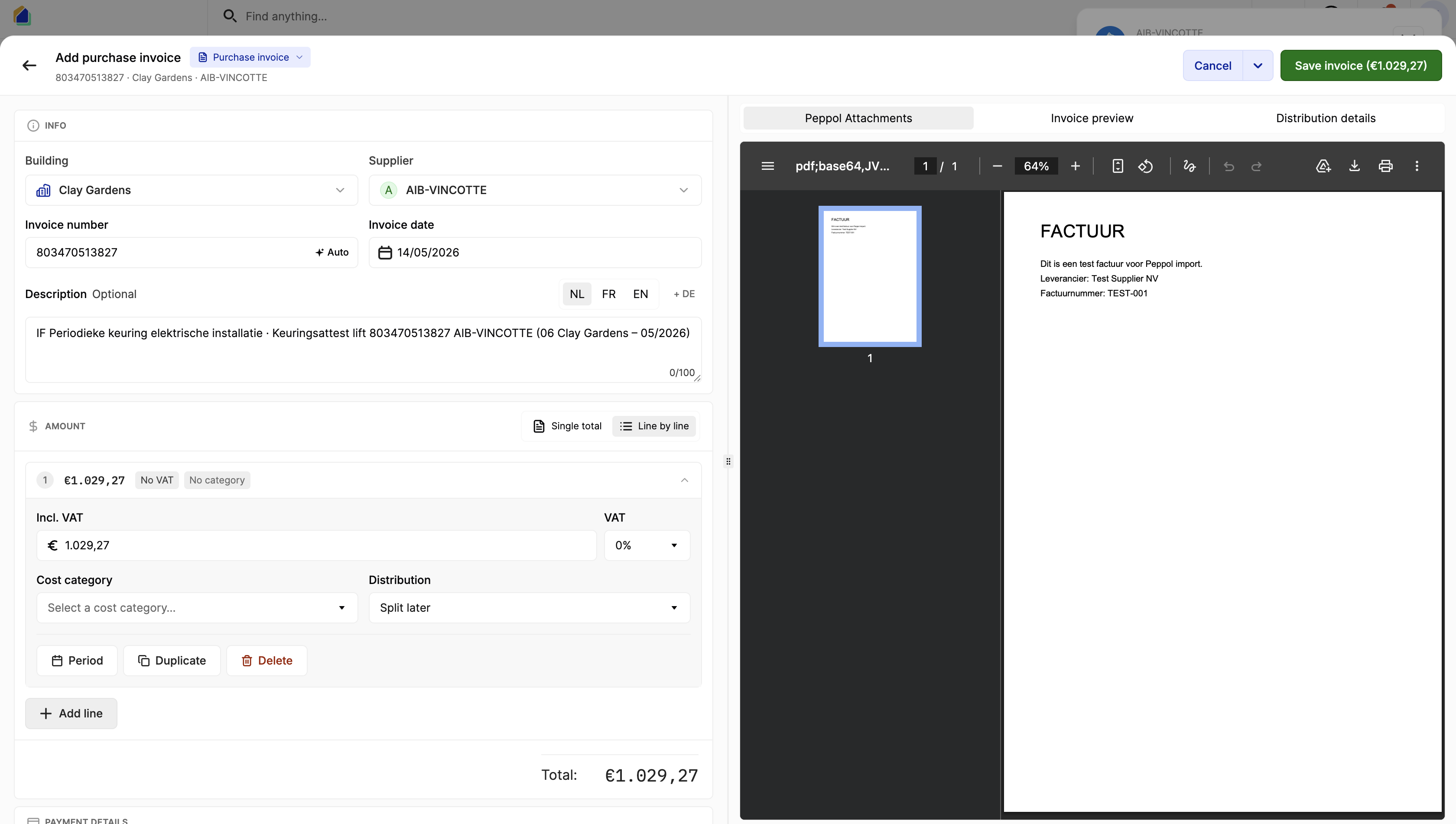
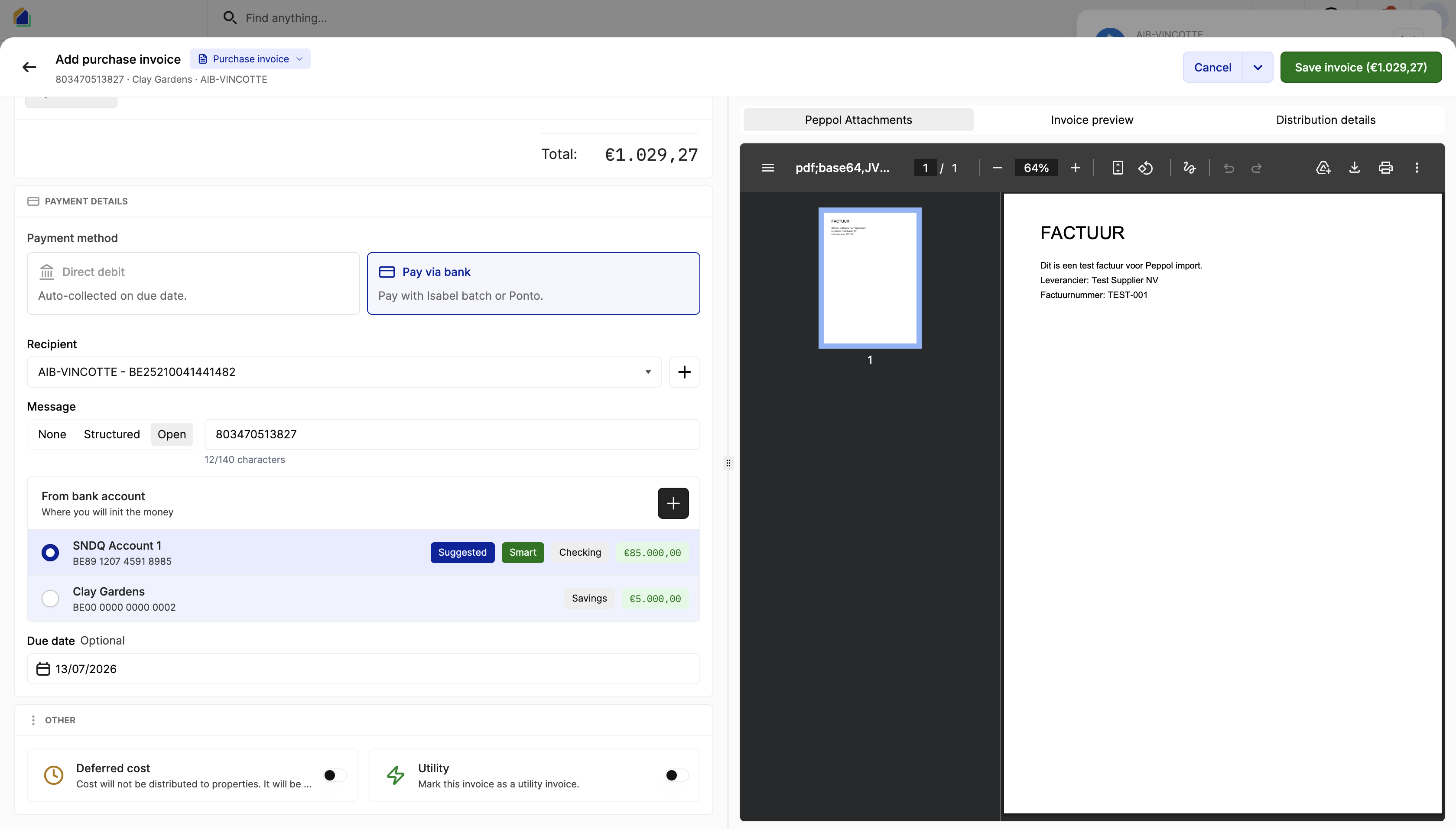
The full form gives you access to:
- Info — Building, Supplier, Invoice number, Invoice date, Description (in multiple languages)
- Amount — Cost lines with Incl. VAT, VAT percentage, Cost category, and Distribution. You can switch between Single total and Line by line views, add lines, duplicate, or delete them.
- Payment details — Payment method, Recipient IBAN, Message (structured communication), Bank account selection, Due date
- Other — Toggle Deferred cost (spread costs across multiple periods) or Utility (mark as utility invoice)
Save the invoice
Click Save invoice to complete the conversion. The Peppol inbox item status changes to Converted and the invoice appears in the regular Invoices list.
Video — Full flow: convert a Peppol invoice
Auto-detection features
| Field | Detection method |
|---|---|
| Building | Peppol participant ID linked to the building |
| Supplier | Matched by VAT number, enterprise number, or IBAN |
| Amounts & VAT | Parsed from the Peppol XML |
| Payment IBAN | From the payment information in the Peppol XML |
| Duplicate warning | Scored against existing invoices (same supplier + similar amount + date) |
Custom distribution keys
When distributing costs across co-owners, you can use the Distribution details tab in the full edit form to customize how costs are split — for example adjusting individual shares or using a different key per cost line.
Video — Custom distribution keys
Troubleshooting
Supplier IBAN not found
The IBAN from the Peppol invoice doesn't match any known bank account in the system.
Solution: Add the IBAN to the supplier's contact record, or manually select an existing recipient account from the dropdown.
Supplier not found
No contact matches the VAT number, enterprise number, or IBAN from the invoice.
Solution: The system will create a new supplier contact automatically when you save, or you can manually select an existing contact from the supplier dropdown.
Duplicate detected
The system found an existing invoice with a similar supplier, amount, and date.
Solution: Check the existing invoices list to confirm whether this invoice was already processed. If it's genuinely new (e.g. a recurring monthly invoice), proceed with conversion.
Related articles
Need help?
Contact our team at info@sndq.be or use the Get Help option in the SNDQ application.