

Pay purchase invoices
The payment initiation feature lets you pay one or more approved purchase invoices directly from the platform. Select invoices, review the payment details, and initiate the payment via your connected bank.
Payment methods
The method is determined automatically based on how the bank account was connected to SNDQ.
| Method | How it works |
|---|---|
| Isabel 6 | Payment is sent directly to Isabel Connect. You sign and approve in Isabel 6. How to sign payments in Isabel 6 |
| Ponto Connect | Payment is sent via Ponto. You are redirected to your bank to authorize. How payment initiation works in Ponto |
| Manual (SEPA) | A SEPA XML file is generated. You download and upload it to your bank manually. |
Prerequisites
Before you can initiate a payment, the invoice must meet these conditions:
- Invoice status: Approved
- Payment status: Unpaid, Failed, Cancelled, or Partial
- Total due amount > 0
- Supplier has a valid IBAN configured
- A bank account is available in the workspace
Pay multiple invoices at once
Select invoices
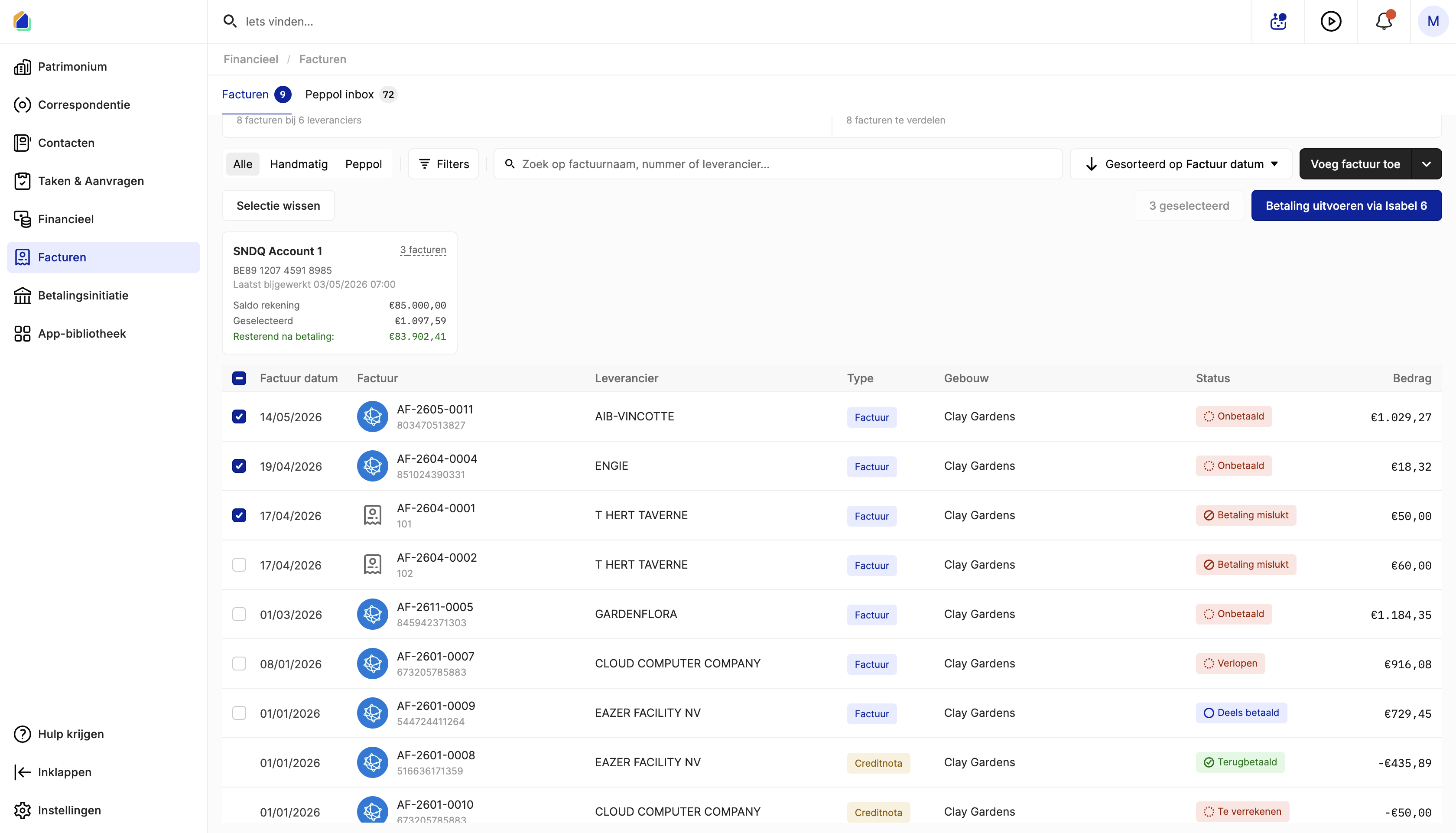
Go to Invoices. Use the checkboxes to select the invoices you want to pay — you can select invoices from different suppliers. They will be grouped in one batch.
Once selected, the Pay via Isabel 6 button (or your connected bank) appears at the top right.
Review payment details
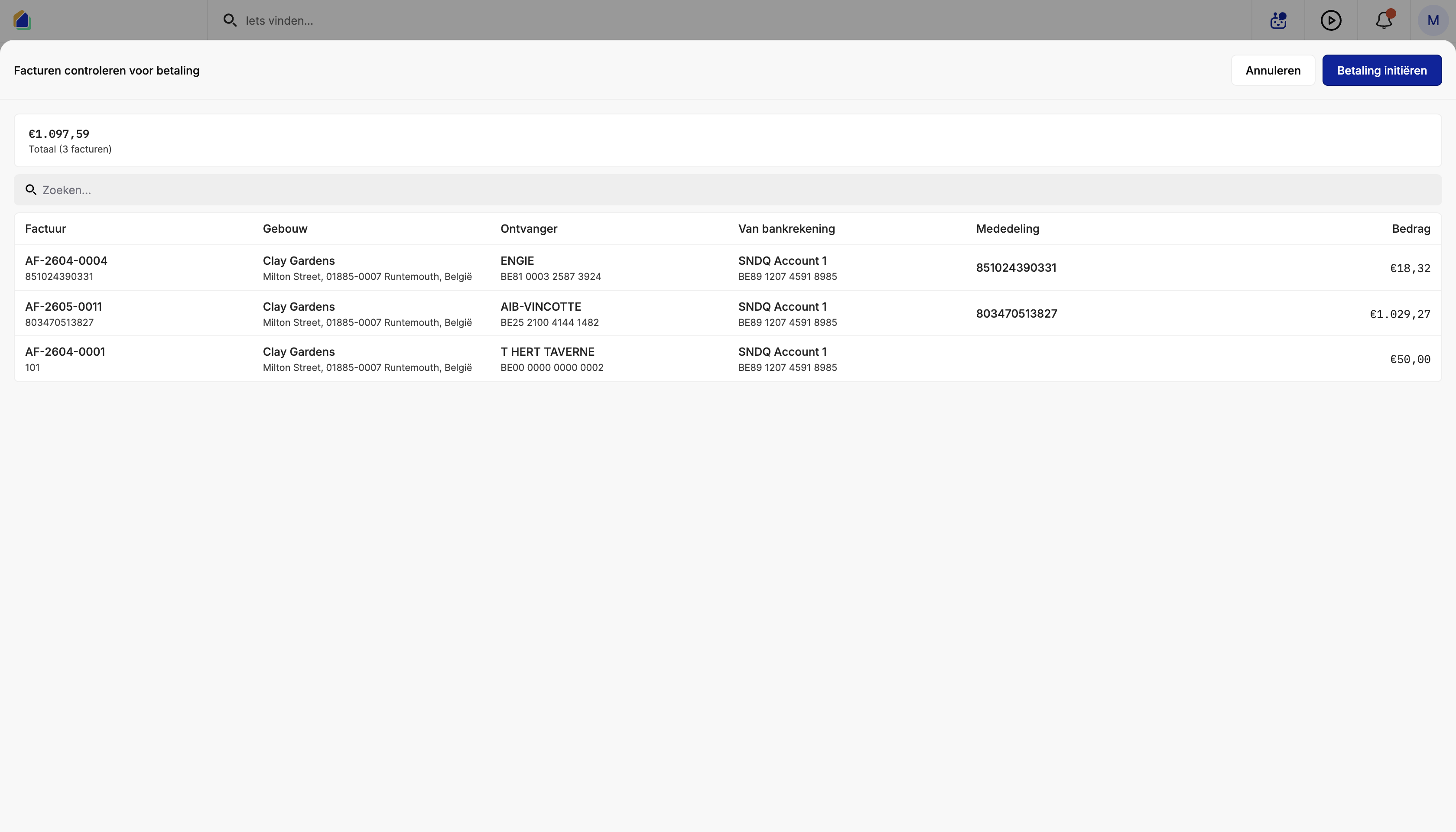
A review screen shows the total amount and a table with per-invoice details:
| Column | Description |
|---|---|
| Invoice | Invoice number + structured communication |
| Building | Building name and address |
| Recipient | Supplier name + IBAN |
| From bank account | Your bank account (debtor) + IBAN |
| Communication | Structured communication used as payment reference |
| Amount | Amount to pay |
Initiate the payment
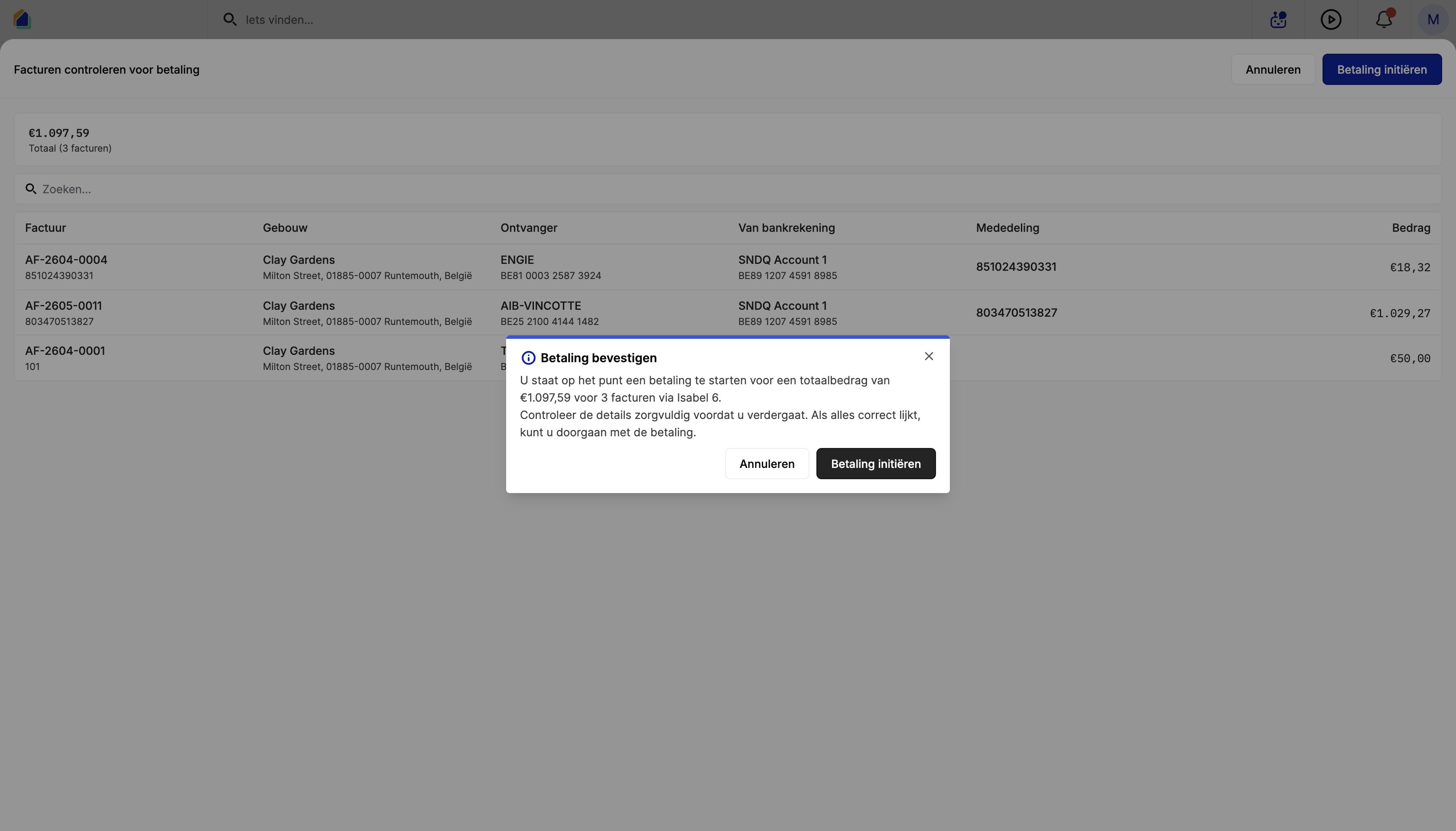
Click Initiate payment. A confirmation dialog appears with the total amount and number of invoices. Click Initiate payment to confirm.
Complete the payment in your bank
After confirmation:
- Isabel 6 — open Isabel 6, go to Transactions, select the payment, sign it, and send it.
- Ponto Connect — you are redirected to your bank's portal to authenticate and authorize.
- Manual (SEPA) — download the SEPA file and upload it to your online banking platform.
Once the payment is processed by the bank, the status in SNDQ updates automatically.
Video — Full flow: pay purchase invoices
Track payment status
After initiation, the invoice payment status updates automatically:
| Status | Meaning |
|---|---|
| Follow up | Payment created, waiting for bank processing or signature |
| Processing | Payment accepted by bank, being processed |
| Paid | Payment successfully executed |
| Payment failed | Payment failed at bank level |
| Cancelled | Payment was cancelled |
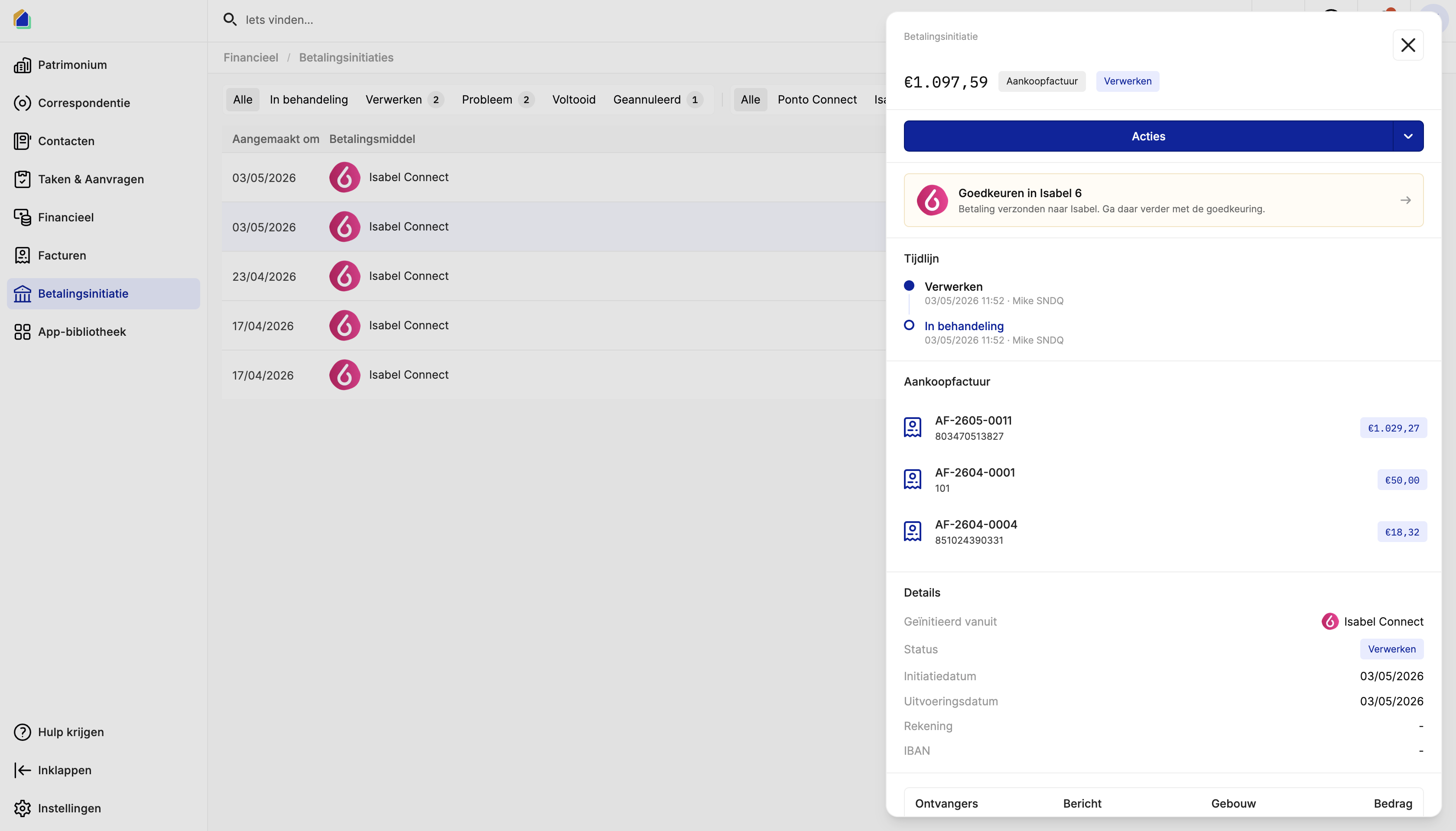
You can also track all payment batches in Payment initiation. This overview shows every batch with its payment method, type, status, execution date, and amount. Use the filter tabs to quickly find batches by status (Processing, Problem, Completed, Cancelled) or by payment method (Isabel Connect, Ponto Connect, SEPA).
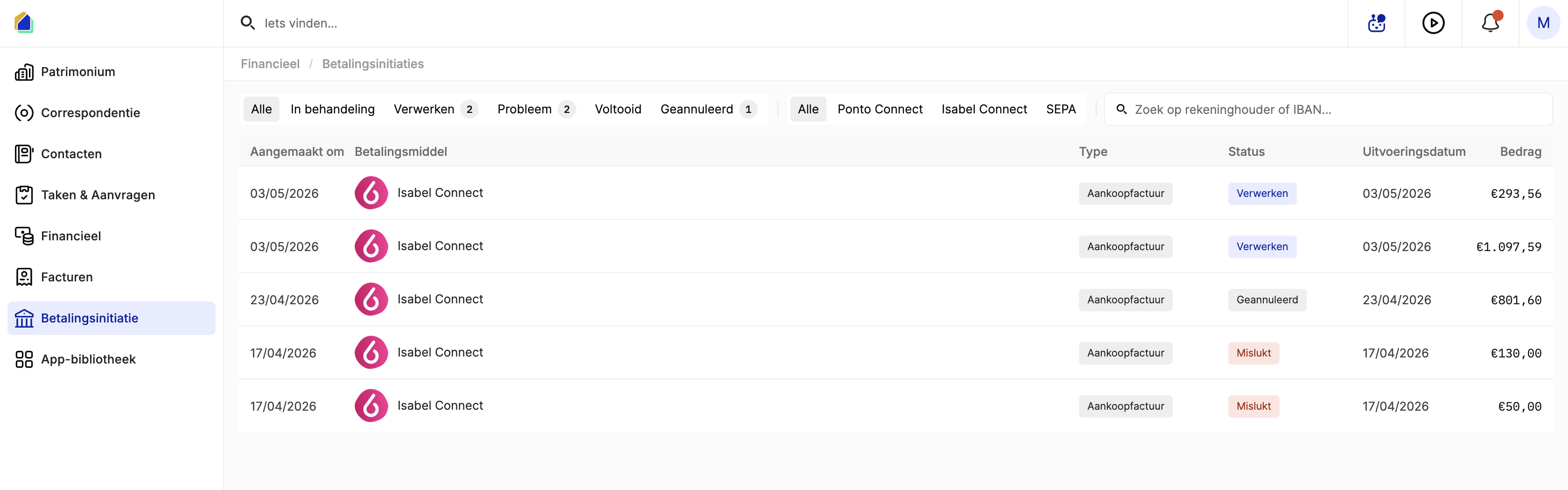
Click on a batch to see its details: timeline, linked invoices, and recipient information.
Good to know
- Locked invoices — once a payment is initiated, the invoice becomes locked. You cannot edit or delete it until the payment is completed, failed, or cancelled.
- Retry — if a payment fails, you can retry it. The system rebuilds the payment with the same details.
- Cancel — pending payments can be cancelled, which resets the invoice payment status.
- Multi-account support — when using Isabel 6 for batch payment, each invoice can use a different bank account. The system groups transactions by account automatically.
Related articles
Need help?
Contact our team at info@sndq.be or use the Get Help option in the SNDQ application.