

Generate meeting report
After a General Meeting, you must create an official meeting report that documents all decisions, vote results, and minutes. SNDQ lets you write minutes per agenda item, generate or upload the report, sign it digitally, and send it to all owners.
Write minutes per agenda item
Before generating the report, fill in the minutes for each agenda item.
Go to the meeting → Agenda tab, then click each agenda item to write the minutes in the rich text editor.
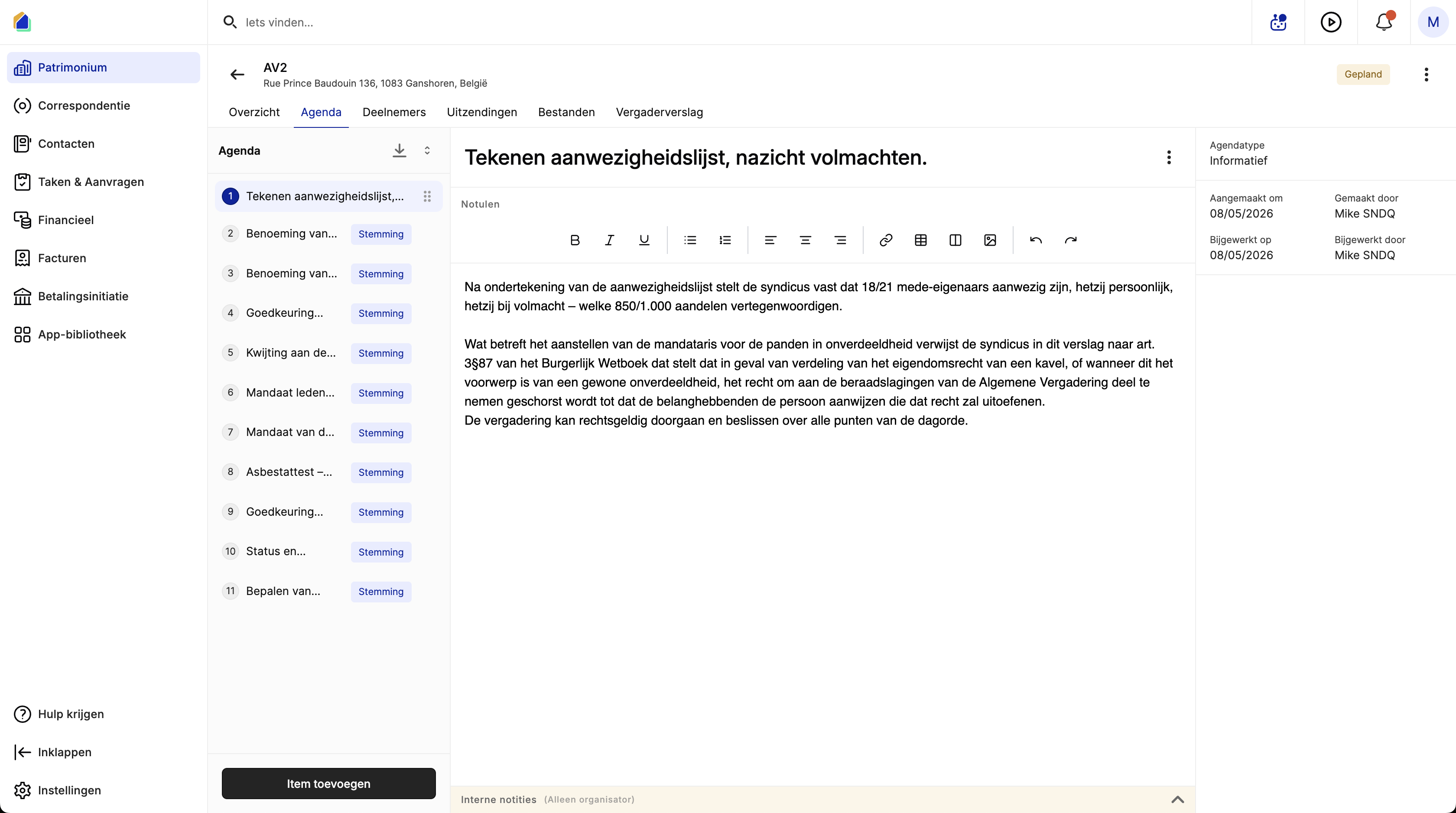
Informational items
Write a summary of what was discussed or communicated. These items do not have a vote — only the Minutes field.
Voting items
Write the context and discussion. Make sure all votes are recorded (see Record votes). The vote results are included automatically in the generated report.
Internal notes
Below the public minutes, there is an Internal notes (Organizer only) section. These notes are only visible to the syndic and are not included in the report sent to owners.
Generate or upload the report
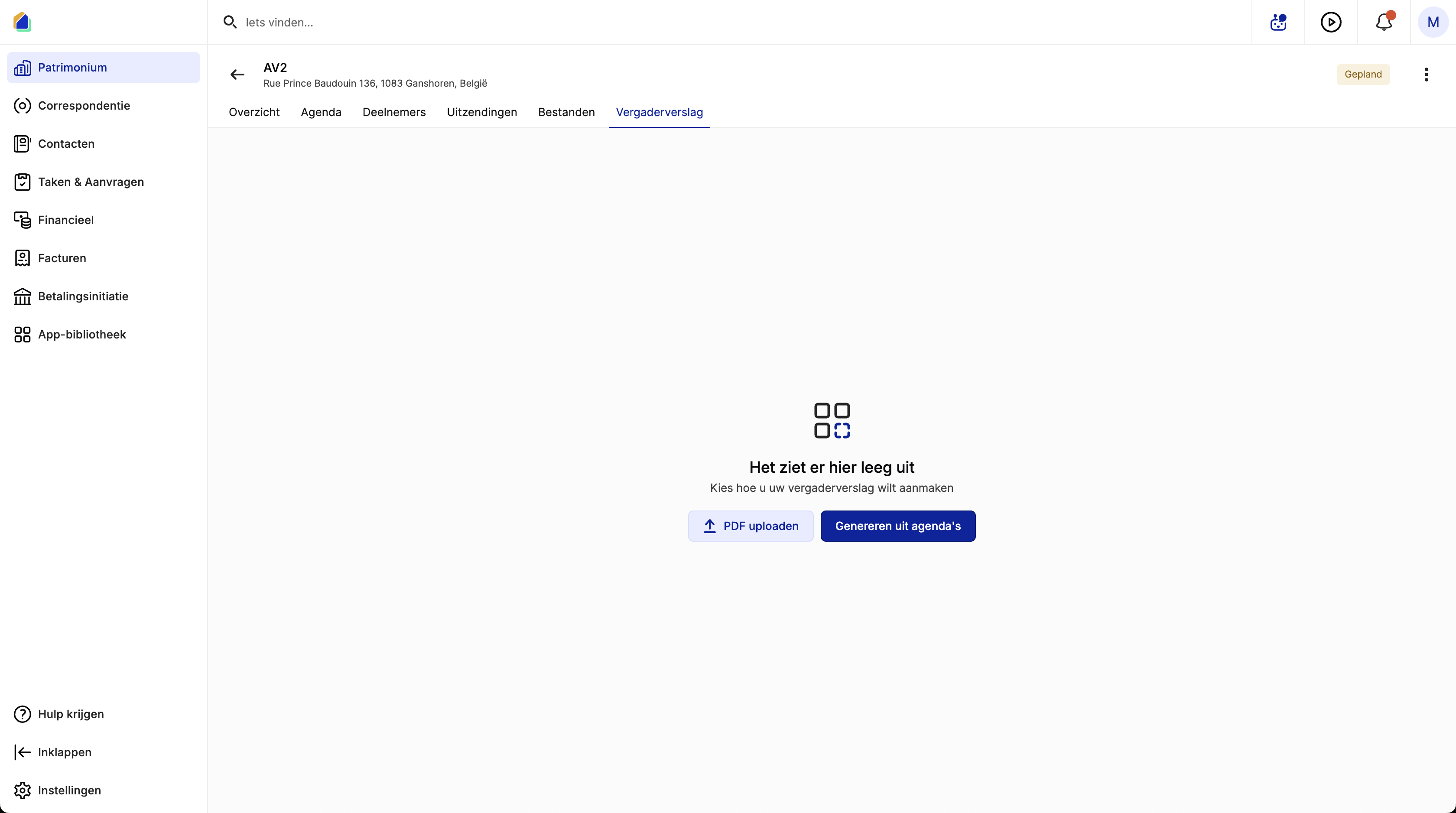
Go to the meeting → Meeting report tab.
If no report exists yet, you see two options:
| Option | Description |
|---|---|
| Upload PDF | Upload an existing PDF report prepared externally |
| Generate from agendas | Generate the report automatically from agenda items, minutes, and vote results |
Generate from agendas (recommended)
Click Generate from agendas. The system creates a report containing:
| Section | Content |
|---|---|
| Header | VME name, building address, enterprise number |
| Meeting information | Building, type, date, start/end time, location |
| Attendance list | Table with owner name, unit, shares, proxy |
| Quorum | Participation percentage, approval percentage, quorum method |
| Agenda items | Each item with its minutes and vote results |
| Signatures | Space for signatures (added in the signing step) |
Video — Generate report from agendas
Upload PDF
Click Upload PDF to upload an externally prepared PDF file. The uploaded PDF becomes the official report.
Choose layout
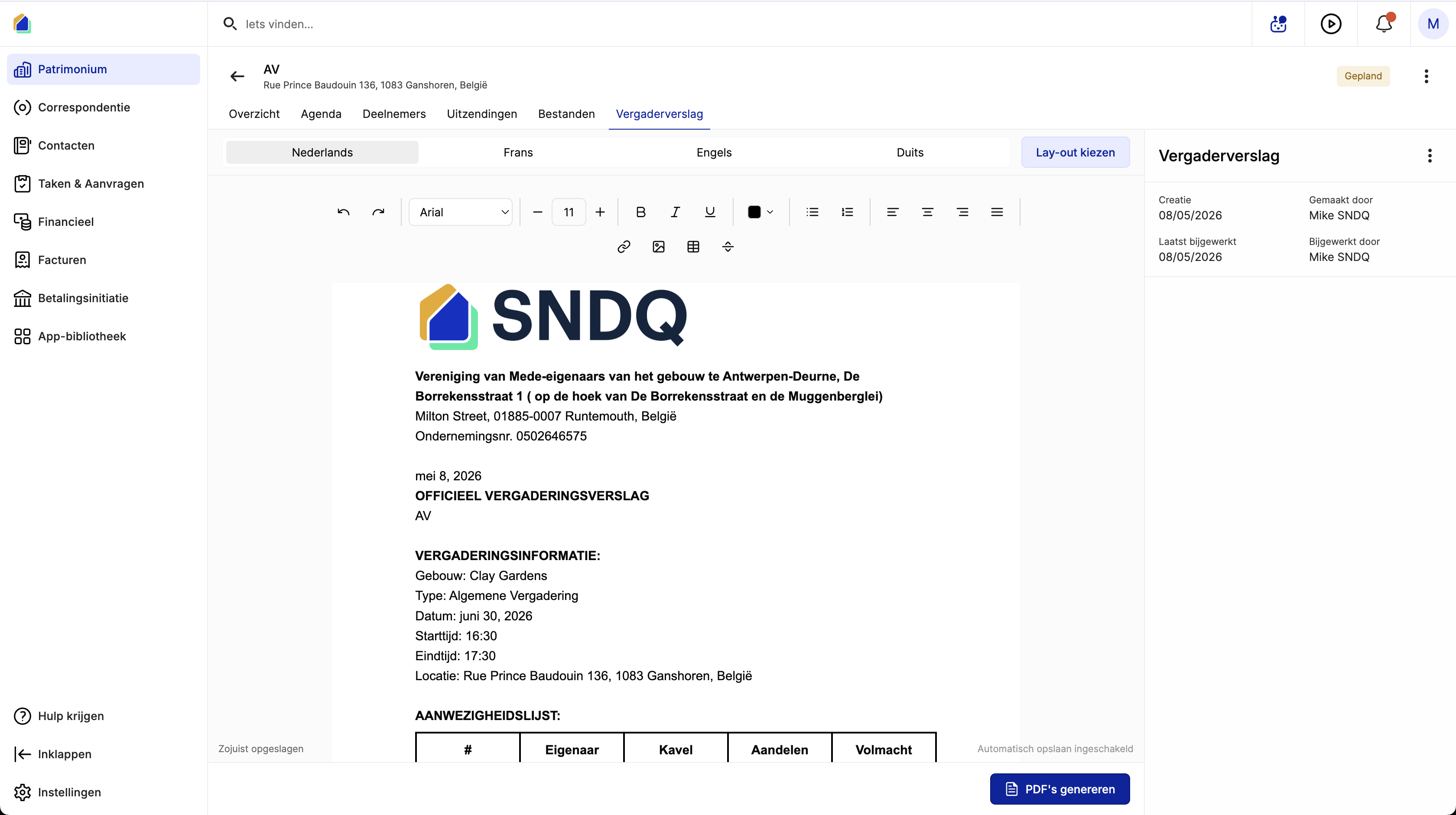
Before generating the PDF, you can apply a layout with your company header and footer.
- Click Choose layout in the top bar
- Select a layout from the list (e.g. your company header template)
- Choose the language version
- Click Apply layout
Multi-language support
The report can be generated in multiple languages. Switch between the language tabs at the top:
| Tab | Language |
|---|---|
| Dutch | Dutch version (primary) |
| French | French version |
| English | English version |
| German | German version |
Each owner receives the report in their preferred language.
Generate the PDF
Click Generate PDFs at the bottom right to create the PDF document.
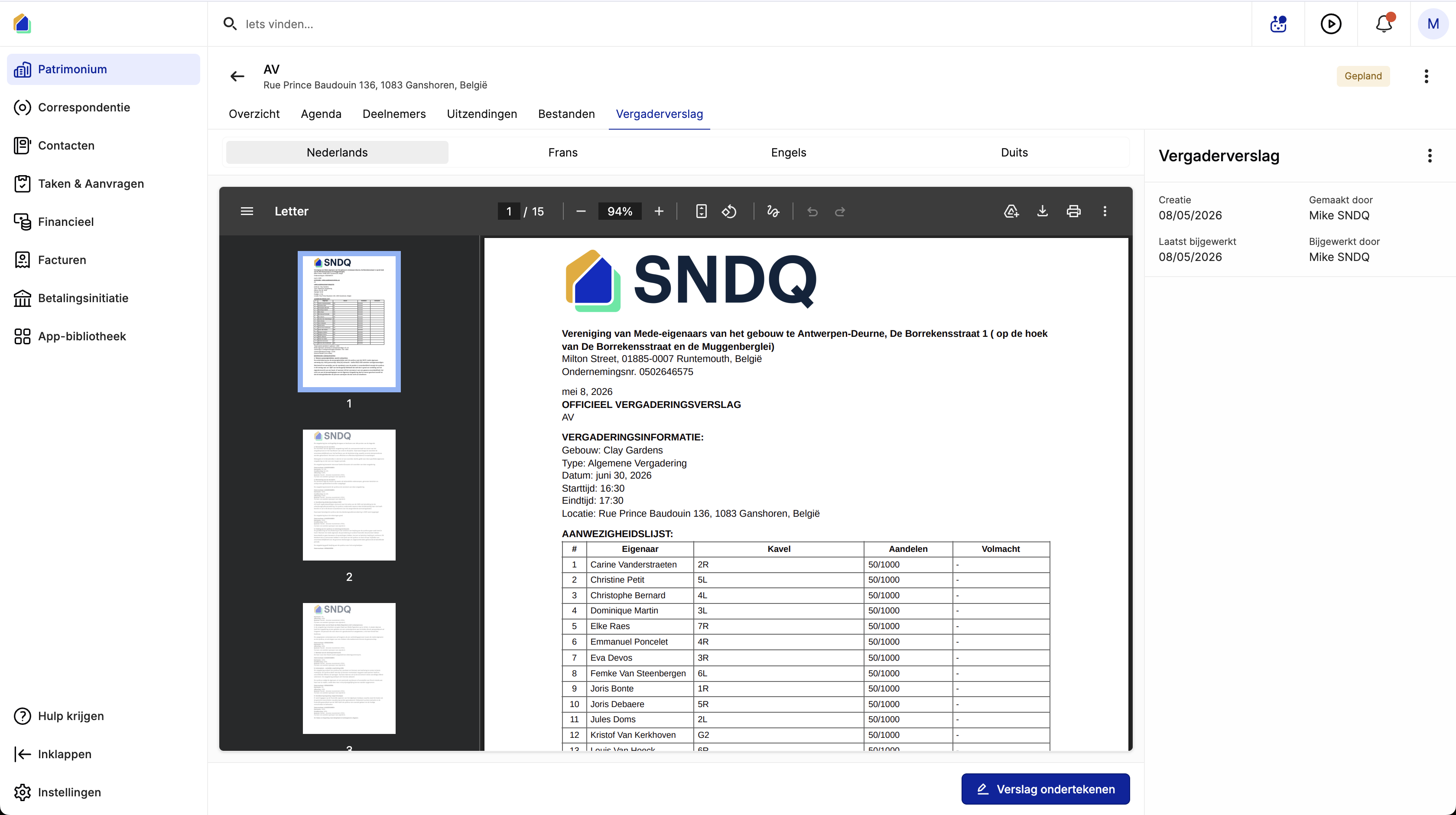
The PDF viewer opens showing the complete report with all pages — meeting information, attendance list, agenda items with minutes and vote results.
Sign the report
After the PDF is generated, click Sign report to enter signing mode.
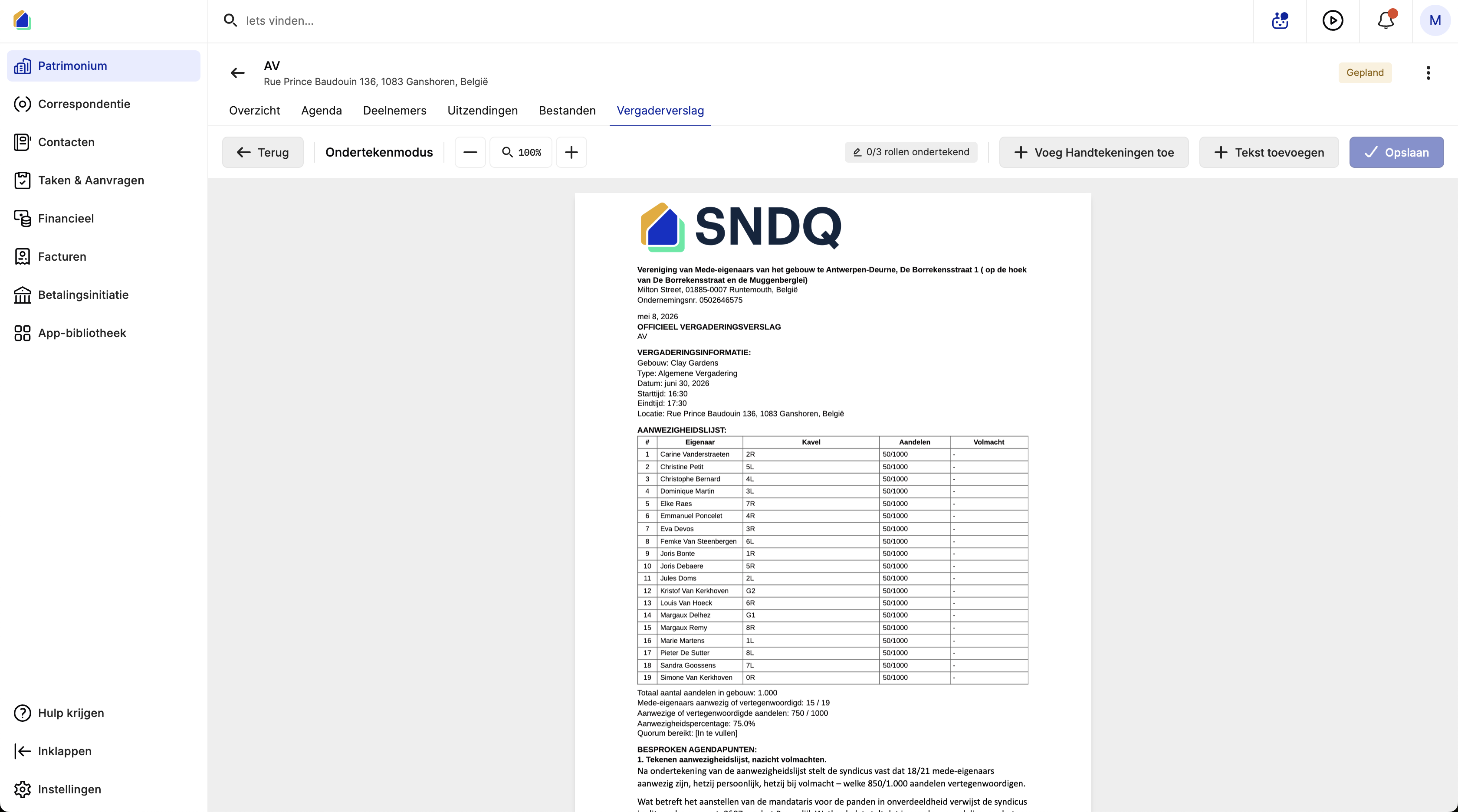
The toolbar shows a counter of how many roles have been signed.
Add signatures
- Click Add Signatures
- Select the Role from the dropdown:
| Role | Description | Required |
|---|---|---|
| Syndicus | The syndic / property manager | Yes |
| Secretary | The meeting secretary | No |
| Co-owner | A co-owner (typically the chairperson) | No |
- Select the Signer from the dropdown
- Draw the signature in the Draw signature box
- Click Add
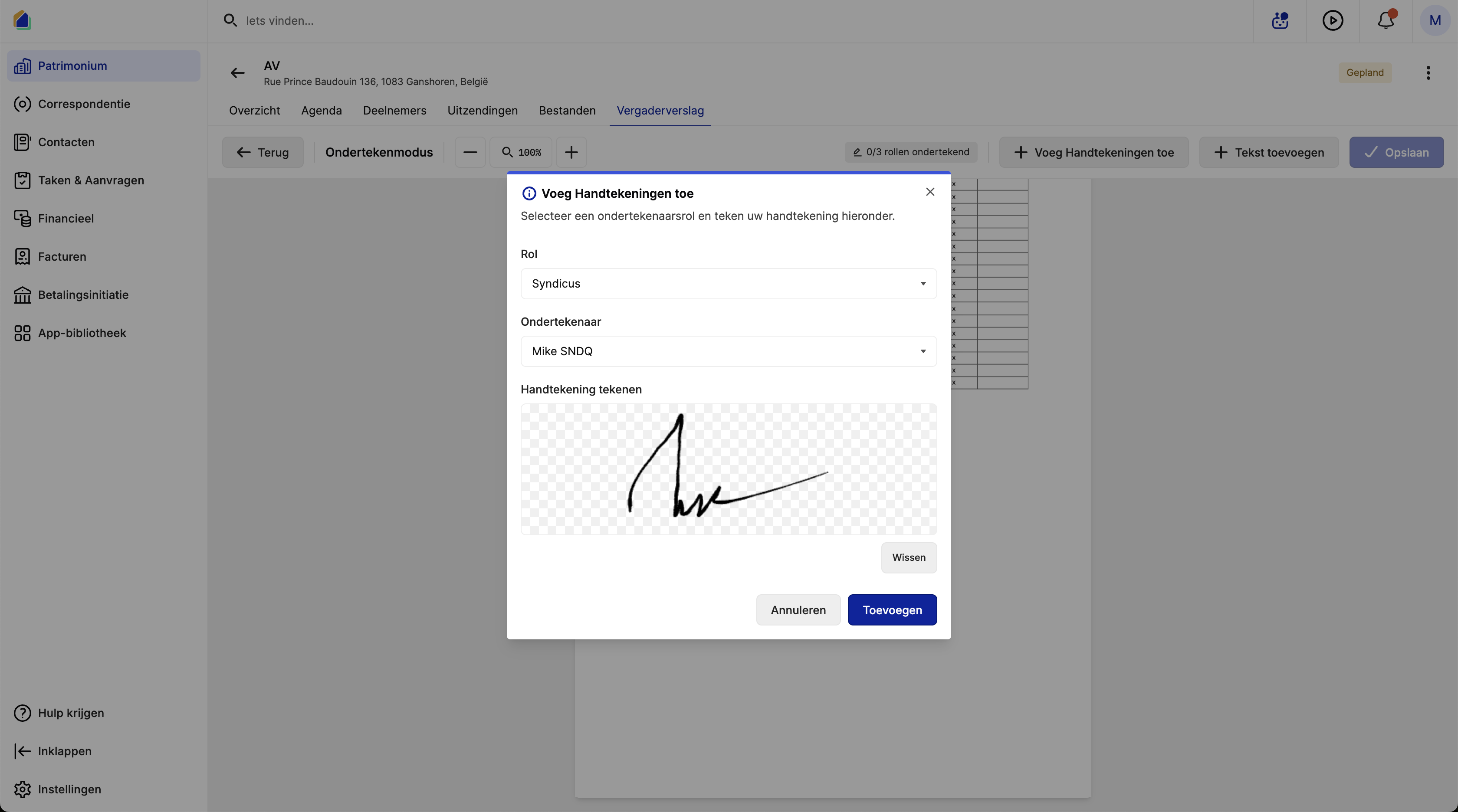
The syndic signature is always required. You can optionally add signatures from a secretary and/or co-owner(s).
Per-language signing
When the report has multiple language versions, each language variant can be signed independently. Signatures are stored separately per language, so you can sign the Dutch version first and the French version later.
After all signatures
Once all desired signatures are added, the counter updates and the signatures appear at the bottom of the report.
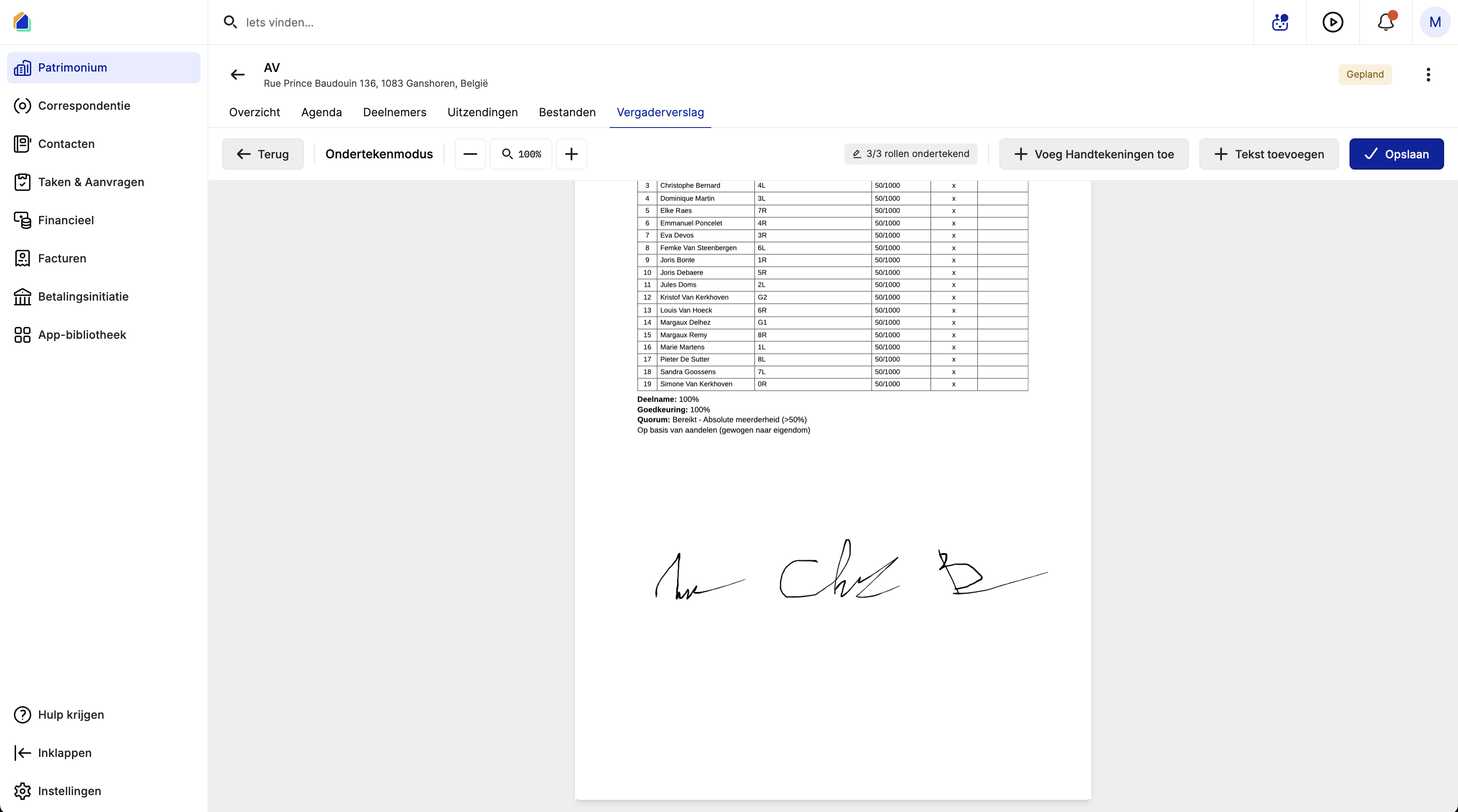
Click Save to finalize, then click Back to exit signing mode.
Video — Full flow: generate PDF and sign the report
Send the report
After signing, send the report to all owners.
Open correspondence
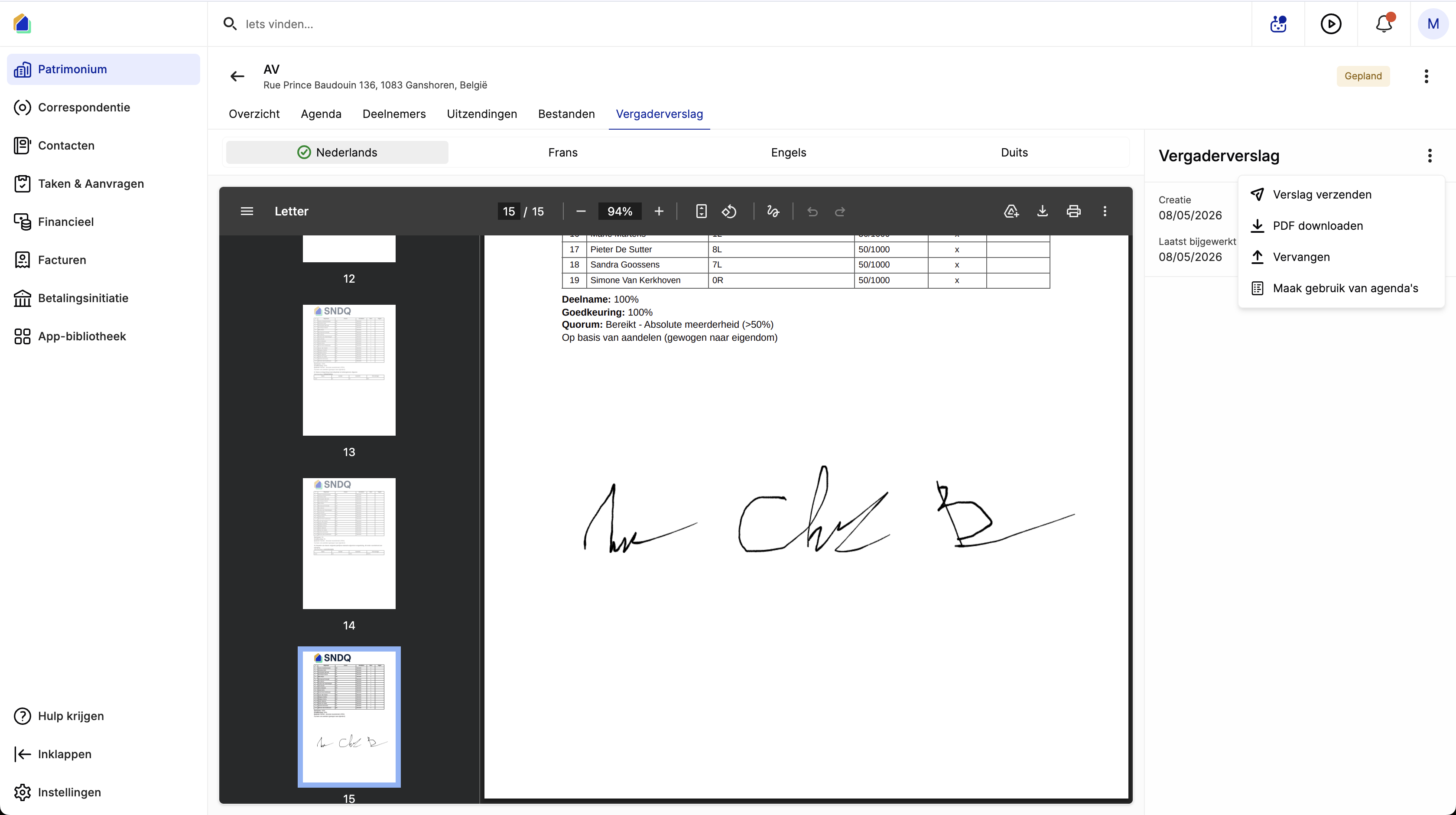
Click the three-dot menu (⋮) next to the report panel and select Send report. This opens the correspondence editor.
Configure delivery
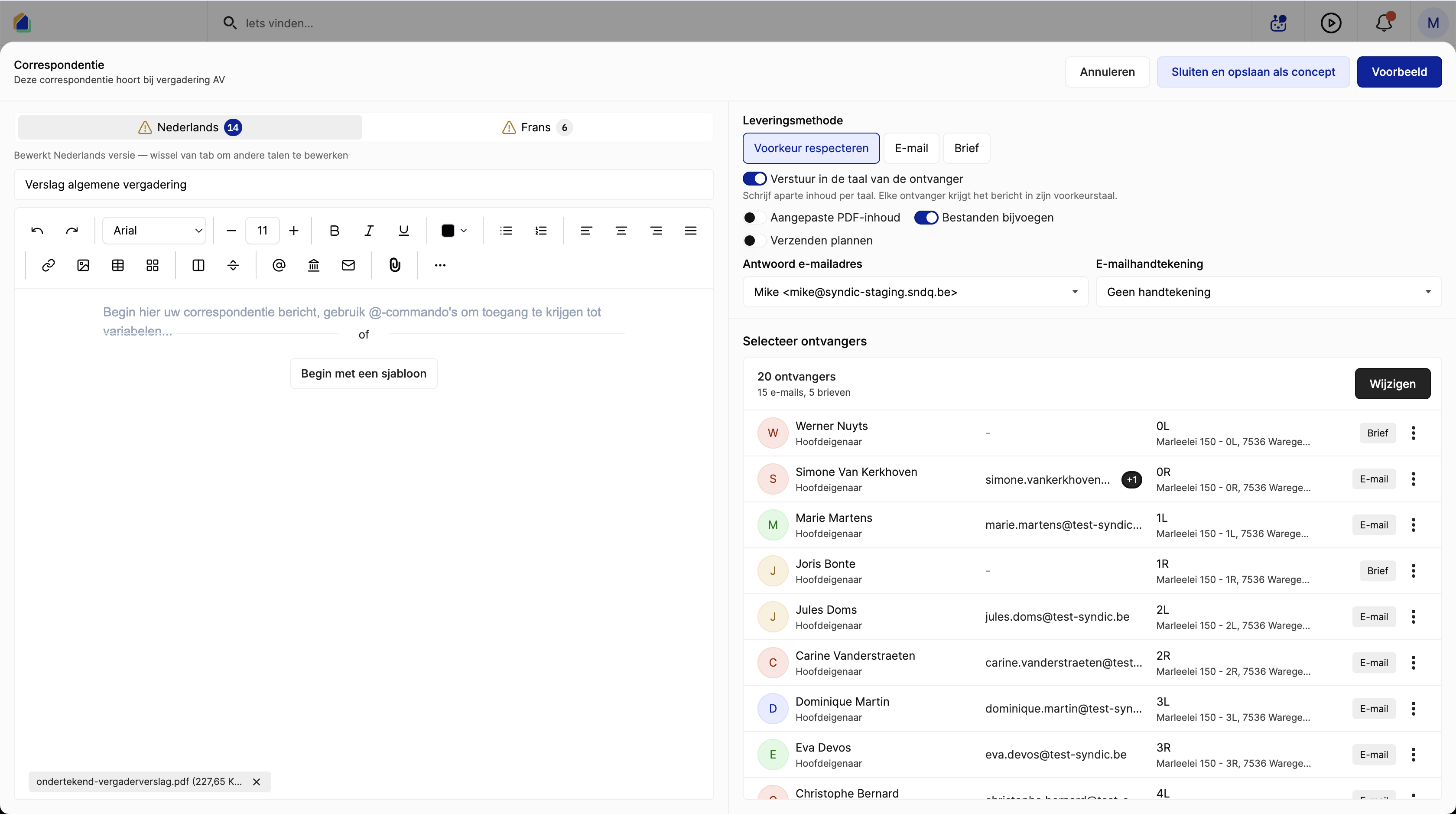
| Setting | Description |
|---|---|
| Delivery method | Respect preference (default), Email, or Letter |
| Send in recipient's language | Each owner receives the report in their preferred language |
| Custom PDF content | Attach custom PDF content |
| Attach files | The signed report PDF is automatically attached |
| Reply email address | Reply-to email address |
| Email signature | Your email signature |
Select a template
Click Insert template and choose the Meeting report template. The template auto-fills the email body.
Recipients
The system automatically selects all building owners as recipients. Each owner shows their name, email, unit, and delivery method (Email or Letter).
TIP
Owners without a valid email address receive the report via Letter — these need to be printed and mailed manually.
Preview and send
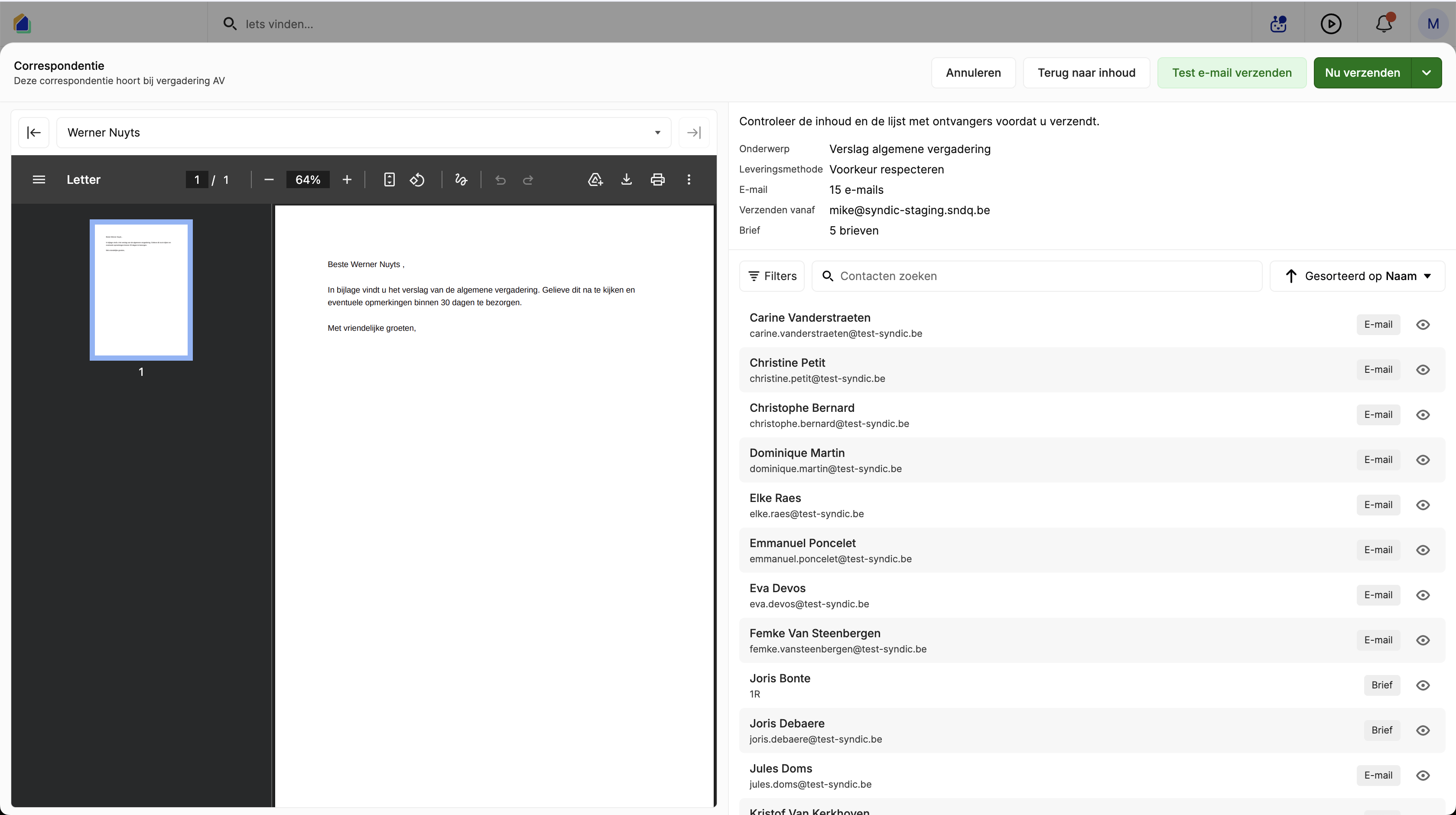
- Click Preview to see what each owner will receive
- Use the arrows to navigate between recipient previews
- Click Send test email to send a test to yourself
- Click Send now to send to all owners
Video — Full flow: send the meeting report
Report actions menu
Click the three-dot menu (⋮) next to the report panel for additional options:
| Action | Description |
|---|---|
| Send report | Send the report to all owners via correspondence |
| Download PDF | Download the signed PDF |
| Replace | Replace the current report with a new file |
| Regenerate from agendas | Regenerate from agenda items (overwrites current report) |
WARNING
Regenerating the PDF clears any existing signatures for that language version. You will need to sign the report again after regeneration.
Workflow summary
| Step | Action | Prerequisite |
|---|---|---|
| 1 | Write minutes for each agenda item | Meeting held, discussions documented |
| 2 | Record all votes for voting items | Attendance registered |
| 3 | Generate or upload the report | Minutes and votes completed |
| 4 | Apply layout and verify content | Report generated |
| 5 | Sign the report (syndic required) | Report finalized |
| 6 | Send to all owners | Report signed |
Good to know
- Complete votes first — all voting agenda items should have their votes recorded before generating the report. Vote results are included automatically.
- Complete minutes first — write minutes for all agenda items before generating. The generated report pulls content from each item.
- Syndic signature is required — the syndic must sign the meeting report. Secretary and co-owner signatures are optional but recommended.
- Multi-language — if owners have different language preferences, the system generates separate language versions automatically.
- Auto-save — the report editor has automatic saving enabled.
- PDF attachment — when sending via correspondence, the signed report PDF is automatically attached.
- Delivery preference — owners with letter preference show as "Letter" recipients. These require manual printing and mailing.
Related articles
Need help?
Contact our team at info@sndq.be or use the Get Help option in the SNDQ application.