

Offset a payment
Use Offset payment when bank payments should cancel each other out: at least one outgoing (−) and at least one incoming (+). Typical case: you paid a supplier by mistake, and they paid the money back. You do not need to match each line to an invoice — you offset the payments so they settle against each other.
TIP
This is not a credit note or invoice flow. It is for bank payments that should net against each other.
Prerequisites
| Required? | Notes | |
|---|---|---|
| Both directions (incoming + outgoing) | Yes | At least one of each |
| Same bank account | Yes | All selected payments on the same account |
| Status Open | Yes | Still assignable — not fully assigned |
| Same counterparty name | No | Common for a mistaken payment, but not required |
| Same amount | No | If amounts differ, SNDQ offsets the smaller side (partial offset) |
Selected payments do not need the same counterparty name or the same amount.
- If totals match → the modal shows Fully offset
- If totals differ → SNDQ offsets up to the smaller total; the remainder stays open
Workflow summary
| Step | What happens |
|---|---|
| 1 | Find the open payments on the bank account |
| 2 | Open Assign → Offset payment |
| 3 | Select the payment(s) in the opposite direction and check the summary |
| 4 | Optionally book to a contact (Suppliers or Owners) |
| 5 | Confirm — fully offset payments become Linked |
Find the payments
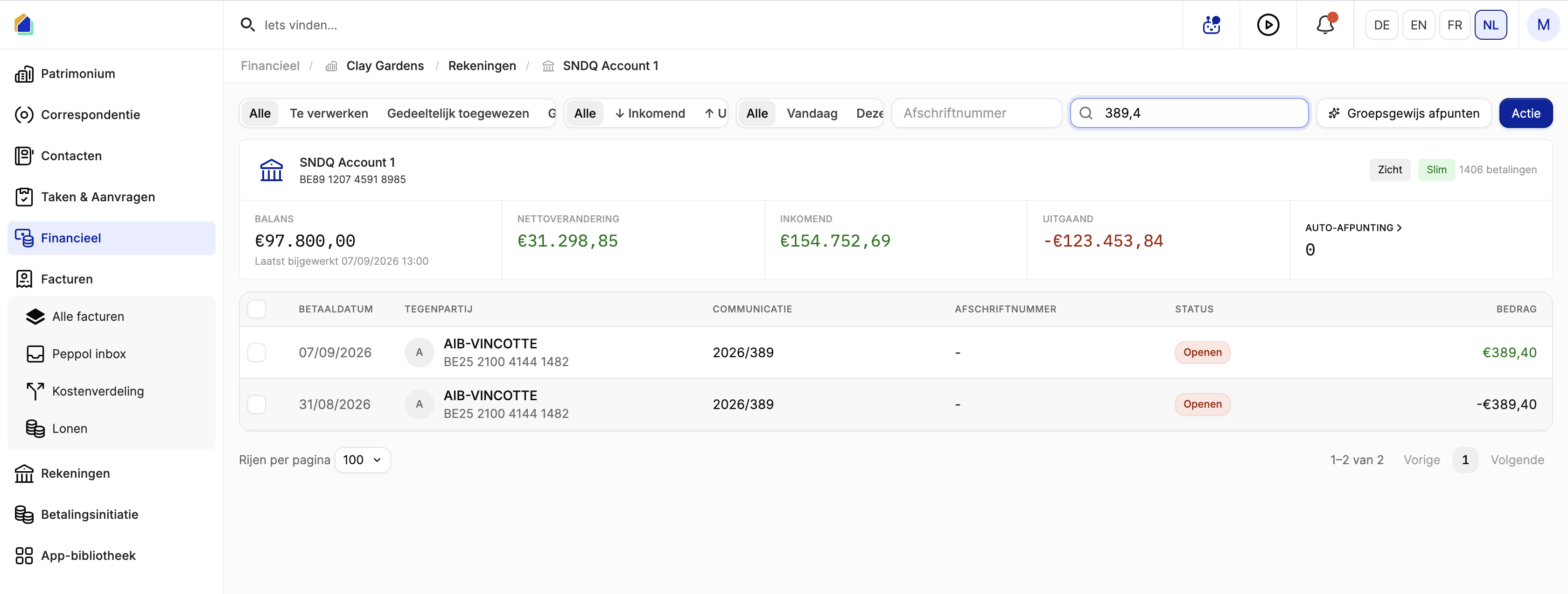
- Go to Financial → building → Accounts → open the bank account
- Search for the amount or name
- In this example you see both lines: one positive and one negative, both still Open
Open Offset payment
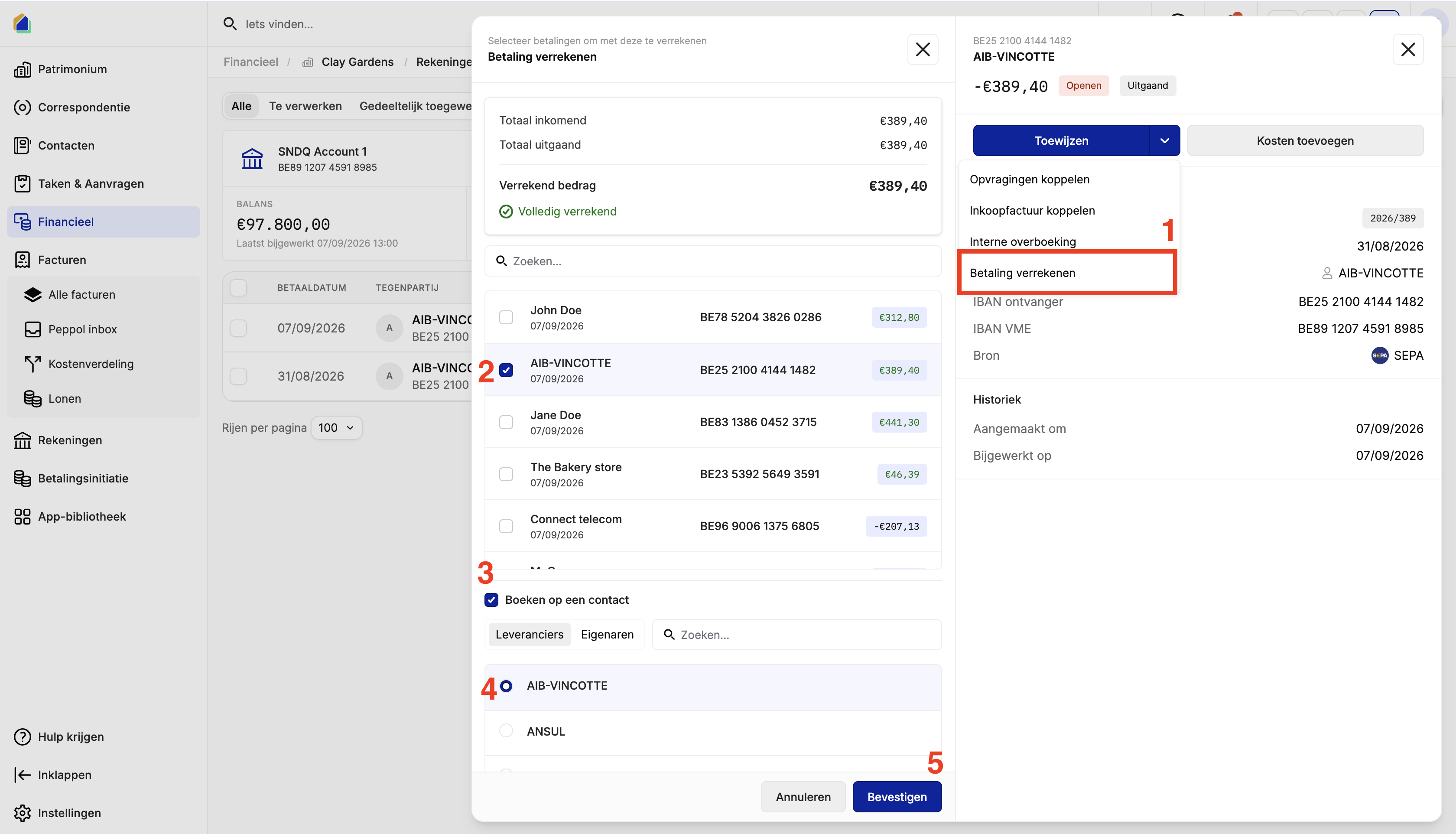
- Open one of the payments
- Click Assign
- Choose Offset payment
Select the payment(s) to offset
In the Offset payment modal:
- Tick the matching payment(s) in the opposite direction
- Check the summary:
| Field | Meaning |
|---|---|
| Total incoming | Sum of selected incoming payments |
| Total outgoing | Sum of selected outgoing payments |
| Offset amount | Amount being offset |
| Fully offset | Shown when incoming and outgoing totals match |
- In this equal-amount example, confirm it shows Fully offset
Book to a contact
- Enable Book to a contact (recommended)
- Open the Suppliers tab (or Owners for an owner offset)
- Select the correct contact
TIP
The contact you book to is chosen here. It does not have to match the free-text counterparty name on the bank line.
Confirm
Click Confirm.
Result
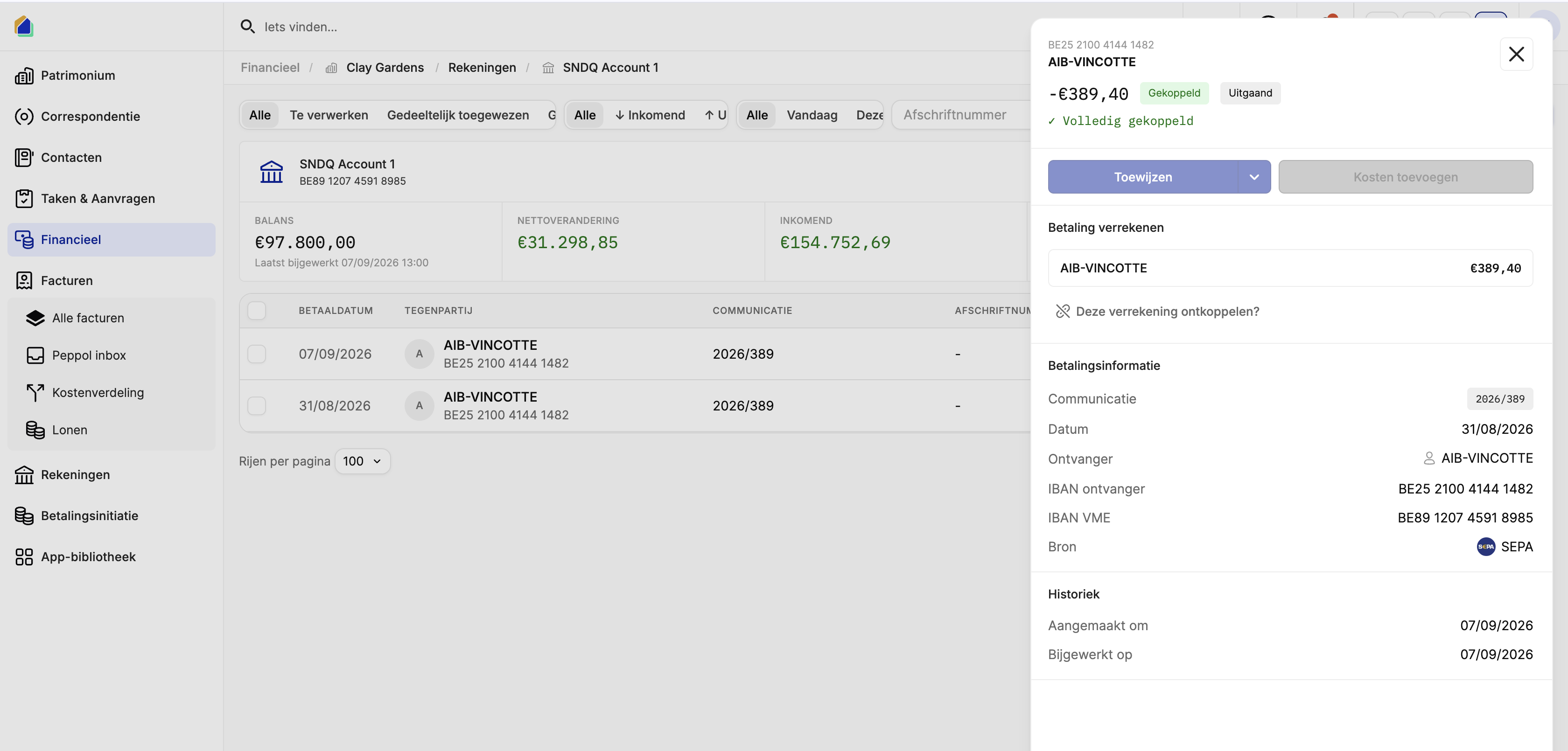
After confirmation (full offset example):
| Before | After |
|---|---|
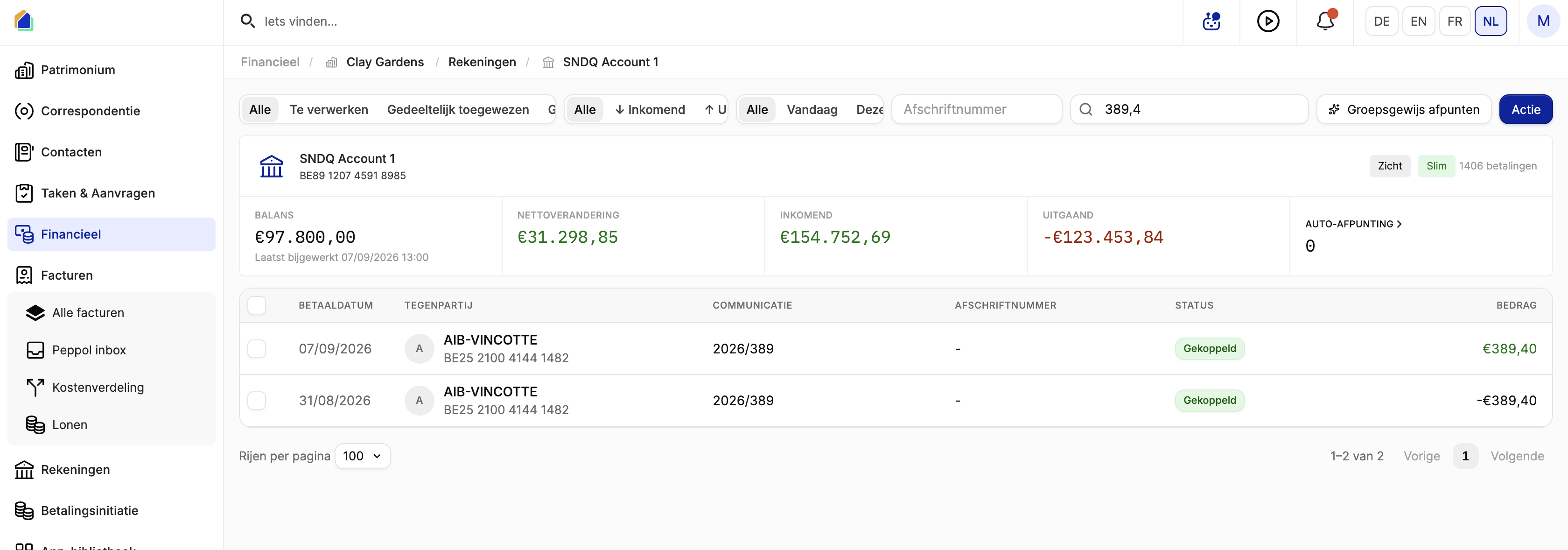
| Status Open | Status Linked (when fully offset) |
| Payments not linked | Detail panel shows Fully linked |
| — | Section Offset payment shows the linked payment |
| — | Option Unlink this offset? is available if you need to undo |
Both lines remain visible in the payment list, but they are now Linked to each other. The offset nets to € 0.
If amounts were unequal, only the overlapping part is offset; any remainder stays available to assign.
Undo the offset
If you need to reverse the offset:
- Open one of the linked payments
- In Offset payment, click Unlink this offset?
Good to know
- You can offset supplier payments (Suppliers) or owner payments (Owners).
- Keep all selected payments in the same building and bank account context.
- Same counterparty name and same amount are common in a “mistaken payment + repayment” case, but neither is a system requirement.
- Partial offset is supported when totals differ; the UI shows Fully offset only when both sides are fully covered.
- Do not use this flow for credit notes — use the invoice / credit note tools instead.
Related articles
Need help?
Contact our team at info@sndq.be or use the Get Help option in the SNDQ application.