

Manage participants & proxies
Before a meeting can proceed with voting, you need to register which owners are present, absent, or represented by proxy. RSVP lets you manage responses before the meeting, and attendance registration records the actual presence on the day.
Participants overview
Go to your meeting and click the Participants tab. You see a table with all co-owners:
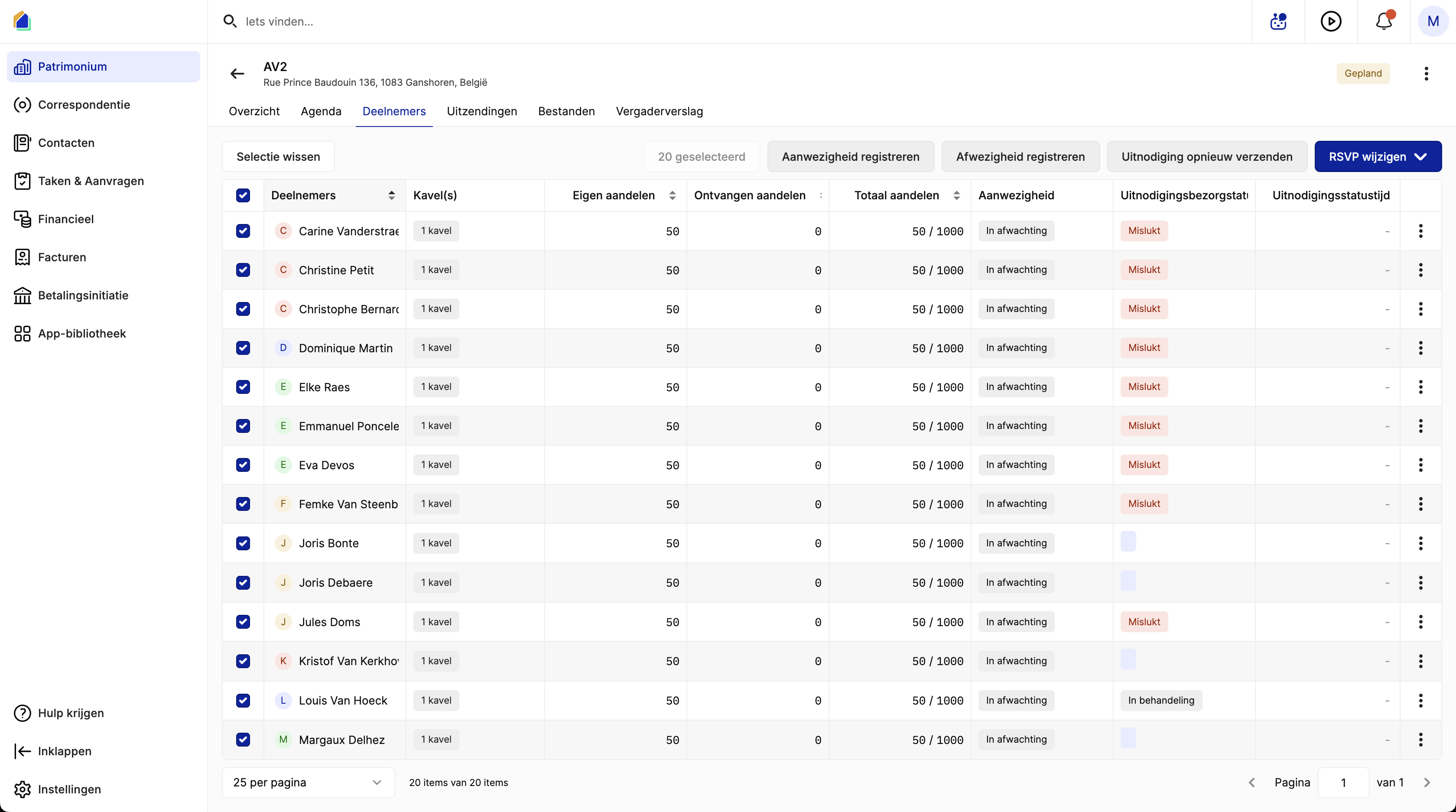
| Column | Description |
|---|---|
| Participant | Name of the co-owner |
| Units | Number of units owned |
| Own shares | Shares held by the co-owner |
| Received shares | Shares received via proxy |
| Total shares | Own shares + received shares out of total |
| Attendance | Current attendance status |
| Invitation delivery status | Whether the invitation was delivered successfully |
| Invitation status time | Timestamp of the invitation status |
RSVP — manage responses
Bulk RSVP update
Select participants using the checkboxes (or select all), then click Change RSVP in the top right. A dropdown appears with three options:
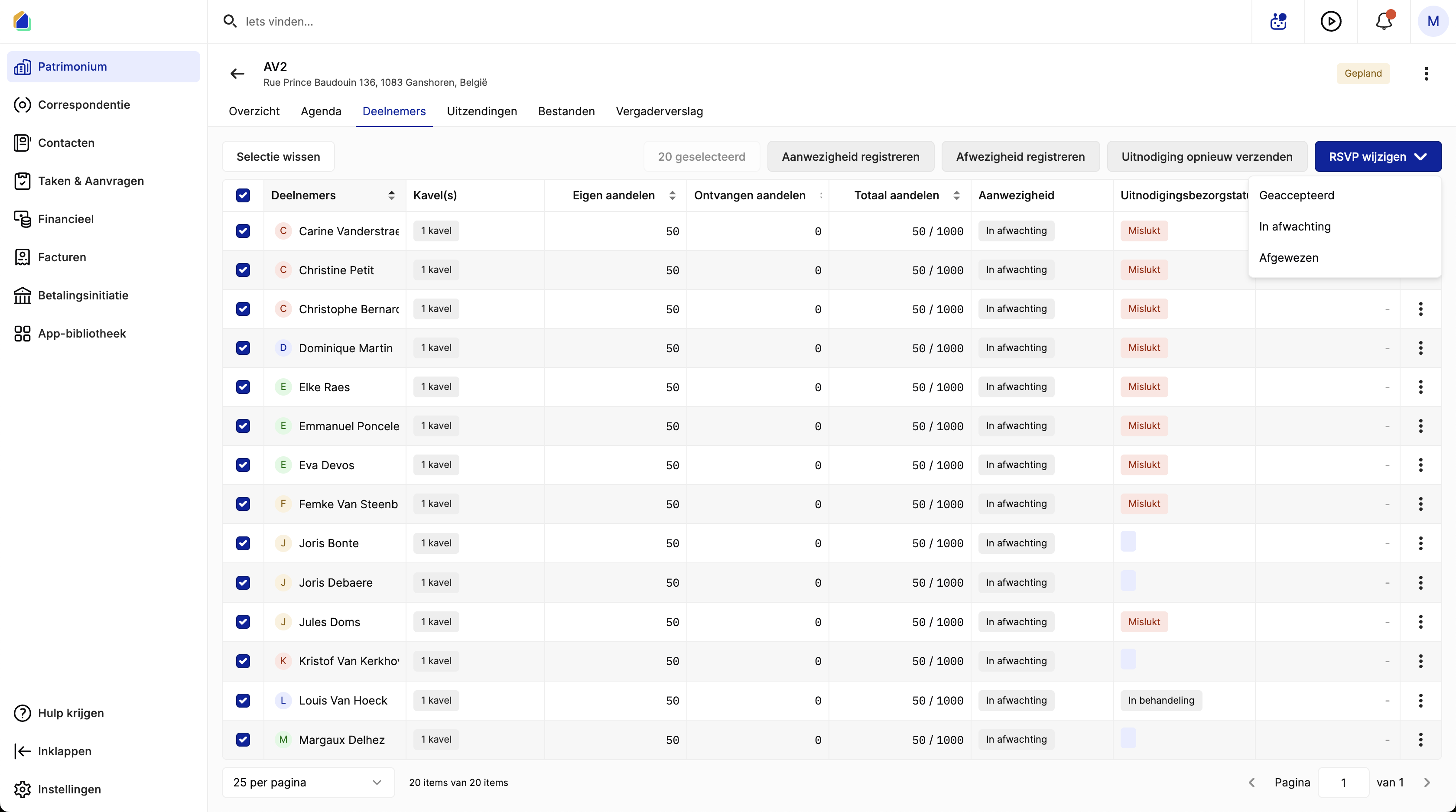
| Status | Description |
|---|---|
| Accepted | The co-owner confirmed attendance |
| Pending | No response yet (default) |
| Rejected | The co-owner declined the invitation |
| Transferred | The co-owner has transferred their voting shares to another participant |
Individual RSVP
Select a single participant and click Change RSVP. A side panel opens where you can set the status and configure proxy shares:
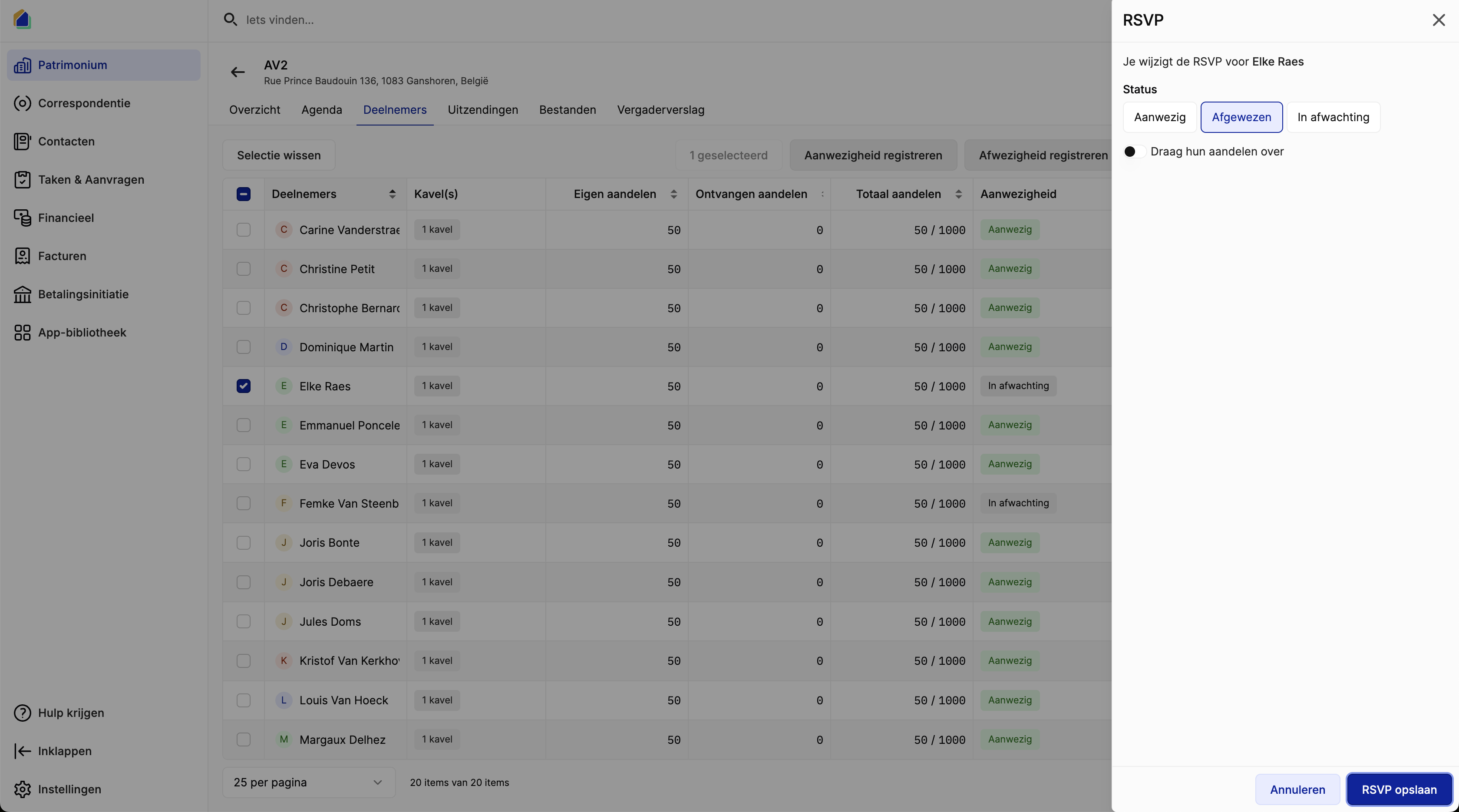
| Field | Description |
|---|---|
| Status | Choose: Present, Rejected, or Pending |
| Transfer their shares | When Rejected — assign this owner's voting shares to another present owner (proxy) |
| Receive shares from another owner | When Present — receive shares from an absent owner |
Click Save RSVP to confirm.
Proxies
A co-owner who cannot attend can delegate their voting power to another person.
When an owner is marked as Rejected
Enable Transfer their shares to assign their voting shares to another owner who is present. The receiving owner's Received shares column will update, and their Total shares increases accordingly.
When an owner is marked as Present
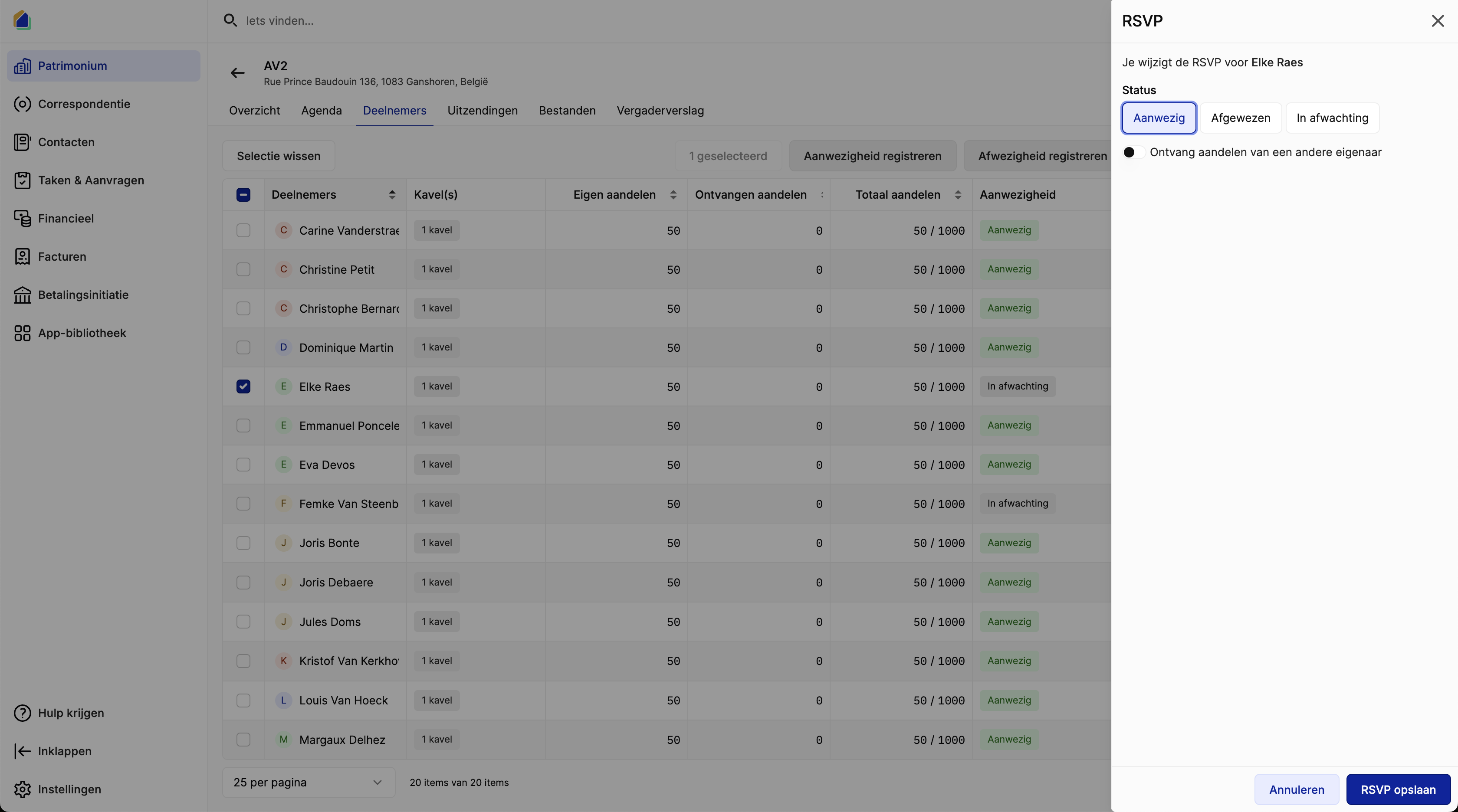
Enable Receive shares from another owner to accept proxy shares from an absent owner.
TIP
To transfer shares to another co-owner, the receiving owner must have already accepted the meeting invitation. External proxies do not have this requirement.
Transfer to an external proxy
A co-owner can also transfer their shares to an external person who is not a co-owner of the building. This creates a proxy participant in the system.
When transferring to an external proxy:
| Field | Description | Required |
|---|---|---|
| First name | First name of the proxy | Yes |
| Last name | Last name of the proxy | Yes |
| Email address of the proxy | No | |
| Phone | Phone number of the proxy | No |
The proxy participant appears in the participants list but is not linked to a contact record. Per Belgian law, written proof of the proxy appointment is required.
Belgian proxy rules
When configuring proxy transfers, Belgian co-ownership law (Article 3.87) applies automatic restrictions to prevent concentration of voting power.
| Rule | Description |
|---|---|
| Maximum 3 proxies | A proxy holder may receive proxies from a maximum of 3 other owners, unless their total voting power (own shares + received shares) remains at or below 10% of the total building shares |
| Maximum voting power (50%) | No single person may hold more than 50% of the total building shares through their own shares combined with received proxies |
The system validates these rules automatically. If a transfer would violate these limits, it is rejected with an error message explaining which rule was violated.
TIP
Use the transfer validation to check if a proxy transfer is allowed before confirming it. The system shows the specific reason if a transfer is blocked.
Register attendance
On the day of the meeting, you register the actual attendance. Select participants using the checkboxes, then use the bulk action buttons in the toolbar:
| Button | Description |
|---|---|
| Register attendance | Mark selected participants as Present |
| Register absence | Mark selected participants as Absent |
| Resend invitation | Resend the invitation to selected participants |
After registering attendance, the list updates with colored status labels:
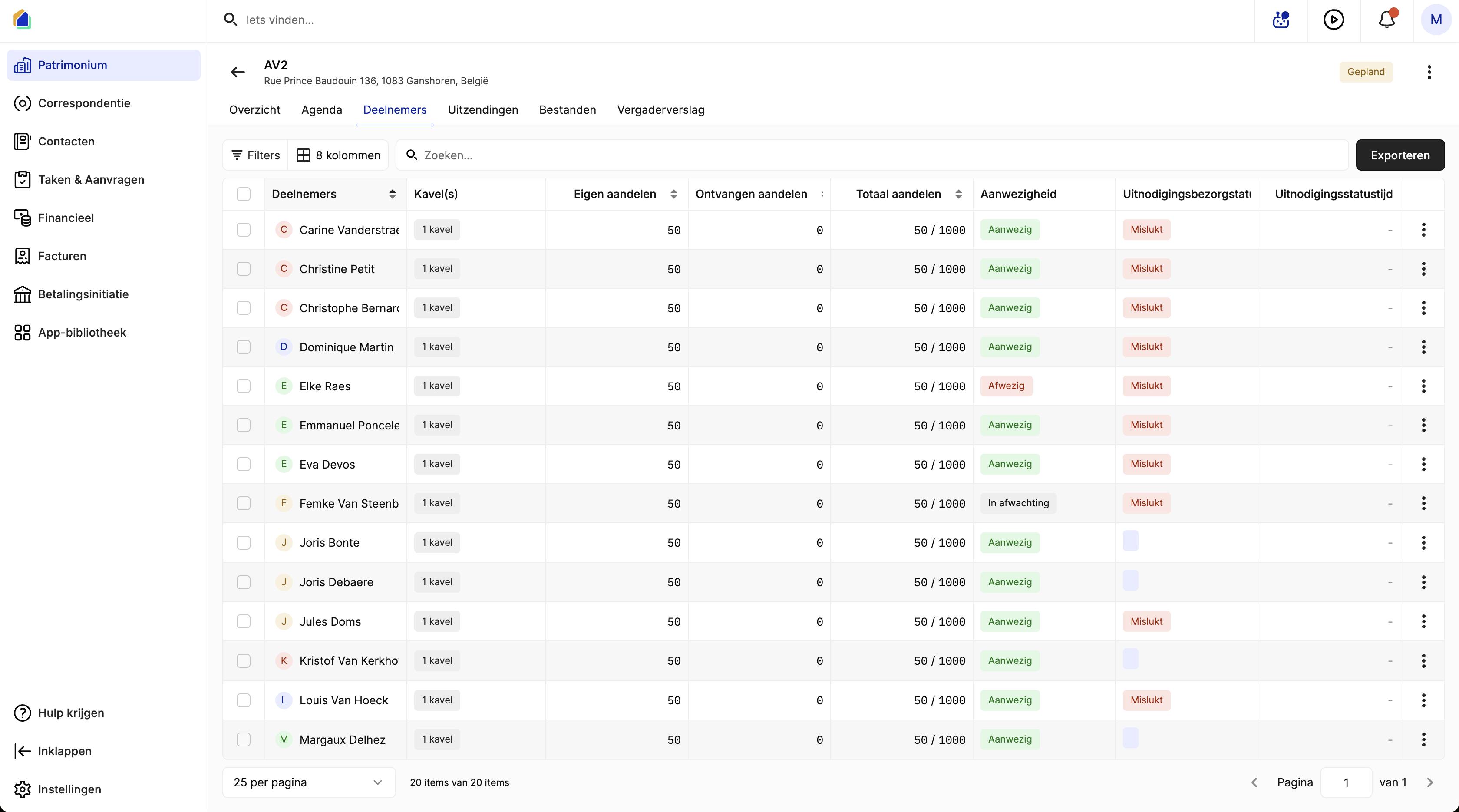
| Status | Color | Description |
|---|---|---|
| Present | Green | Owner is present at the meeting |
| Absent | Red | Owner is absent |
| Pending | Grey | Attendance not yet registered |
Resend invitation
If the invitation delivery failed, check the Invitation delivery status column. Select the affected participants and click Resend invitation to retry delivery.
| Status | Description |
|---|---|
| Failed | Invitation could not be delivered (e.g. no email address, invalid email) |
| Processing | Invitation is being processed or sent |
| (empty) | No invitation sent yet |
Export attendance list
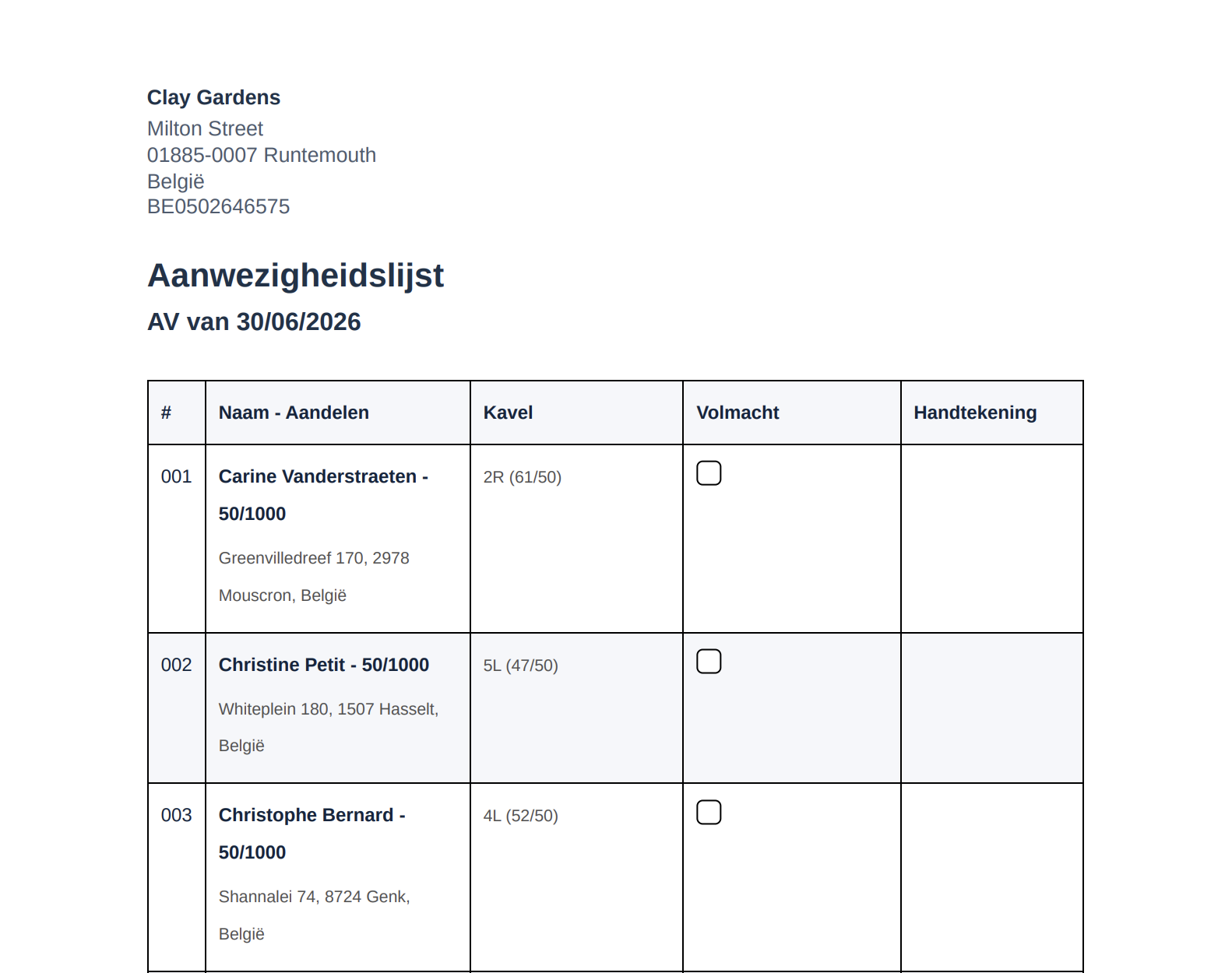
Click Export in the top right to download the participant list as a PDF document for use during the meeting.
The exported PDF contains:
| Section | Content |
|---|---|
| Header | Building name, address, country, and enterprise number |
| Title | Attendance list with meeting name and date |
Per participant, the PDF shows:
| Column | Description |
|---|---|
| # | Sequence number |
| Name — Shares | Full name, share count, and address |
| Unit | Unit number with floor and unit details |
| Proxy | Checkbox to mark if the participant gave a proxy |
| Signature | Signature field for the participant or proxy holder |
At the bottom, the PDF includes fields for the total number of co-owners present or represented, total shares present, total units, and total shares. Signature fields for the syndicus and chairperson are also included.
TIP
Print the attendance list before the meeting starts so participants can sign on arrival.
Workflow summary
| Step | Action | When |
|---|---|---|
| 1 | Send invitations | Before the meeting (via Broadcasts tab) |
| 2 | Manage RSVP | As owners respond — update accepted / rejected / pending |
| 3 | Assign proxies | For absent owners — transfer shares to a present owner |
| 4 | Register attendance | On the day of the meeting — mark present / absent |
| 5 | Proceed to voting | After attendance is registered — vote registration becomes available |
Video — Full flow: manage participants & proxies
Good to know
- Attendance must be registered before voting — the system uses the attendance list to determine who can vote and their effective voting weight.
- Proxy shares affect voting — when an absent owner's shares are transferred, the receiving owner votes with their combined shares.
- RSVP vs. Attendance — RSVP is the owner's pre-meeting response (will they come?). Attendance is the actual registration on the day (are they here?). Both can differ.
- Failed invitations — if an invitation shows Failed, check if the owner has a valid email address in their contact record.
- Bulk actions — select multiple participants to update RSVP, register attendance, or resend invitations in bulk.
- Belgian law limits apply — proxy transfers are validated automatically: max 3 proxies (unless total voting power stays at or below 10%), and a 50% voting power cap.
- External proxies — shares can be transferred to persons who are not co-owners of the building. These proxy participants are identified by name and email.
Related articles
Need help?
Contact our team at info@sndq.be or use the Get Help option in the SNDQ application.