

Transfer fees to your steward account
After confirming and paying owner settlements, owners owe you management fees (withholdings) for your services. The Transfer costs feature lets you collect these fees by initiating a payment from the third-party account into your own steward account.
Prerequisite
Owner settlements must be confirmed (status Paid) and have withholdings > €0. See Confirm and pay owner payouts.
Video — Full flow: transfer owner fees
Find settlements with costs to collect
Go to Financial > Owner settlements.
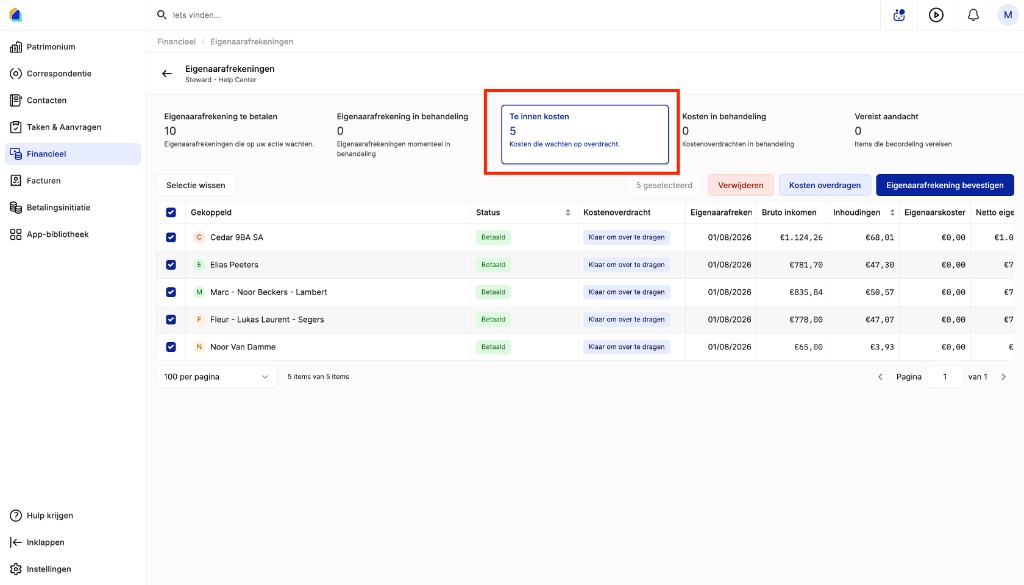
On the dashboard, look at the Costs to collect card. This shows how many settlements have management fees waiting to be transferred to your account.
In the list, eligible settlements show:
- Status: Paid
- Cost transfer: "Ready to transfer" — shown as a blue link
Select settlements and start transfer
- Use the checkboxes to select the settlements you want to collect fees from.
- Click Transfer costs in the toolbar.
Review recipient details
The transfer flow is a two-step wizard:
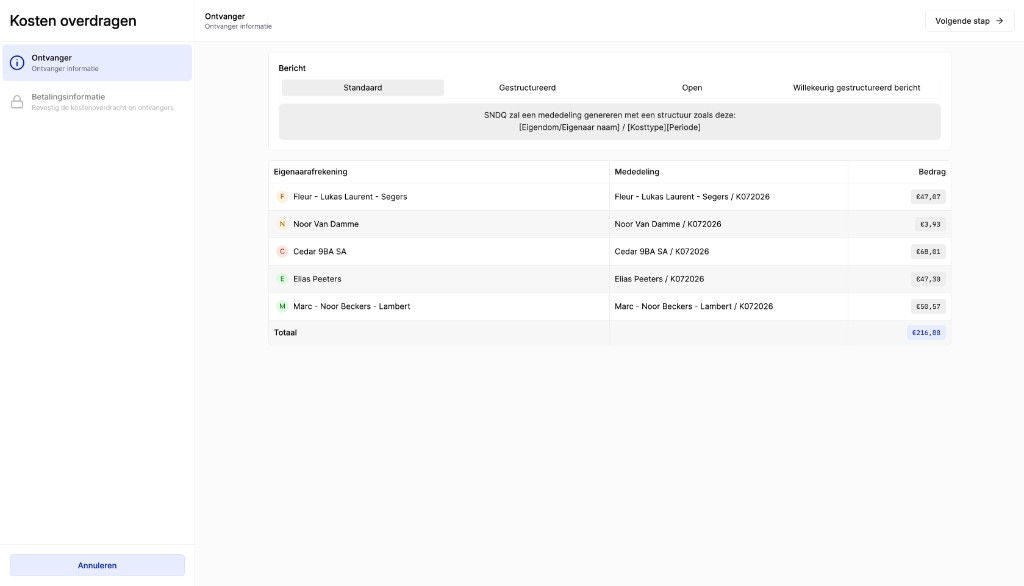
- Recipient — review who receives the fees (current step)
- Payment information — confirm bank account and amount
Payment communication
Choose how the payment description appears on the bank statement:
| Option | Description |
|---|---|
| Standard | Auto-generated message: `[Property/Owner name] / [Cost type] |
| Structured | Belgian structured communication format |
| Open | Free-text message |
| Random structured message | System-generated structured reference |
Fee breakdown
The table shows each owner and the fee amount to collect:
| Column | Description |
|---|---|
| Owner settlement | Owner name |
| Communication | Payment reference — e.g. "Fleur - Lukas Laurent - Segers / K072026" |
| Amount | Management fee to collect from this owner |
The Total at the bottom shows the sum of all fees (e.g. €216.88).
Click Next step → to continue.
Confirm payment information
This step shows where the collected fees will go and from which account the transfer is initiated.
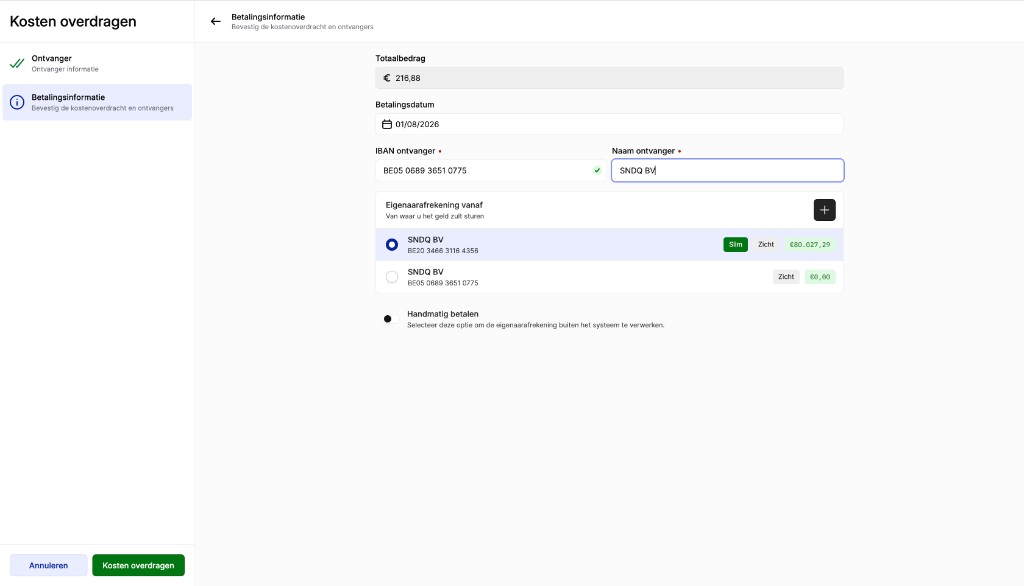
| Field | Description |
|---|---|
| Total amount | Total fees to collect |
| Payment date | Date of the cost transfer |
| Recipient IBAN | Your steward company IBAN — where the fees will be received |
| Recipient name | Your company name |
Source bank account
Select the bank account from which the cost transfer will be initiated. Each account shows:
- Account name and IBAN
- Account type: Smart or Current
- Available balance
TIP
Use a Smart bank account for automated processing via Isabel Connect or Ponto Connect.
The Pay manually option is also available if you prefer to process the transfer outside SNDQ.
Click Transfer costs to confirm.
Verify transfer status
After confirming the cost transfer, go back to Financial > Owner settlements.
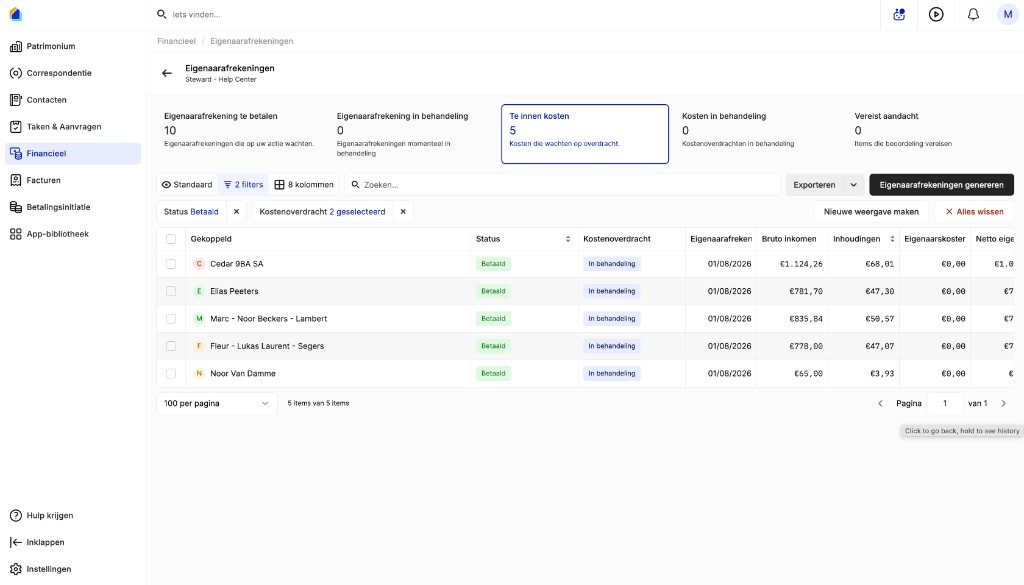
The Cost transfer column updates to In processing. You can filter the list by status to track progress.
Cost transfer statuses
| Status | Meaning |
|---|---|
| Not yet ready | Settlement not yet confirmed — cost transfer not available |
| Ready to transfer | Settlement is paid, fees can now be collected |
| In processing | Transfer has been initiated, waiting for bank processing |
| Completed | Fees successfully received in your steward account |
WARNING
If using a Smart account, the transfer is processed automatically. If using Pay manually, download the SEPA file from Payment initiation and upload it to your banking portal. See Sign and send payments.
Related articles
Need help?
Contact our team at info@sndq.be or use the Get Help option in the SNDQ application.