

Confirm and pay owner payouts
After generating owner settlements, use this flow to review, confirm, and initiate the actual bank payment to property owners. You can pay automatically via a Smart bank account (recommended) or manually via a SEPA file.
Prerequisite
Owner payouts must be generated first. See Generate owner payouts.
Select payouts to confirm
Go to Financial > Owner settlements. Select the payouts you want to confirm using the checkboxes, then click Confirm owner settlement.
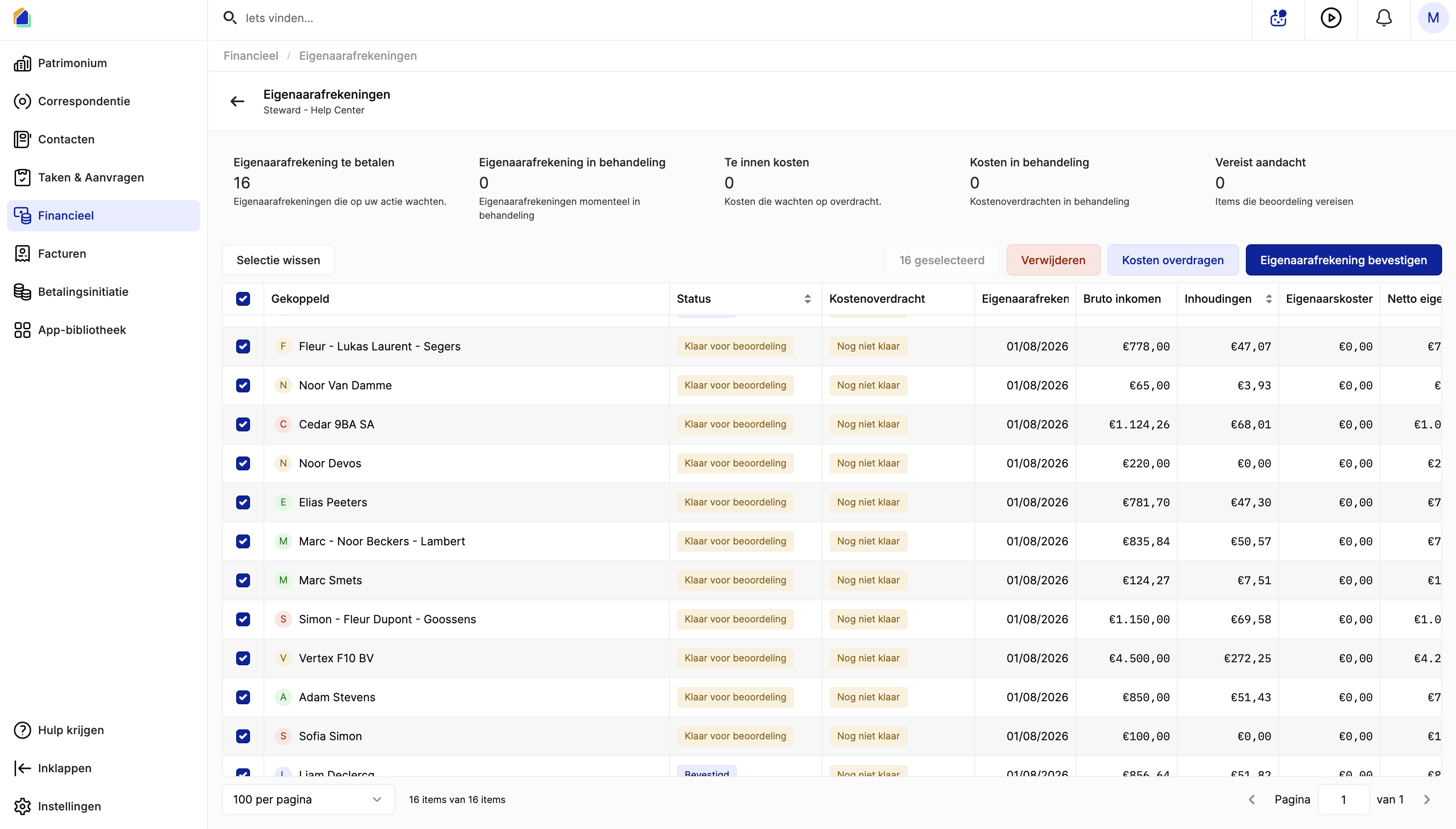
| Toolbar button | Description |
|---|---|
| Clear selection | Deselects all items |
| Delete | Deletes selected payouts |
| Transfer costs | Initiates cost transfer for selected payouts |
| Confirm owner settlement | Proceeds to the confirmation flow |
WARNING
Only payouts with status Ready for review can be confirmed.
The confirmation wizard
The wizard has two steps: Details and Confirm settlement.
Video — Full flow: confirm and pay owner payouts
Details
Review payment communication and the owner breakdown.
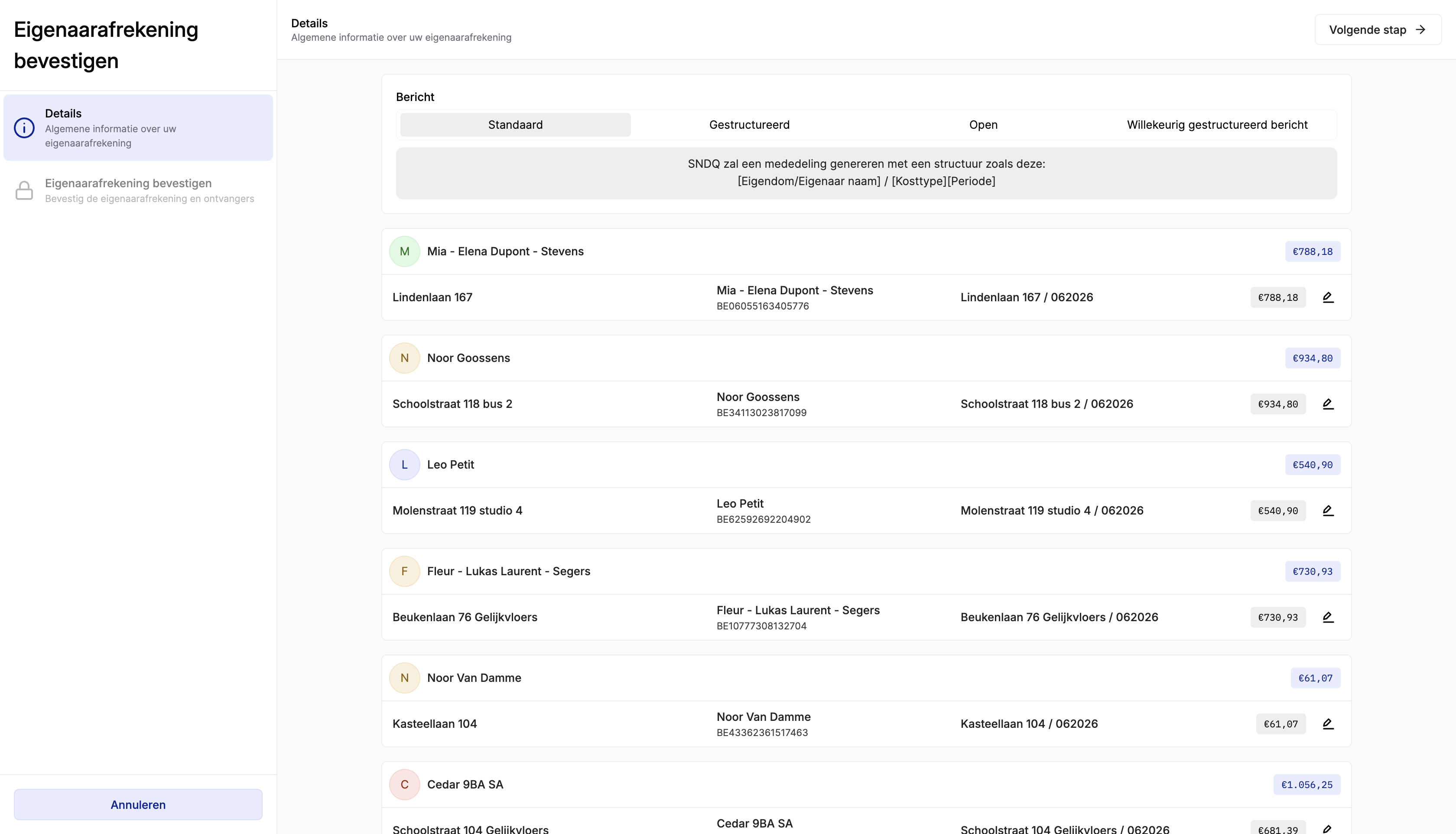
Payment communication
Choose how the payment description appears on the bank statement:
| Option | Description |
|---|---|
| Standard | Auto-generated message with structure: [Property/Owner name] / [Cost type|Period] |
| Structured | Structured payment reference (Belgian structured communication format) |
| Open | Free-text message — you write the communication yourself |
| Random structured message | System-generated structured reference |
Below the message options, a detailed breakdown shows each owner's payout with: property address, owner name and IBAN, payment reference, and amount. The total amount per owner is shown in the colored badge. Click the pencil icon to modify individual payment details.
Click Next step to continue.
Confirm settlement and select bank account
This is the most important step — you choose where the money comes from and how it reaches the owners.
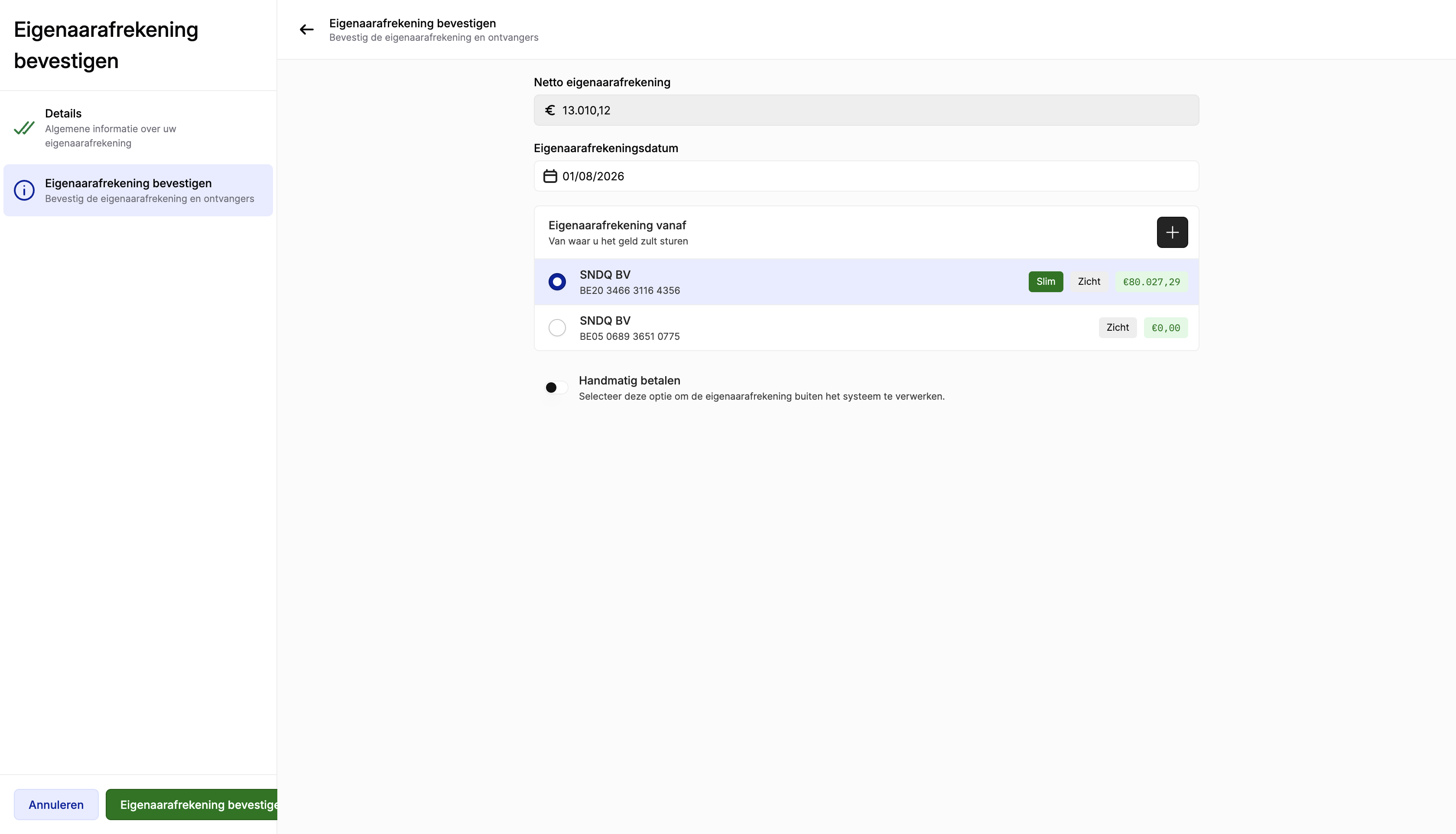
| Field | Description |
|---|---|
| Net owner settlement | Total amount to be paid out |
| Owner settlement date | Date of the settlement |
| Owner settlement from | Source bank account — select where the money will be sent from |
The system lists your configured bank accounts. Each shows the company name, IBAN, account type badge (Smart or Current), and available balance.
Payment method
| Method | How it works | When to use |
|---|---|---|
| Smart bank account | SEPA file is automatically transmitted to Isabel Connect or Ponto Connect. No manual action required. | Always use this when available |
| Manual payment | A SEPA file is generated. You must download it and upload it to your banking portal. | Only when Smart integration is not configured |
Best practice
Always prefer a Smart bank account. With a Smart account connected to Isabel Connect or Ponto Connect, the SEPA payment file is transmitted automatically, payment status updates automatically, and there is no risk of forgetting to upload the file.
Confirm with Smart account
- Select the bank account with the Smart badge.
- Verify the balance is sufficient.
- Click Confirm owner settlement.
The SEPA file is automatically sent to your banking integration — no further action needed.
Confirm with manual payment
If you toggle on Manual payment, a warning appears:
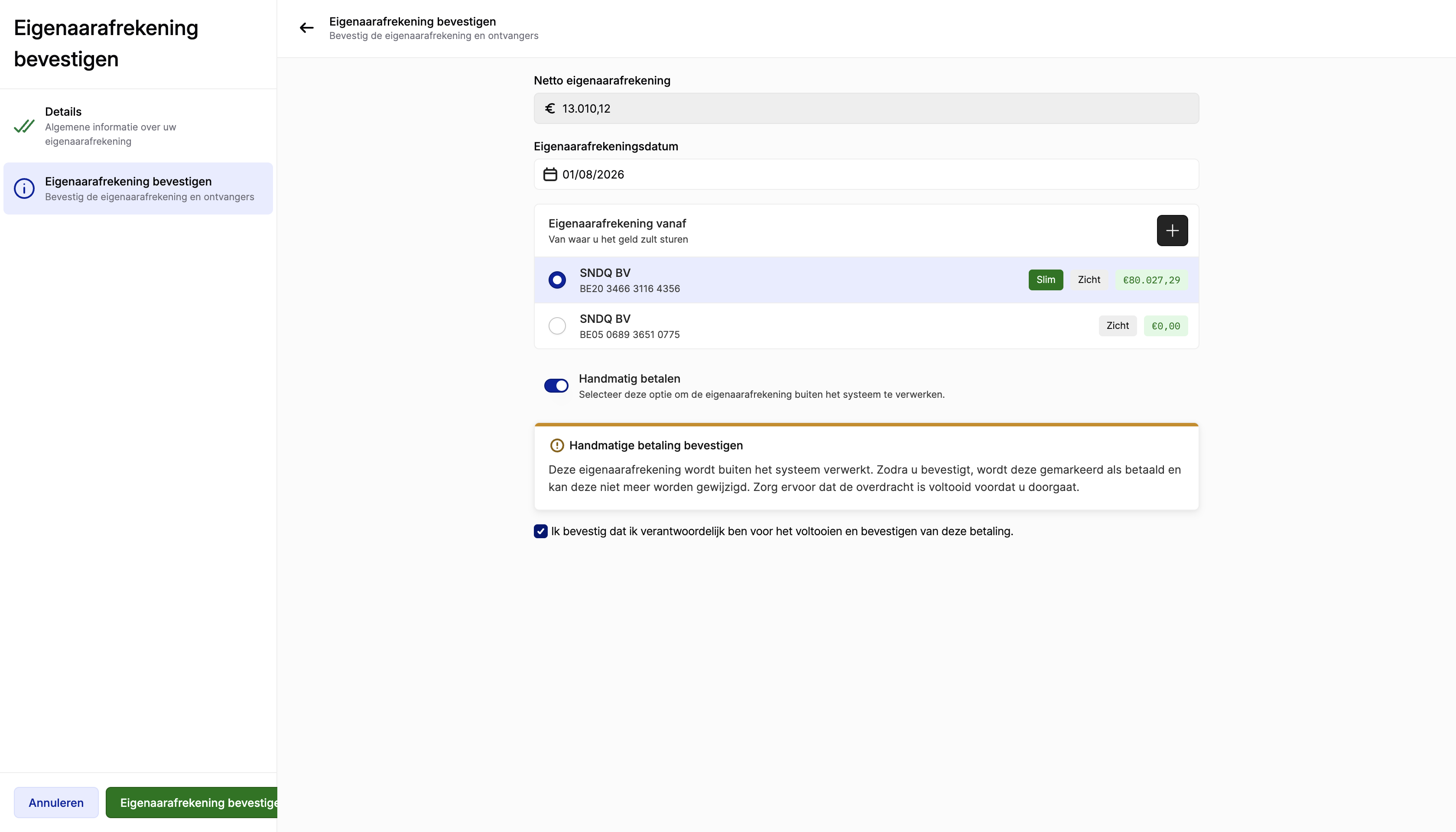
- Read the warning: the settlement will be processed outside the system and marked as paid — it cannot be modified afterwards.
- Check the confirmation box: "I confirm that I am responsible for completing and confirming this payment."
- Click Confirm owner settlement.
WARNING
After confirming a manual payment, the settlement is permanently marked as paid and cannot be undone. Make sure the bank transfer is actually completed before confirming.
Track payment in Payment initiation
After confirmation, go to Payment initiation (in the left sidebar) to track the payment.
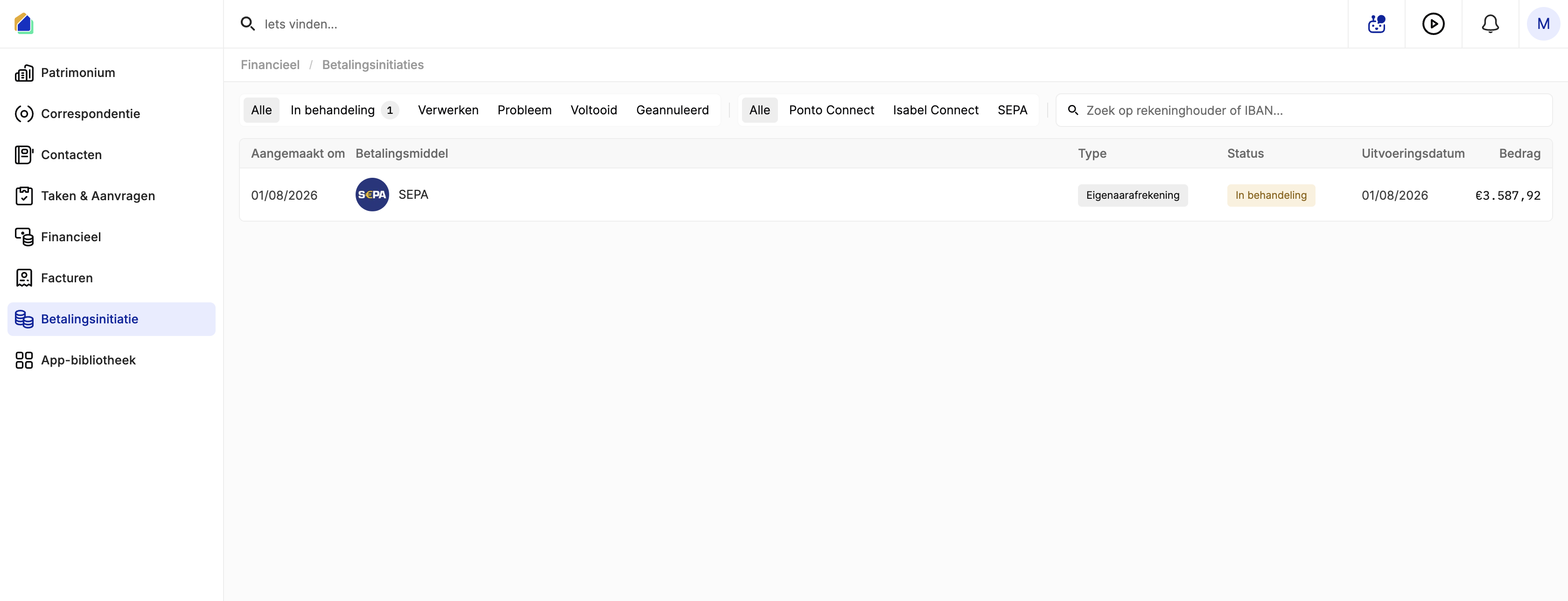
Click on a payment row to open the detail panel:
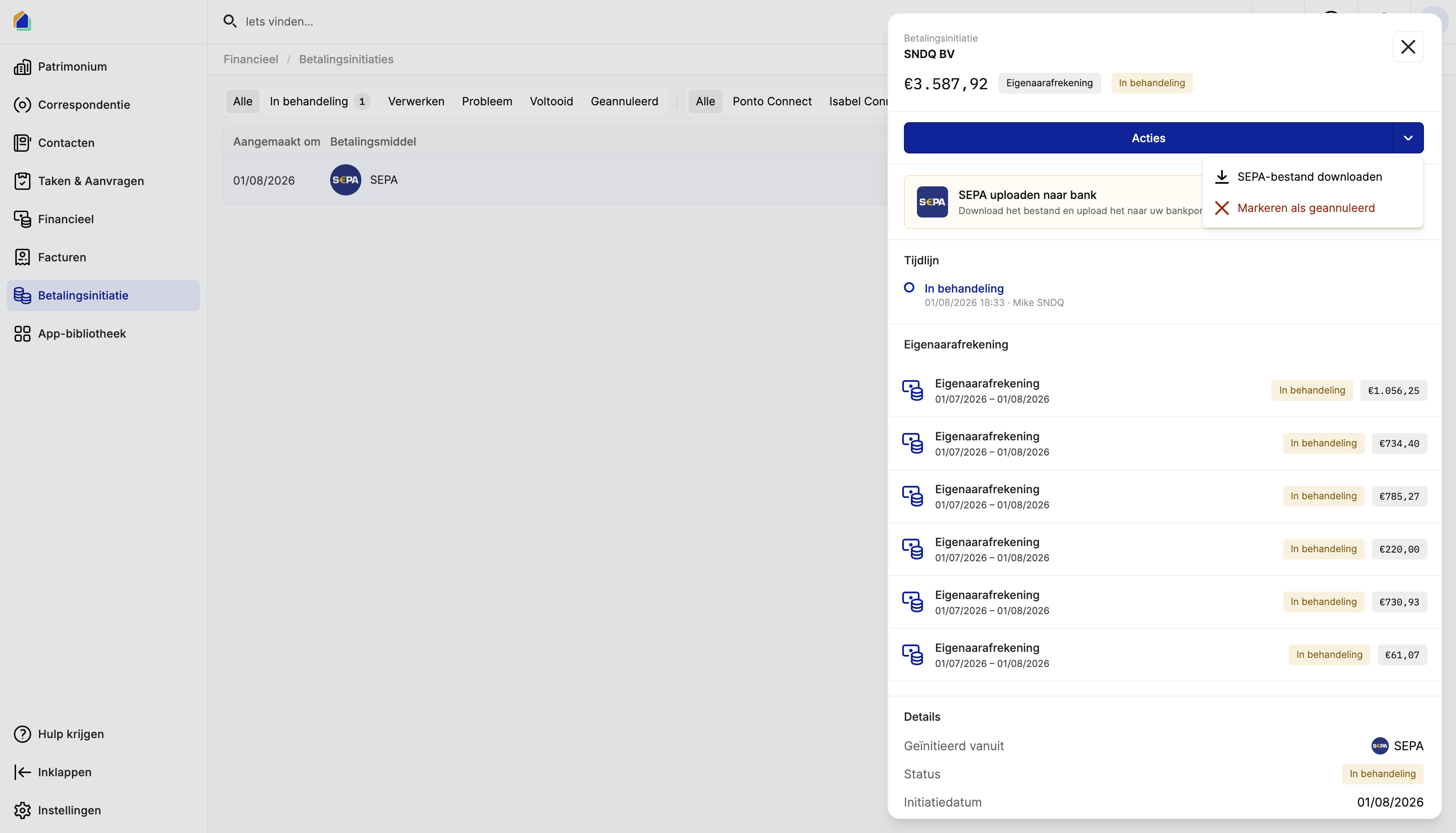
| Section | Description |
|---|---|
| Actions dropdown | Download SEPA file (for manual payments) or Mark as cancelled |
| Upload SEPA to bank | Reminder to download and upload (manual payments only) |
| Timeline | History of status changes with timestamps |
| Owner settlement list | Breakdown of all individual owner settlements in this batch |
| Method | What happens after confirmation |
|---|---|
| Smart | SEPA file is auto-transmitted → Status updates automatically → Nothing more to do |
| Manual | Click Actions > Download SEPA file → Upload it to your Isabel/Ponto banking portal |
Good to know
- Review the Details step carefully — once confirmed, amounts and recipients cannot be changed.
- You can confirm payouts in batches — select multiple payouts at once for efficient processing.
- If a payment shows Problem status in Payment initiation, check with your bank or verify the owner's IBAN in their contact profile.
- Owner bank accounts (IBANs) must be configured in Contacts before confirming payouts.
Related articles
- Generate Owner Payouts
- Transfer Owner Fees
- Sign and Send Payments
- Connect Ponto Account
- Set up Isabel Connect
Need help?
Contact our team at info@sndq.be or use the Get Help option in the SNDQ application.