

Frequently Asked Questions (FAQ)
Quick answers to common questions about SNDQ.
Coming soon
Detailed documentation for this feature is being developed. Check back soon for step-by-step instructions.
Related articles
Payments
How do I unlink a payment after assigning a payment request?
If a payment request is already linked to an incoming payment, but you need to adjust the requested amount (for example due to a pro rata agreement), follow these steps:
- Unlink the payment from the payment request
- Adjust the amount of the payment request
- Link the payment again to the updated request
Indexation
How do I correct a wrong indexation?
You applied an indexation to a rental contract, but the indexed amount is incorrect (e.g. too high or miscalculated). A revision won't work here — it only adjusts the amount when the new amount is higher than the current indexed amount. To lower the amount, follow the steps below.
Step 1 — Remove payment request adjustments
- Find the payment requests that were created after the incorrect indexation
- Remove these payment request adjustments
Step 2 — Remove the incorrect indexation and revision
- Go to the rental contract → Revisions tab
- Remove the incorrect indexation
- Also remove any revision you may have already created
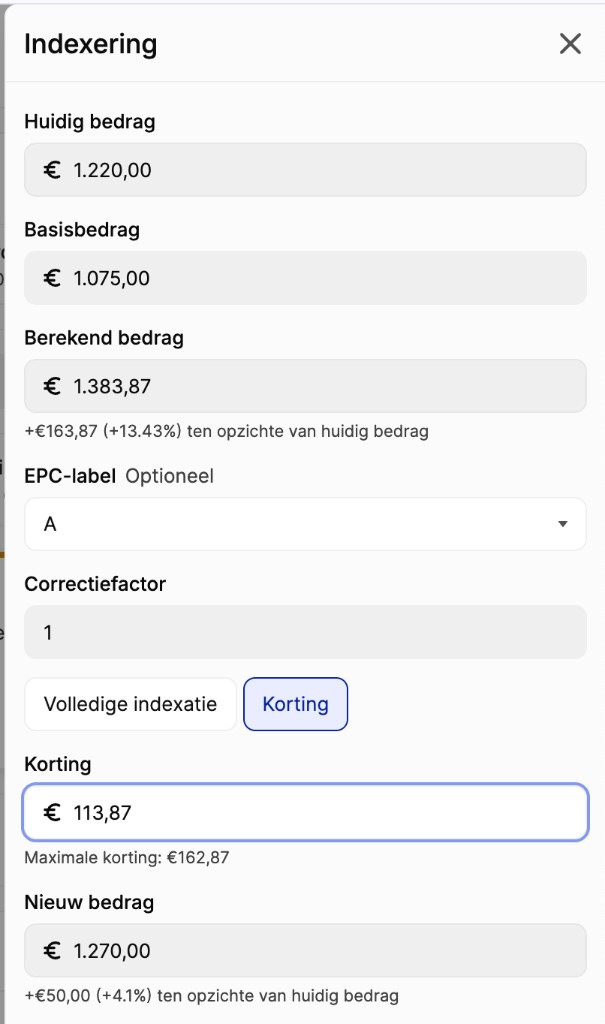
Step 3 — Re-create the indexation with a discount
- Click Add indexation
- The system automatically calculates the indexed amount (Calculated amount)
- If this amount is higher than the desired amount, select Discount
- Enter the discount amount so that the New amount is exactly correct
- Example: Calculated amount €1,383.87 → Discount €113.87 → New amount €1,270.00
Step 4 — Select retroactive adjustments
- At the Retroactive check step, payment request adjustments will appear
- Select all adjustments so that new payment requests are created to replace the ones removed in step 1
- Confirm the indexation
TIP
- Always check the Base amount and Correction factor before confirming the indexation.
- The EPC label can affect the indexed amount.
- After correcting, check the Rent calculation under Financial → Queries to verify the correct amount is being requested.