

Set up Isabel Connect
You can configure Isabel Connect so SNDQ can synchronize your incoming and outgoing payments.
Step-by-step
1) Configure Isabel
Configure Isabel using the settings you received from us. Most importantly, make sure Isabel Connect is enabled.
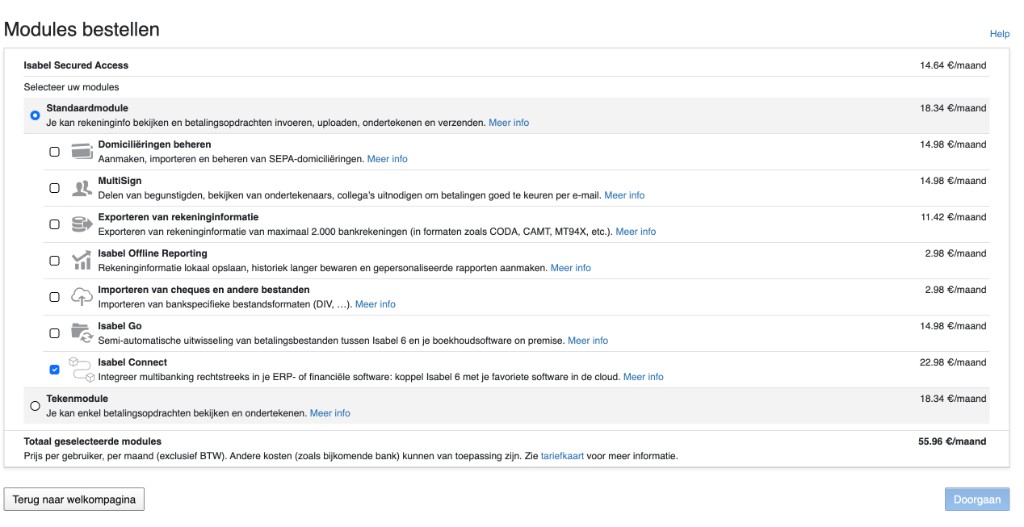
2) Complete the setup in SNDQ
After configuring Isabel, you still need to complete a few steps in SNDQ so payments can synchronize correctly.
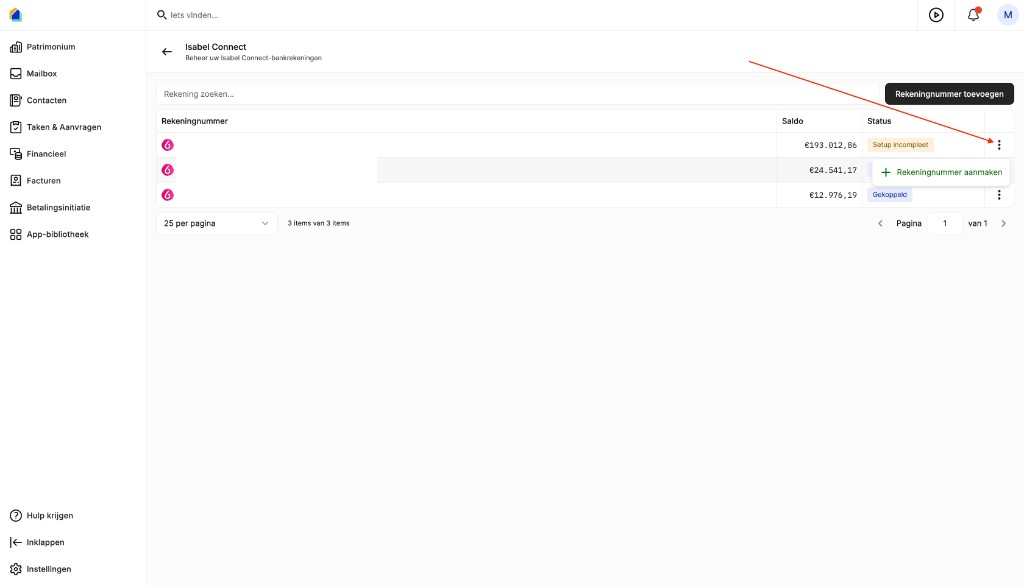
- Go to
Settings(bottom left) - Open the
Integrationstab - Select
Isabel Connect - Click
⋯(three dots) and create your account (as shown in the screenshot)
3) Wait for synchronization
If everything is set up correctly, payments will synchronize with SNDQ within 24 hours.
View payments in SNDQ
After that, you can:
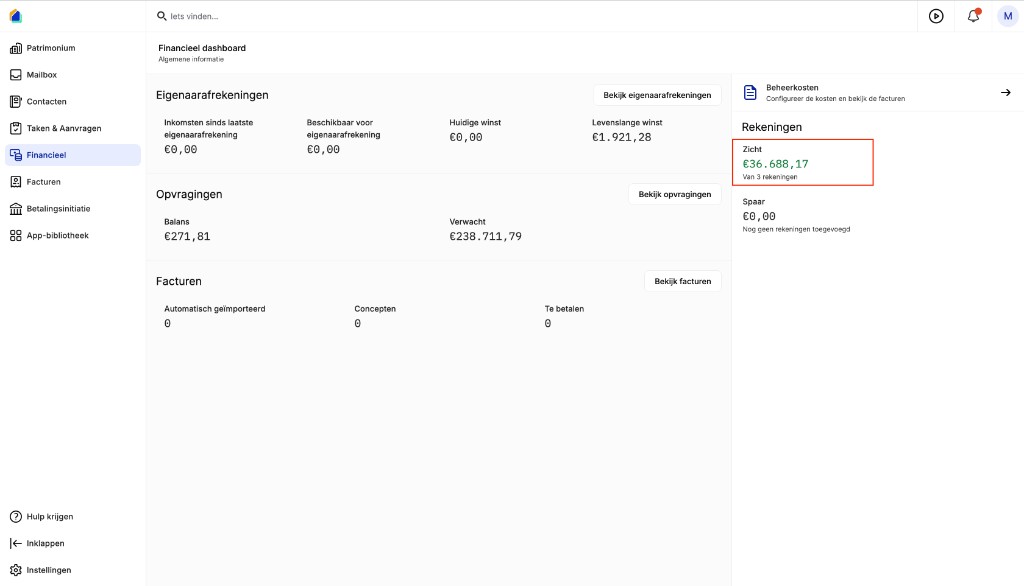
- Go to
Financial→ open the bank account - See all incoming and outgoing payments
Need help?
If anything is unclear, reach out to us at info@sndq.be or use Get help in the SNDQ app.